> For the complete documentation index, see [llms.txt](https://docs.defguard.net/llms.txt). Markdown versions of documentation pages are available by appending `.md` to page URLs; this page is available as [Markdown](https://docs.defguard.net/features/openid-connect/django.md).
# Django
This article aims to show the basic integration of authenticating users through **Defguard** via **OpenID Connect**. So you can have a solid start to adjust it for your own use case.
## The Setup
### Domain
This guide assumes both **Defguard** and **Django** are running on **localhost**.
### Defguard
We will run Defguard instance on default port 8000.
{% hint style="info" %}
You can learn how to launch your Defguard instance in the following article: [Overview](/deployment-strategies/overview.md)
{% endhint %}
#### Configuration
For our example to work on localhost we will need to change the following variables in Defguard:
| Variable | Value |
| -------------------------- | ----------------------- |
| DEFGUARD\_URL | |
| DEFGUARD\_COOKIE\_DOMAIN | localhost |
| DEFGUARD\_COOKIE\_INSECURE | true |
{% hint style="danger" %}
Because we use **localhost** domain we need to set cookies to insecure, **DON'T** do this in a production environment.
{% endhint %}
Next, we need to configure the OpenID module to use RSA key instead of the default HMAC, this is due to Authlib being incompatible with HMAC.
Generate RSA key with the following command:
```sh
openssl genpkey -out rsakey.pem -algorithm RSA -pkeyopt rsa_keygen_bits:2048
```
Now we need to set **DEFGUARD\_OPENID\_KEY** variable to path pointing to that *rsakey.pem* file.
When starting Defguard now you should be able to see the following info log:
```log
INFO defguard: Using RSA OpenID signing key
```
### Django
This section will explain how to setup a fresh Django example project.
We will use [poetry](https://python-poetry.org/) as a package manager but [pip](https://pip.pypa.io/en/stable/) will also work fine.
#### Project
Setup a new project with poetry, we will name it *django-project*.
```sh
poetry new django-project && cd ./django-project
```
Delete the generated ***django\_project*** directory, we don't need it.
```sh
rm -rd ./django_project/
```
#### Packages
Install the following Python packages:
* django
* django-jazzmin
* Authlib
* requests
```sh
poetry add django django-jazzmin Authlib requests
```
#### Django
Now we will make Django project and add **oauth** app.
```sh
poetry run django-admin startproject example .
```
```
poetry run ./manage.py startapp oauth
```
With this, we should have a directory structure close to this:
```
├── example
│ ├── asgi.py
│ ├── __init__.py
│ ├── __pycache__
│ ├── settings.py
│ ├── urls.py
│ └── wsgi.py
├── manage.py
├── oauth
│ ├── admin.py
│ ├── apps.py
│ ├── __init__.py
│ ├── migrations
│ ├── models.py
│ ├── tests.py
│ └── views.py
├── poetry.lock
├── pyproject.toml
└── README.md
```
## Register OpenID App
We need to register our Django application as an OpenID client in Defguard.
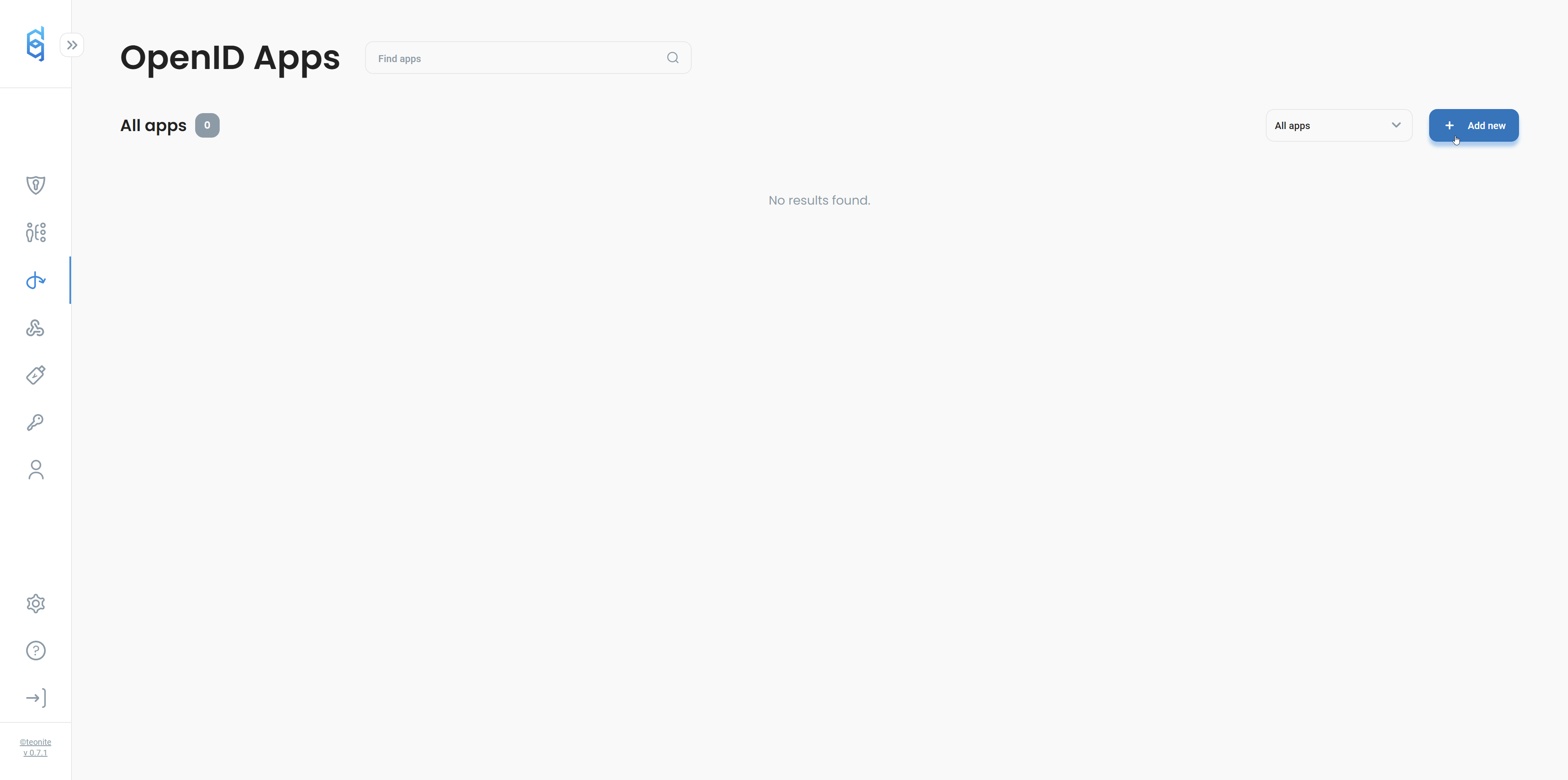
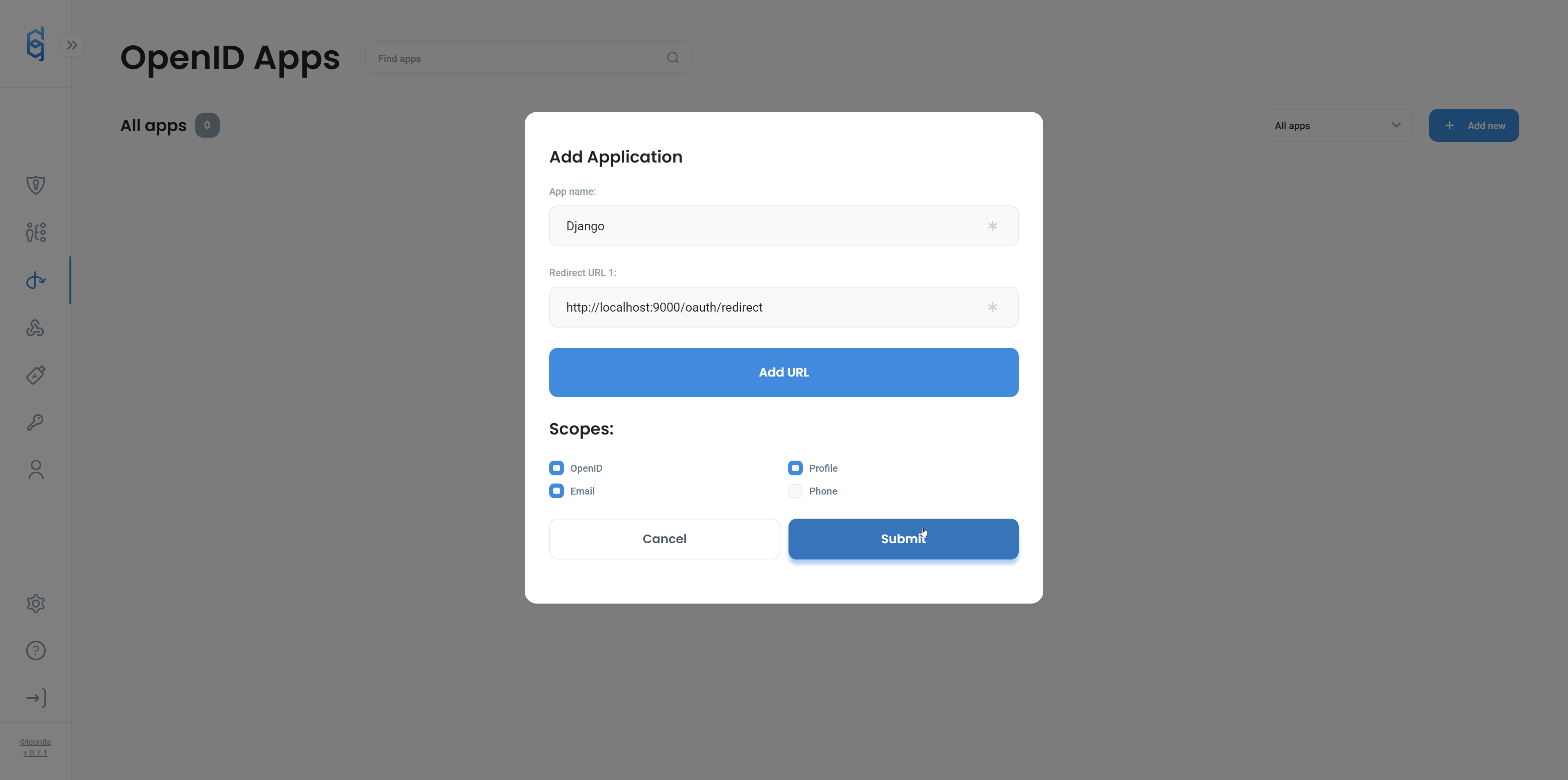
To do that, navigate to OpenID panel and add new client as shown below.
Redirect URL should point to ****
Scopes should include at least **OpenID**, **Profile,** and **Email**.
## Authentication app setup
### Register app in Django
We will use the created **oauth** Django app to handle our authentication.
Register oauth app in ***settings.py*** file.
```python
INSTALLED_APPS = [
# ...rest of your apps
'oauth.apps.OauthConfig',
]
```
### Views
Modify *oauth/views.py file.*
```python
from authlib.integrations.django_client import OAuth
from os import getenv
from django.contrib import auth
from django.contrib.auth.models import User
from django.shortcuts import redirect
oauth = OAuth()
defguard = oauth.register(
name="defguard",
client_id=getenv("DEFGUARD_CLIENT_ID"),
client_secret=getenv("DEFGUARD_CLIENT_SECRET"),
access_token_url=getenv("DEFGUARD_ACCESS_TOKEN_URL", "http://localhost:8000/api/v1/oauth/token"),
access_token_params=None,
authorize_url=getenv("DEFGUARD_AUTHORIZE_URL", "http://localhost:8000/api/v1/oauth/authorize"),
api_base_url=getenv("DEFGUARD_API_BASE_URL", "http://localhost:8000/api/v1/oauth/userinfo"),
client_kwargs={"scope": getenv("DEFGUARD_SCOPE", "openid email profile")},
server_metadata_url=getenv("DEFGUARD_METADATA_URL", "http://localhost:8000/.well-known/openid-configuration"),
)
REDIRECT_URL = getenv("DEFGUARD_REDIRECT_URL")
def defguard_login(request):
redirect_uri = request.build_absolute_uri(REDIRECT_URL)
return oauth.defguard.authorize_redirect(request, redirect_uri)
def defguard_authorize(request):
token = oauth.defguard.authorize_access_token(request)
resp = oauth.defguard.get("userinfo", token=token)
resp.raise_for_status()
profile = resp.json()
user = None
user_exists = User.objects.filter(username=profile["sub"]).exists()
if not user_exists:
user = User(
is_active=True,
is_staff=True,
is_superuser=True,
username=profile["sub"],
email=profile["email"],
first_name=profile["given_name"],
last_name=profile["family_name"],
)
user.save()
else:
user = User.objects.get(username=profile["sub"])
auth.login(request, user)
return redirect("/admin")
```
With the provided example, you will need to fill out only **DEFGUARD\_CLIENT\_ID** and **DEFGUARD\_CLIENT\_SECRET**.
Either provide them as environment variables or modify the views file and pass them as strings to oauth register function.
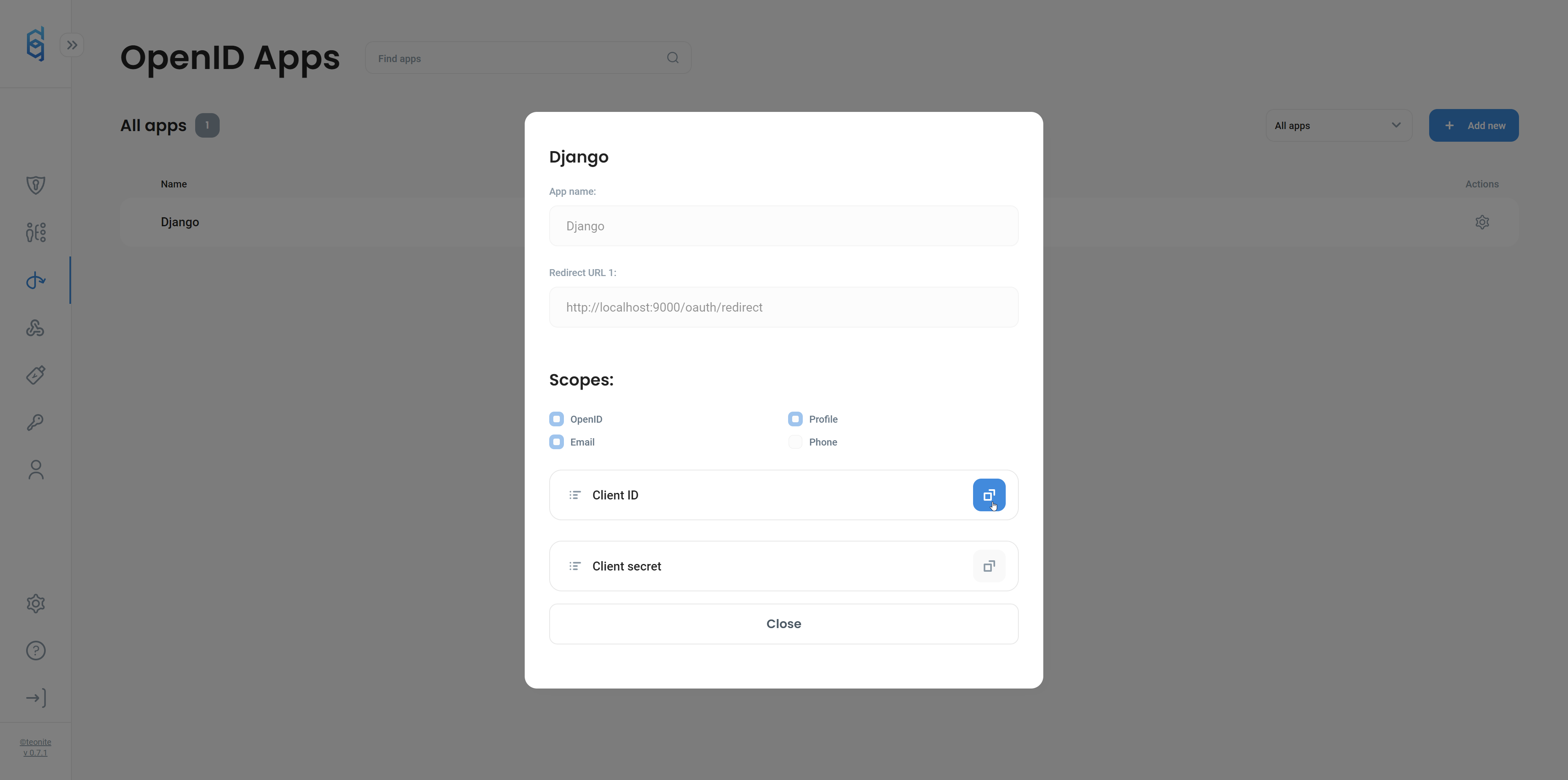
Both Client **ID** and **Secret** can be found on OpenID apps page in Defguard, **click** our Django app **row** on the list and you will be able to copy needed values from the opened modal.
### URLS
We will need to add our views to ***oauth/urls.py***.
```python
from django.urls import path
from oauth.views import defguard_authorize, defguard_login
urlpatterns = [
path("defguard-login", defguard_login),
path("redirect", defguard_authorize),
]
```
Modify ***example/urls.py*** file, so it includes oauth app urls:
```python
from django.contrib import admin
from django.urls import path, include
from django.contrib.auth.models import Group
admin.site.unregister(Group)
urlpatterns = [
path('admin/', admin.site.urls),
path('oauth/', include('oauth.urls')),
]
```
## Custom admin login template
With use of [Jazzmin](https://django-jazzmin.readthedocs.io/) admin theme we will modify login template and add an additional button to login with Defguard.
### Register Jazzmin app
Modify ***example/settings.py***
```python
INSTALLED_APPS = [
'jazzmin',
'django.contrib.admin',
# rest of the apps
]
# rest of config
TEMPLATES = [
{
'BACKEND': 'django.template.backends.django.DjangoTemplates',
'DIRS': [BASE_DIR / "templates"],
'APP_DIRS': True,
'OPTIONS': {
'context_processors': [
'django.template.context_processors.debug',
'django.template.context_processors.request',
'django.contrib.auth.context_processors.auth',
'django.contrib.messages.context_processors.messages',
],
},
},
]
```
{% hint style="warning" %}
jazzmin app **needs** to be registered **before** django.contrib.admin
{% endhint %}
### Add template file
Make ***templates/admin/auth/login.html*** file:
```django
{% extends "registration/base.html" %}
{% load i18n jazzmin %}
{% get_jazzmin_settings request as jazzmin_settings %}
{% get_jazzmin_ui_tweaks as jazzmin_ui %}
{% block content %}
{{ jazzmin_settings.welcome_sign }}
{% endblock %}
```
### Register login route
Modify ***example/urls.py***
```python
from django.contrib import admin
from django.urls import path, include
from django.contrib.auth.models import User, Group
from django.contrib.auth.views import LoginView
admin.site.unregister(Group)
urlpatterns = [
path('admin/login/', LoginView.as_view(template_name="admin/auth/login.html"), name="admin_login"),
path('admin/', admin.site.urls),
path('oauth/', include('oauth.urls')),
]
```
## Conclusion
Now we need to start our Django server.
{% hint style="warning" %}
If you started a fresh project don't forget to make migrations!
**`poetry run ./manage.py migrate`**
{% endhint %}
```sh
poetry run ./manage.py runserver 0.0.0.0:9000
```
After accessing * we should see our custom login page*
Button "*Login with Defguard*" should redirect us to our Defguard instance. Depending on if Defguard session is active or not we should be able to see app authorization page or login page.
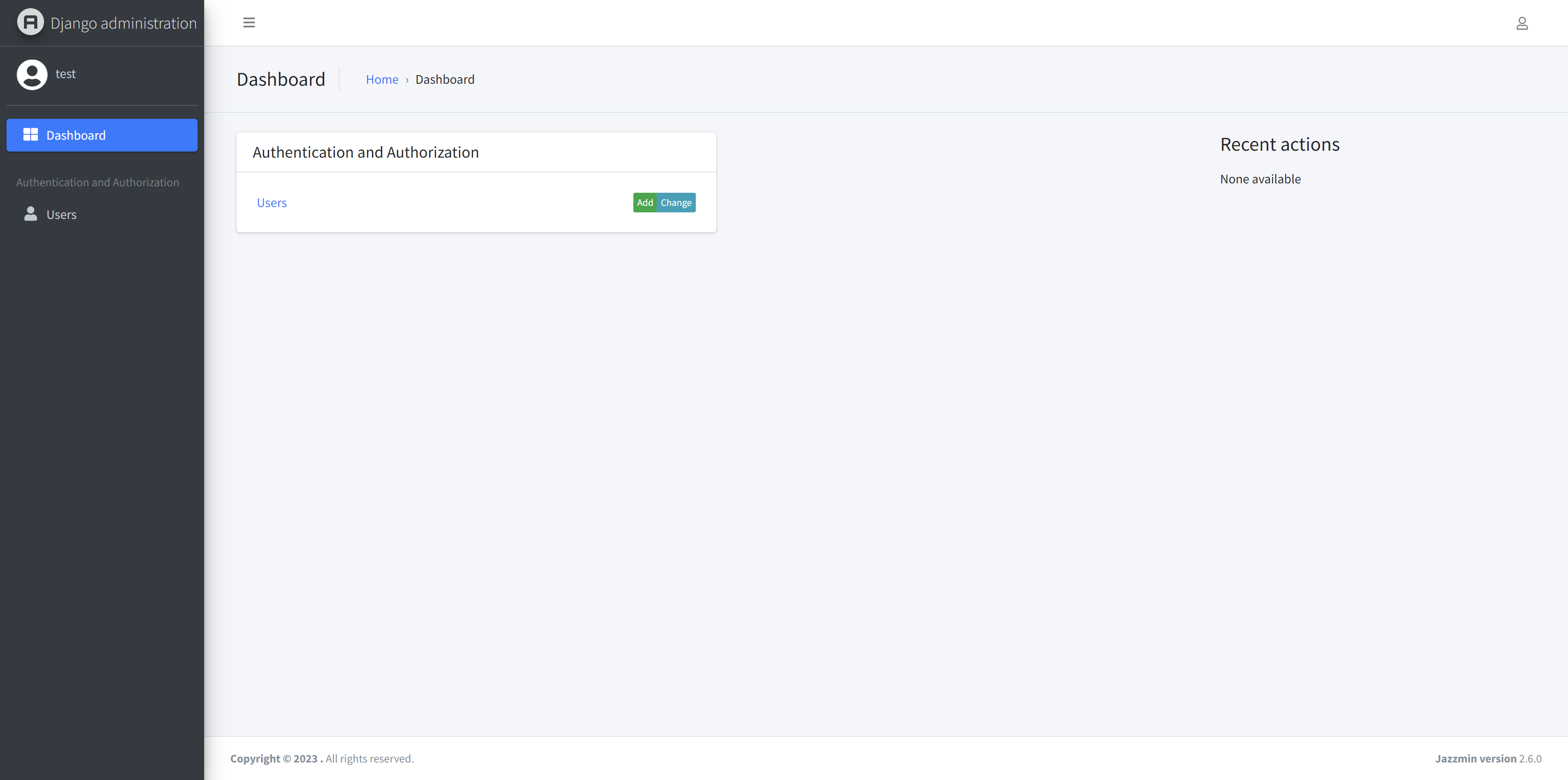
When we authorize Django App to our Defguard account we are redirected back to our Django admin and logged in with a user from Defguard.