> For the complete documentation index, see [llms.txt](https://docs.defguard.net/llms.txt). Markdown versions of documentation pages are available by appending `.md` to page URLs; this page is available as [Markdown](https://docs.defguard.net/using-defguard-for-end-users/setting-up-2fa-mfa.md).
# Setting up 2FA/MFA
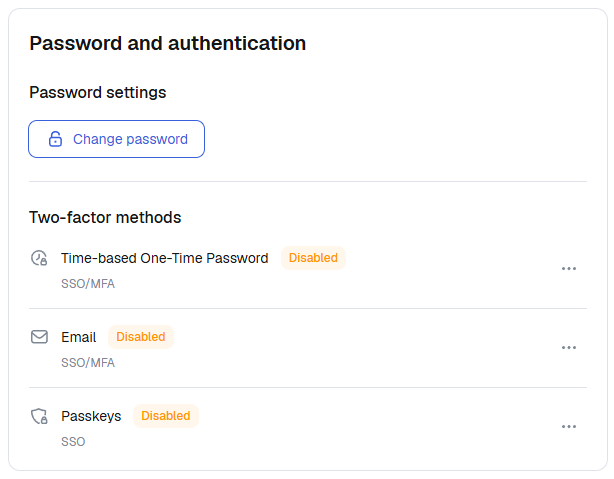
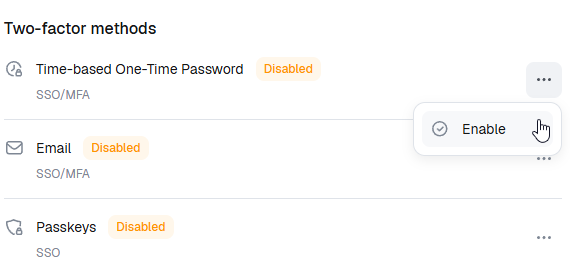
On account profile you will find all available 2FA options in **Details** tab, under **Two-factor methods**.
Choose which one you want to activate.
{% hint style="info" %}
Whatever the method you will choose to configure next, please be prepared to do backup of your **Recovery backup codes** - as those are generated during the initial/first setup.
{% endhint %}
### Passkeys
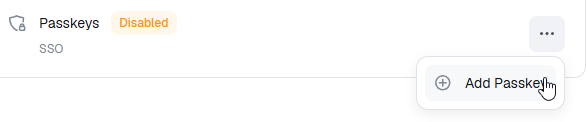
Click on action button in Passkeys row.
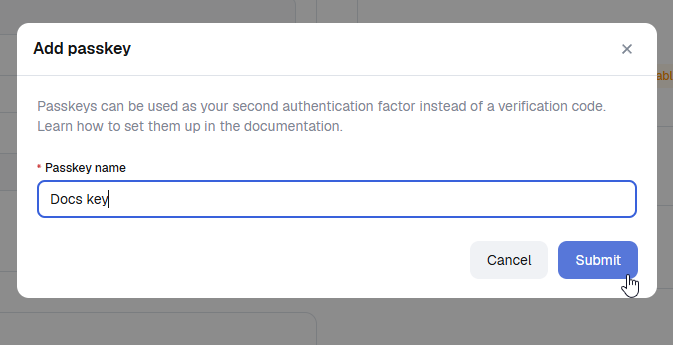
Enter the name for the Passkey you will register for easy identification.
{% hint style="info" %}
You can have multiple Passkeys for one account.
{% endhint %}
When you click **Submit** to create a passkey, your device’s operating system takes over to ensure your security data never leaves your hardware. Because of this, the setup process looks a bit different depending on the device you are using.
{% hint style="warning" %}
Stay in the Window: Do not close the system pop-up until it confirms the passkey is saved. Once finished, you will be automatically returned to the app.
{% endhint %}
#### Follow Your System Prompts
Once you click the button to create a passkey, a window from your device (e.g., Windows, macOS, Android, or iOS) will appear. Simply follow the instructions on that screen.
Depending on your device, you will usually be asked to:
* Scan your fingerprint (Touch ID or Android Fingerprint)
* Use facial recognition (Face ID or Windows Hello)
* Enter your device PIN or password
* Insert and tap a physical security key (like a YubiKey)
{% hint style="info" %}
If you use a password manager (like 1Password or Bitwarden), your browser may ask if you want to save the passkey there instead of on your device. Either option is secure.
{% endhint %}
If this was the first 2FA method for the account then the system will ask you to save recovery codes [#backing-up-recovery-codes](#backing-up-recovery-codes "mention").
### Email
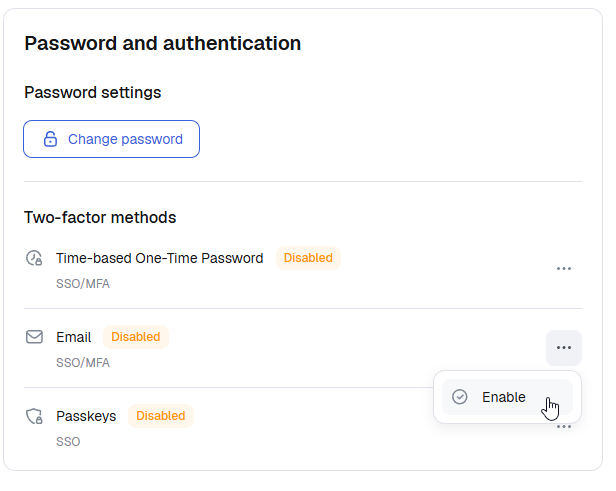
Click on action button in **Email** row.
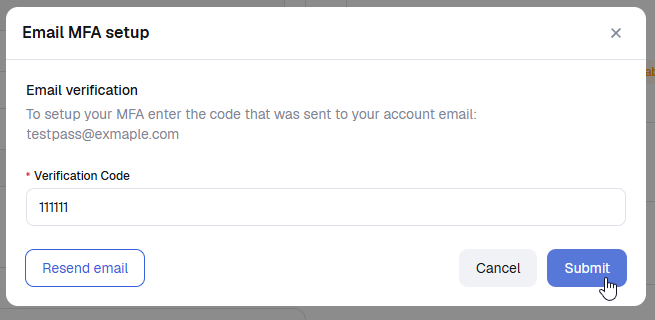
After opening the dialog, check the email linked with the account to get the code. Enter it and click **Submit**.
That's it. If this was the first 2FA method for the account then the system will ask you to save recovery codes [#backing-up-recovery-codes](#backing-up-recovery-codes "mention").
### One time password
This method is based on time-based codes (TOTP), generated by an app.
Before you start to configure this step, you need to choose an app for generating your TOTP codes. Most popular are:
* [Google Authenticator for Android/iPhone/iPad](https://support.google.com/accounts/answer/1066447)
* [Bitwarden](https://bitwarden.com/help/authenticator-keys/) - which is a password manager which can help you to store/generate a secure password for your Defguard login but also setup TOTP
In this example, we will set up using Google Authenticator.
Click on action button on **Time-based One-Time Password** row.
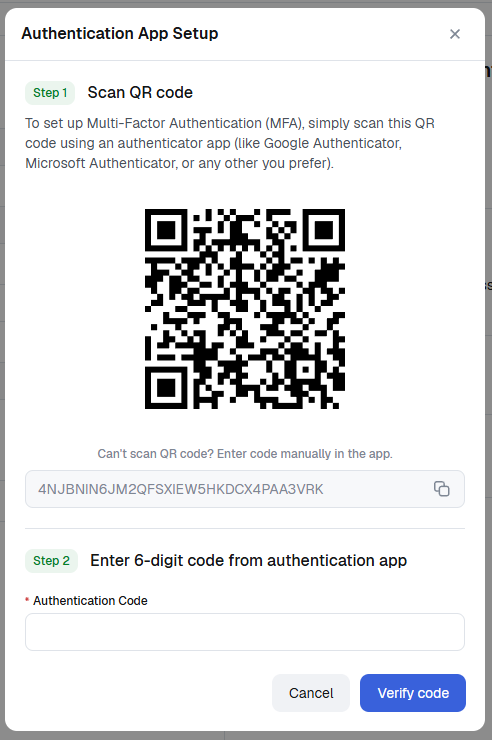
A set up screen will show up with a QR Code:
Now open *Authenticator* mobile app, and click: \_**Add a code → Scan a QR code and scan the QR Code with the app**.
After doing that, a new screen will show on the *Authenticator* app, that will generate codes for Defguard:
**Enter the code you see on the mobile app**, to confirm, that the process has been done correctly (Defguard will now validate the code).
After the code has been validated, either:
* you are all set, the method is enabled, and you will be logged out to log in again using MFA
* or you [will need to create a backup of your recovery codes](#backing-up-recovery-codes) - and after that you will be logged out as well.
### Backing up recovery codes
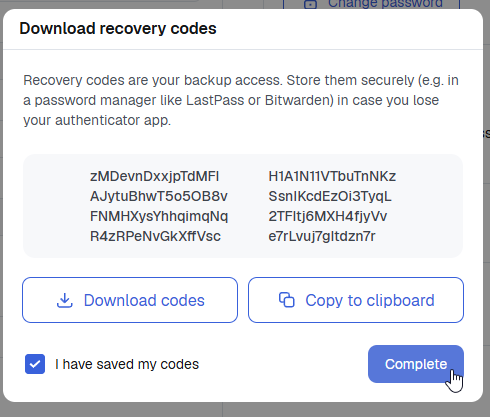
If you are configuring the 2FA/MFA for the first time with any selected method, at the end of the process you will be asked to create a backup of your recovery codes:
{% hint style="danger" %}
Please backup those codes in a safe place, if you will not be able to login with your 2FA method (eg. you lost your phone or YubiKey hardware key) - the only method to login will be to use one of the **recovery codes.**
{% endhint %}