> For the complete documentation index, see [llms.txt](https://docs.defguard.net/llms.txt). Markdown versions of documentation pages are available by appending `.md` to page URLs; this page is available as [Markdown](https://docs.defguard.net/1.6/features/gateway.md).
# OPNsense Configuration
[OPNsense®](https://opnsense.org/) is an open source, feature rich firewall and routing platform, offering cutting-edge network protection.
## Defguard Gateway Configuration
This instruction helps configure Defguard Gateway in OPNsense. This is based on [WireGuard Road Warrior Setup](https://docs.opnsense.org/manual/how-tos/wireguard-client.html) from OPNsense documentation.
### Configure Defguard Gateway plugin
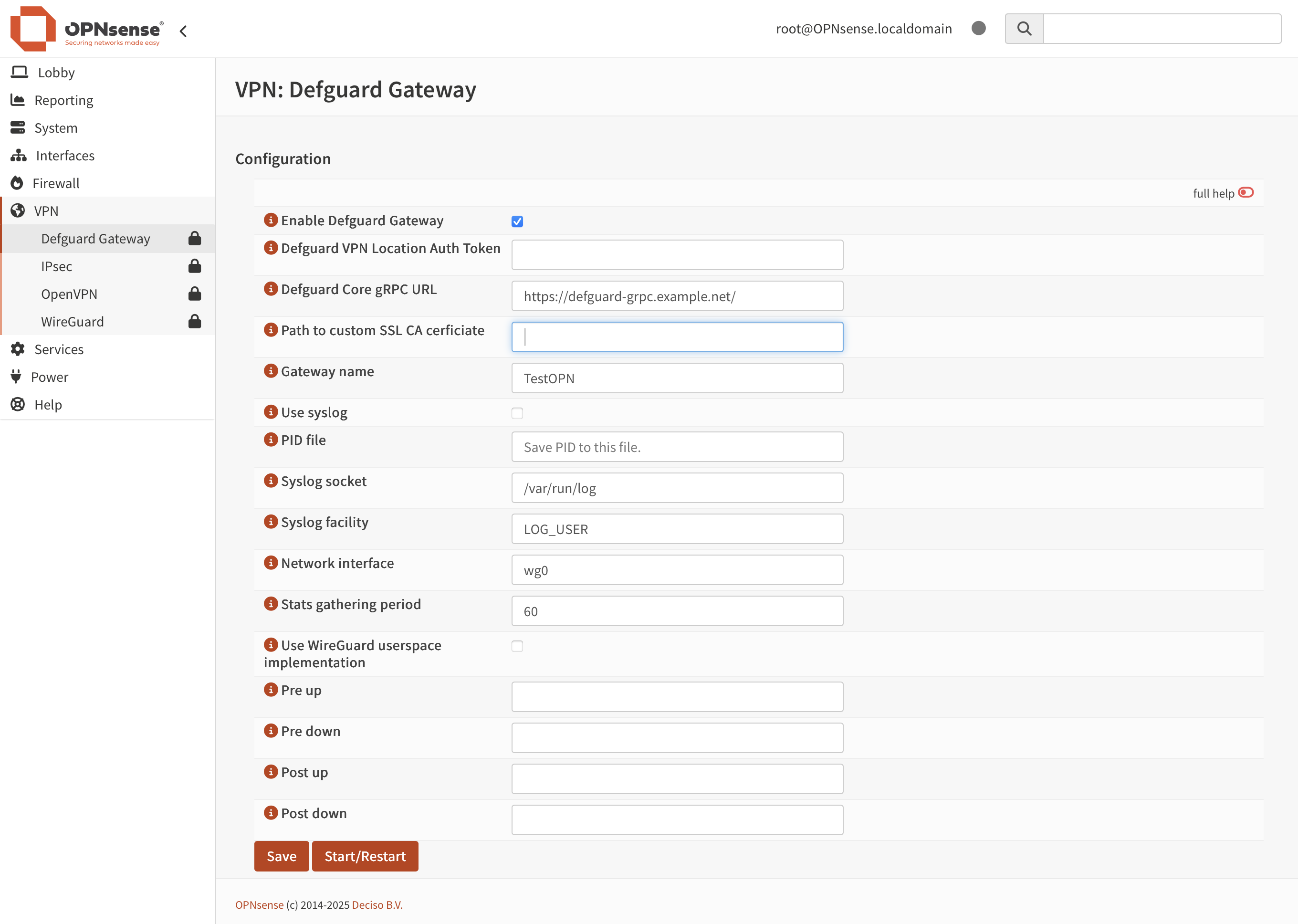
1. Go to **VPN → Defguard Gateway**
2. Fill out the appropriate values in the form. You can read more about the available configuration options here: [Configuration](/1.6/deployment-strategies/configuration.md#gateway-configuration)
3. Eventually, **Start/Restart** the service.
{% hint style="info" %}
Defguard Gateway will create the given network interface automatically (for example *wg0*). The interface must be named accoring to FreeBSD [WireGuard protocol driver](https://man.freebsd.org/cgi/man.cgi?query=wg\&sektion=4).
{% endhint %}
### Assign a network interface to Defguard
A quote from [WireGuard Road Warrior Setup](https://docs.opnsense.org/manual/how-tos/wireguard-client.html):
{% hint style="info" %}
This step is not strictly necessary in any circumstances for a road warrior setup. However, it is useful to implement, for several reasons: First, it generates an alias for the tunnel subnet(s) that can be used in firewall rules. Otherwise you will need to define your own alias or at least manually specify the subnet(s). Second, it automatically adds an IPv4 outbound NAT rule, which will allow the tunnel to access IPv4 IPs outside of the local network (if that is desired), without needing to manually add a rule. Finally, it allows separation of the firewall rules of each WireGuard instance (each *wgX* device). Otherwise they all need to be configured on the default WireGuard group that OPNsense creates. This is more an organisational aesthetic, rather than an issue of substance.
{% endhint %}
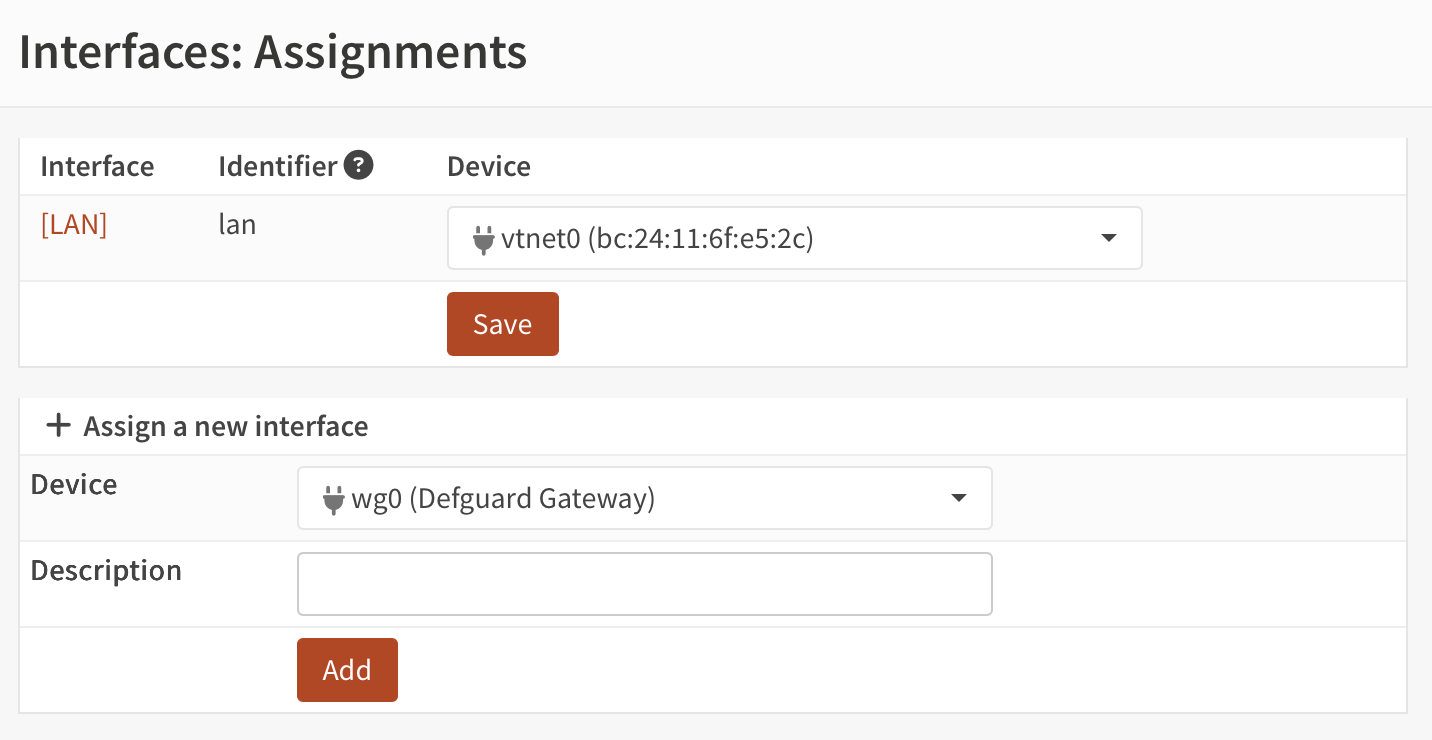
1. Go to **Interfaces → Assignments**
2. Under **Assign a new interface**, select the Defguard Gateway network interface (e.g. *wg0*)
3. Add a description, for example *ParisOfficeVPN*
4. Click **Add**
5. Select the newly create interface by clicking on its name (in this example *\[ParisOfficeVPN]*).
6. Select **Enable Interface**
7. Select **Prevent interface removal**
8. Click **Save**, and then **Apply changes**
### Create an outbound NAT rule
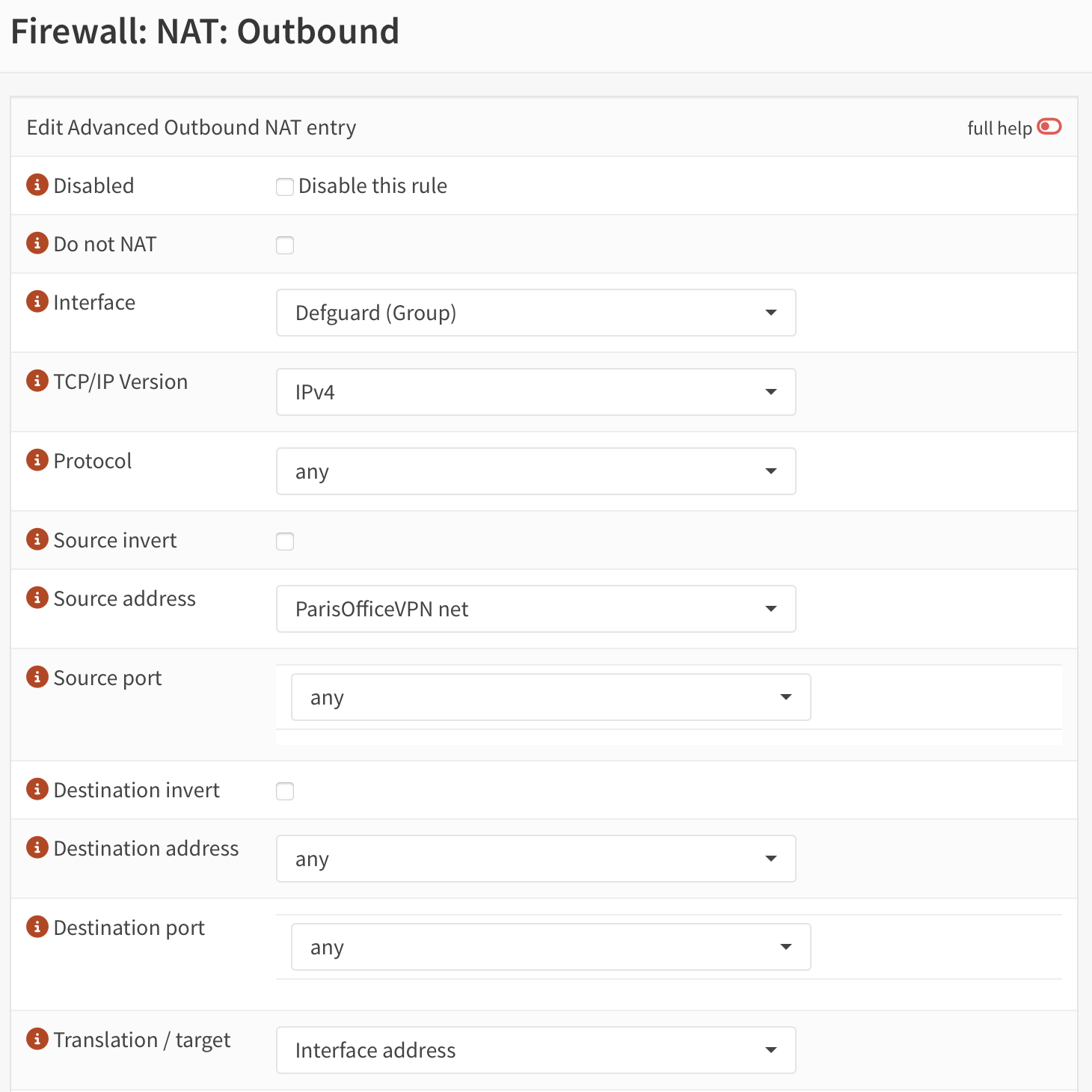
1. Go to **Firewall → NAT → Outbound**
2. Make sure the selected **Mode** is **Hybrid outbound NAT rule generation**; if it wasn't selected, click **Save** and then **Apply changes**
3. Under **Manual rules**, add a new rule by clicking **+**.
4. Select **Interface** – this should be either WAN or LAN, depending on the needs.
5. Select **TCP/IP version** – either IPv4 or IPv6.
6. Select **Source address** – this should be interface name assigned above plus *net*, e.g. *ParisOfficeVPN net*.
7. Click **Save**, and then **Apply changes**
### Add firewall rules to allow WireGuard traffic in
1. Go to **Firewall → Rules → WAN**
2. Click **+** (plus) to add a new rule
3. The rule should *Pass* the traffic *in* with *quick* option enabled
4. Select **WAN** interface
5. Choose **TCP/IP version** of your desire
6. Select **UDP** protocol.
7. Set **Destination** to **WAN address** and port to the port number provided in Defguard Core: *Location configuration → Gateway port*
8. Click **Save**, and then **Apply changes**