> For the complete documentation index, see [llms.txt](https://docs.defguard.net/llms.txt). Markdown versions of documentation pages are available by appending `.md` to page URLs; this page is available as [Markdown](https://docs.defguard.net/using-defguard-for-end-users/mobile-client/instance-connect.md).
# Connecting to Instance
In this guide, you will learn how to connect to location. If you haven't added an instance yet, follow [this guide](/using-defguard-for-end-users/mobile-client/instance-adding.md).
## Connecting to location without MFA
1. Open Defguard
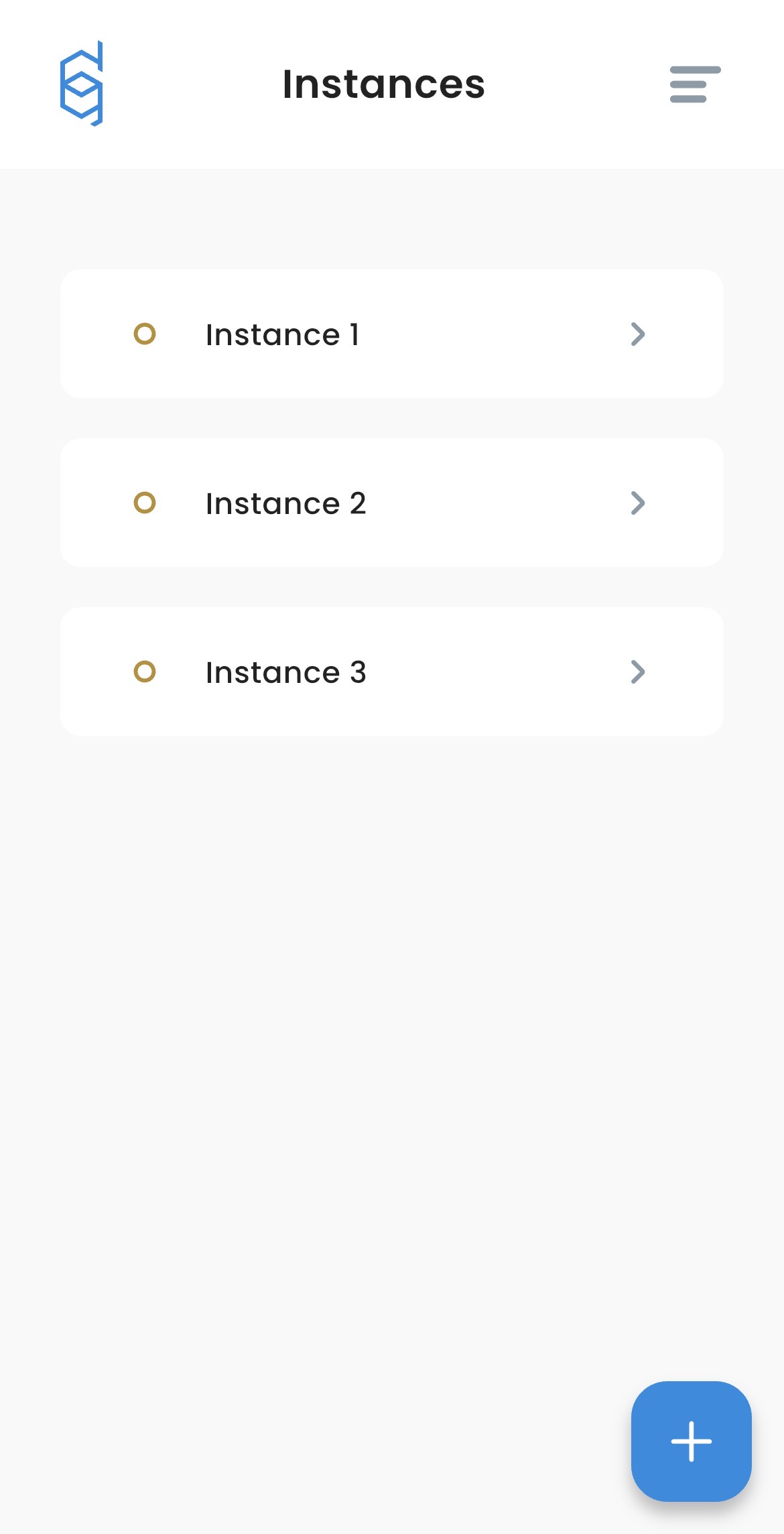
2. Click on Instance you want to connect to.
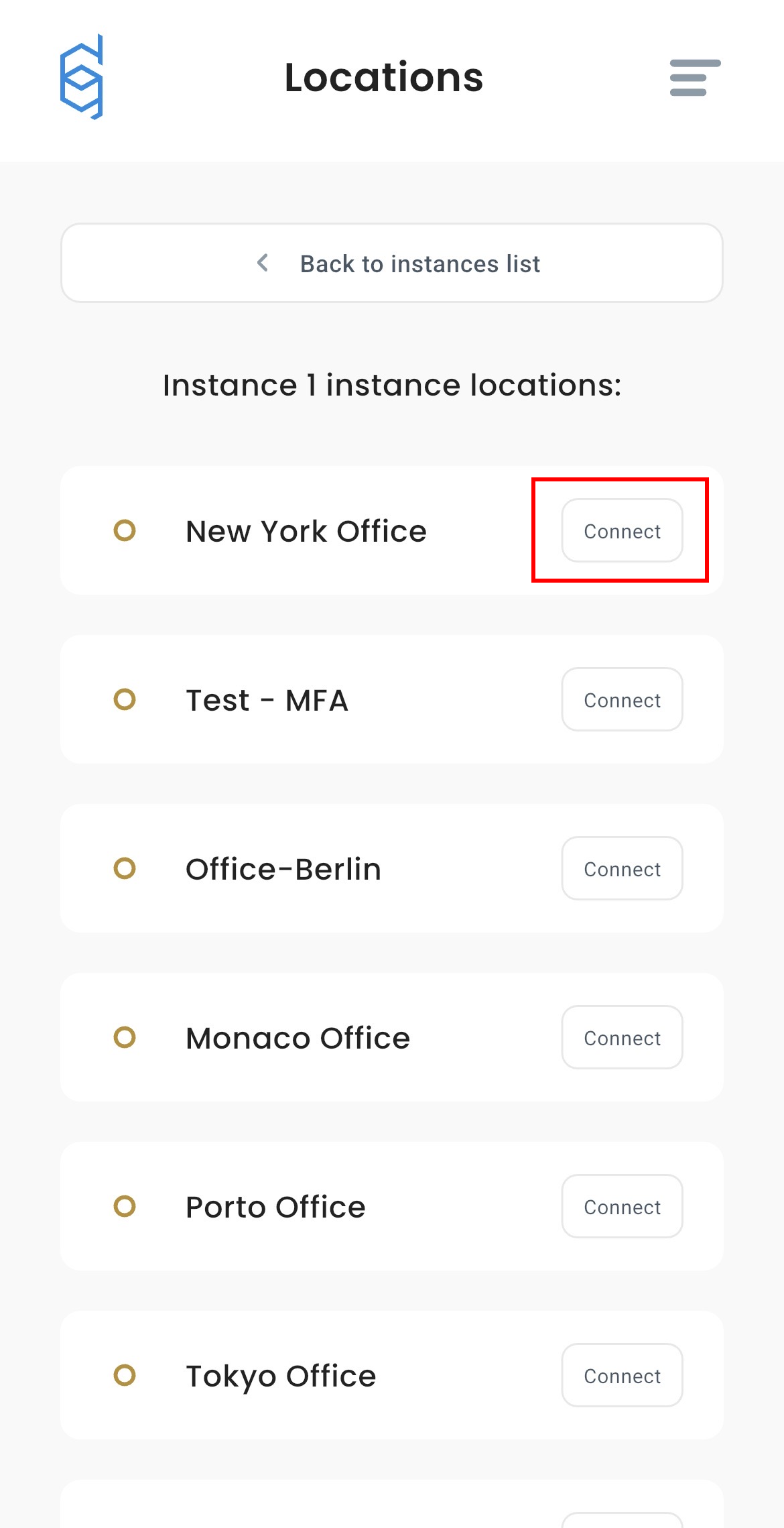
3. Click **"Connect"** next to location you want to use.
{% hint style="info" %}
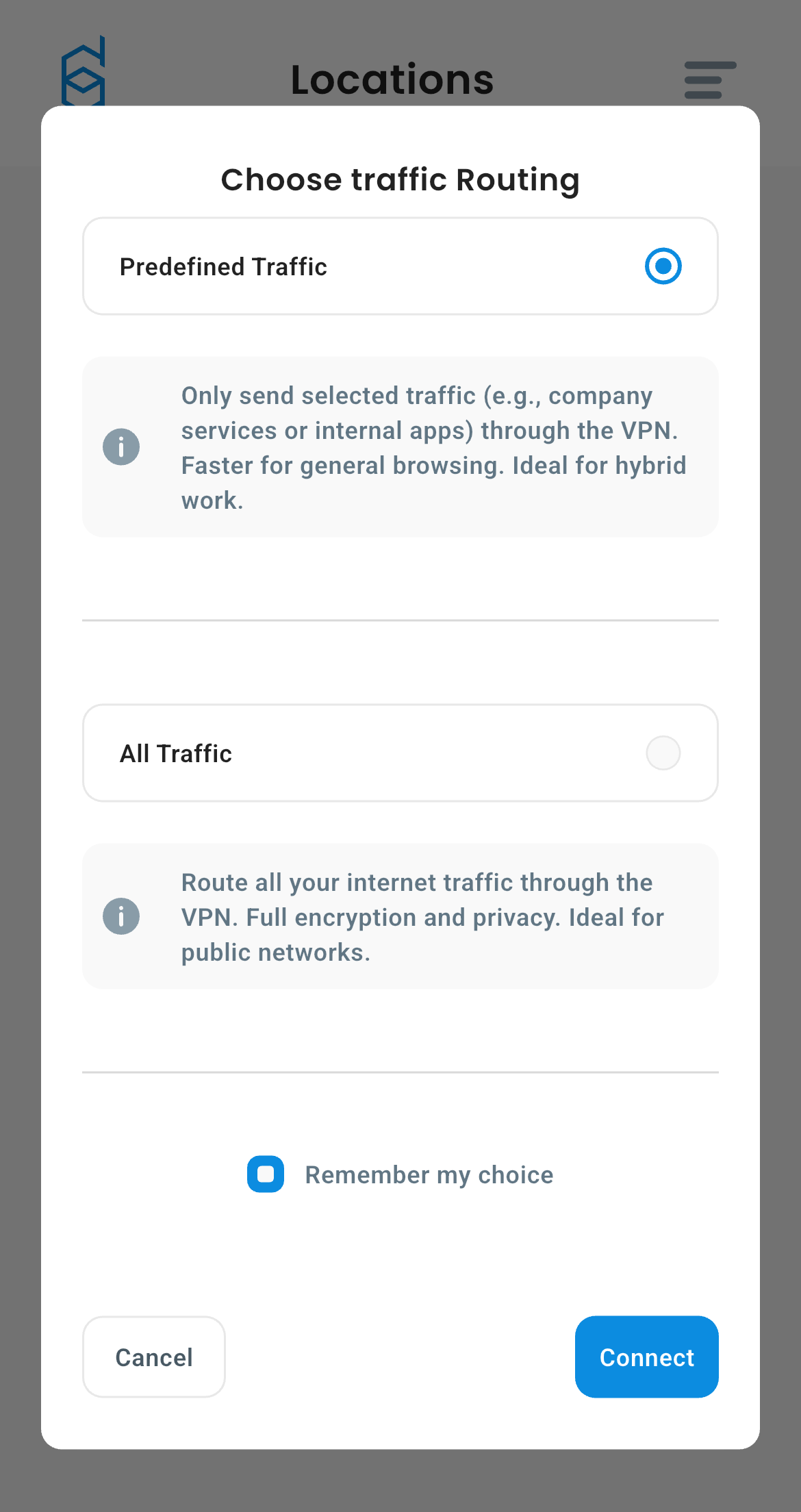
The first time you connect, app will ask whether you want to route **predefined traffic** or **all traffic**. You will see screen like this:
* **Predefined traffic** will only route traffic specified by your administrator.
* **All traffic** will route everything through VPN tunnel.
You can select **Remember my choice** if you don't want to be asked again.
If you want to change your traffic routing method after your first connection go to [this article](/using-defguard-for-end-users/mobile-client/instance-manage.md#changing-traffic-routing-method-after-first-connection)
{% endhint %}
4. Choose your routing method
5. Confirm
{% hint style="warning" %}
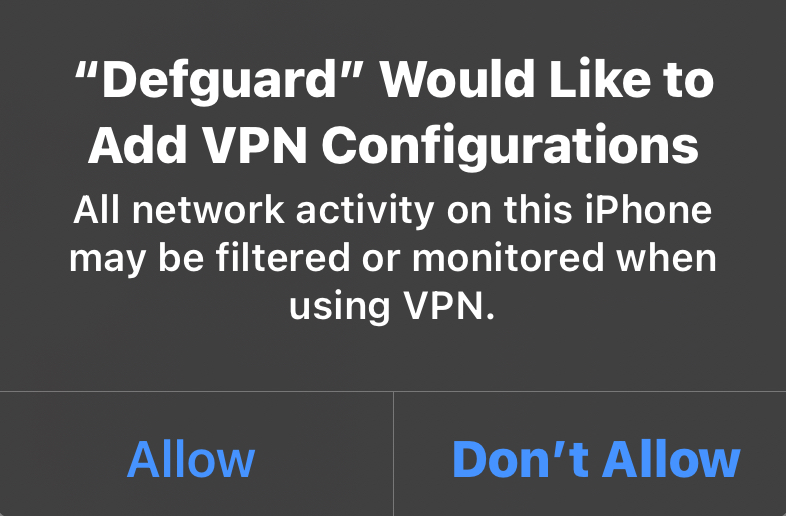
Your phone will need to add new VPN configuration, you will see popup like this:
Please click **Allow**, without this permission, Defguard cannot establish VPN connection.
{% endhint %}
{% hint style="info" %}
If your location does not use MFA, your VPN connection should be established immediately after confirming your routing method.
{% endhint %}
{% hint style="info" %}
Some VPN locations require extra security when connecting. This is called MFA (Multi-Factor Authentication). There are two types:
* Internal MFA: You confirm your identity directly in the app, for example by entering a code from your Authenticator App or email.
* External MFA: You are redirected to a secure login page (like Google or Microsoft) outside the app to confirm your identity.
{% endhint %}
{% hint style="warning" %}
If your location is using MFA please go to [section 3.2 "Connecting to location with MFA](#connecting-to-location-with-mfa)
{% endhint %}
## Connecting to location with MFA
1. Open Defguard
2. Go to **Instances** and click **Connect** next to location you want to use.
{% hint style="info" %}
The first time you connect, app will ask whether you want to route **predefined traffic** or **all traffic**. You will see screen like this:
* **Predefined traffic** will only route traffic specified by your administrator.
* **All traffic** will route everything through VPN tunnel.
You can select **Remember my choice** if you don't want to be asked again.
If you want to change your traffic routing method after your first connection go to [this article](/using-defguard-for-end-users/mobile-client/instance-manage.md#changing-traffic-routing-method-after-first-connection)
{% endhint %}
3. Choose your routing method, and confirm.
Depending on your location settings you will need to authenticate with [external](#external-mfa) or [internal](#internal-mfa) MFA.
### External MFA
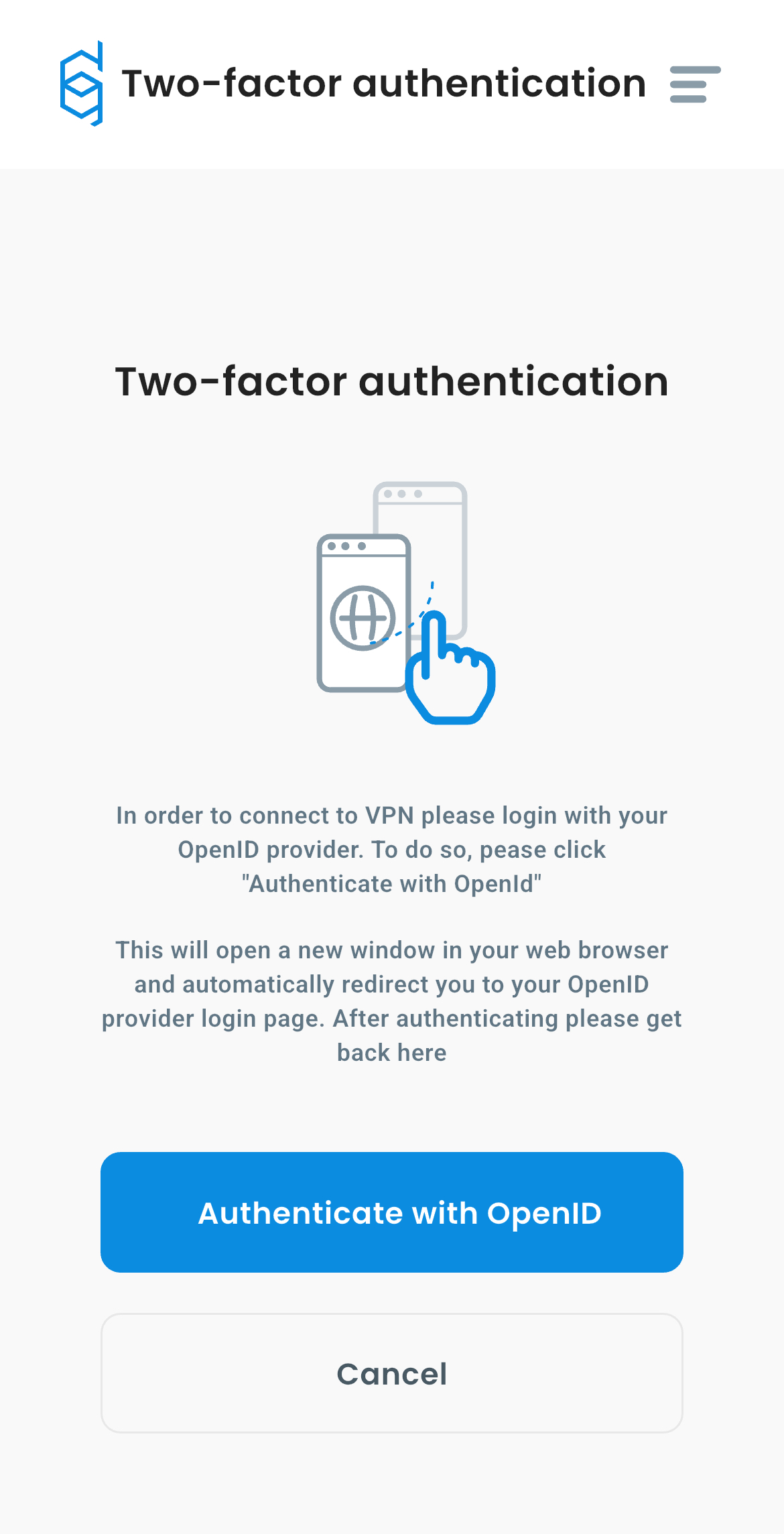
If the VPN location requires OpenID for authentication (external MFA) you will see screen like this:
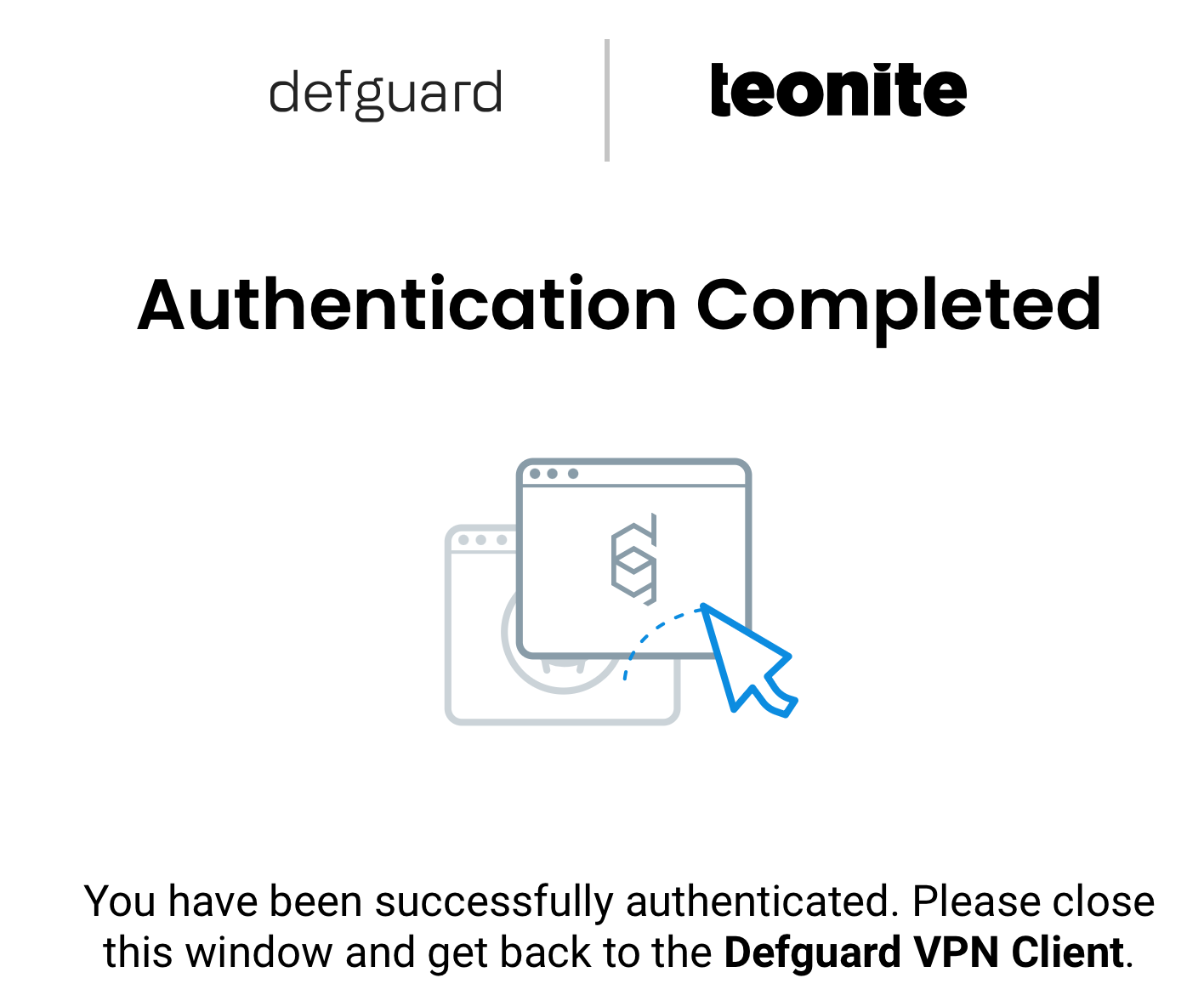
Click **Authenticate with OpenID** and you will be redirected to a secure login page (for example Google/Microsoft). Follow the instructions on the screen to log in. After successful authentication please return to Defguard. In the app you will see screen like this:
After successful authentication, return to Defguard Mobile, your connection will be established automatically.
### Internal MFA
{% hint style="warning" %}
When connecting with MFA for the first time, you will have the option to select **Remember my choice**. Select this option if you want to always use this method for this location.
{% endhint %}
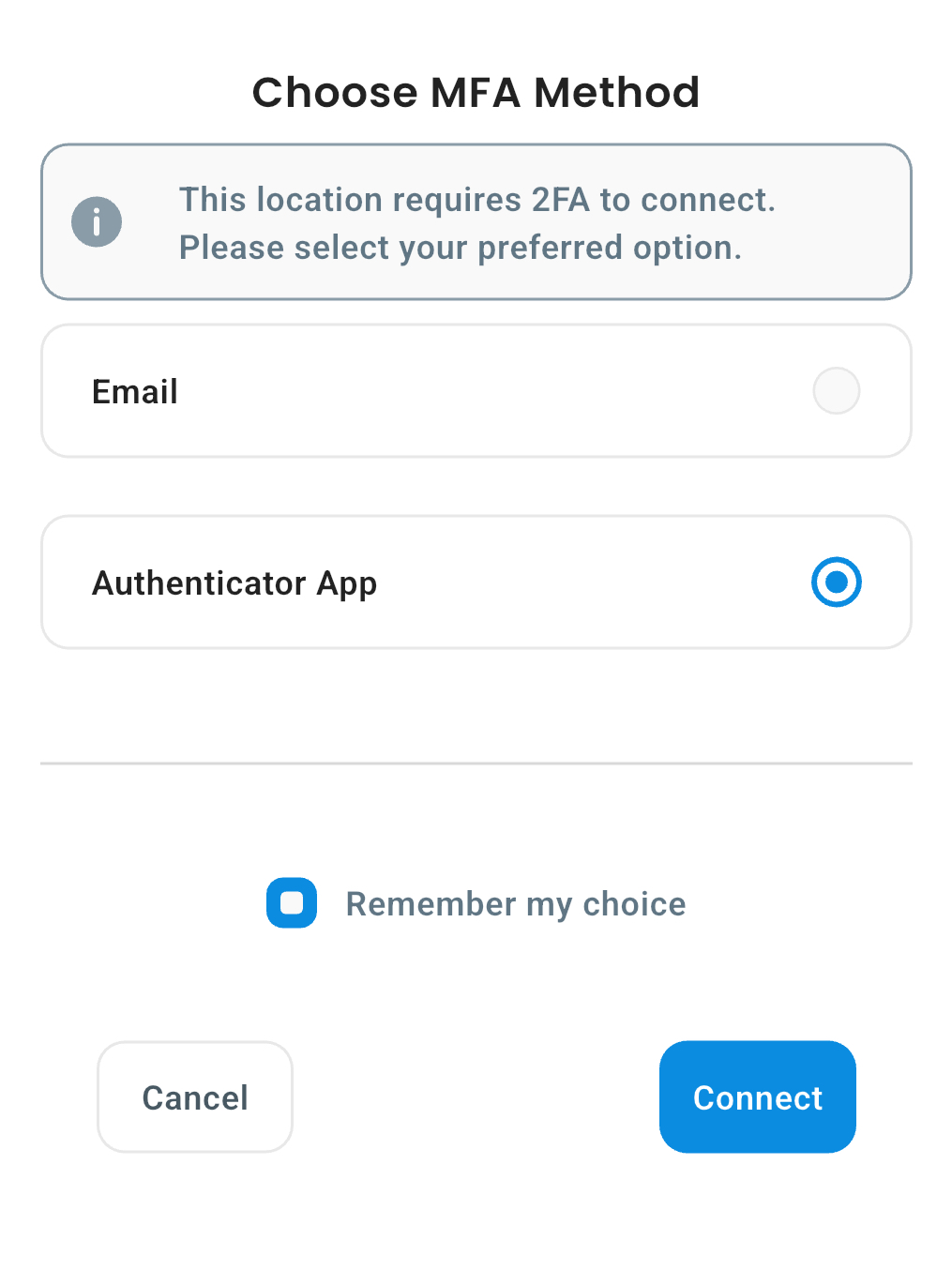
1. If you are connecting for first time, or if you have not clicked **Remember my choice** during previous connection, you will need to choose your MFA method.
2. Choose method configured for your account, and click **Connect**.
* If you're using "Email" method, please enter code sent to your email.
* If you're using "Authenticator App", please enter code generated within your authenticator app.
{% hint style="info" %}
If you don't know how to setup or use your **Authenticator App** please check [this article](/using-defguard-for-end-users/setting-up-2fa-mfa.md#setting-up-2famfa) for detailed information.
{% endhint %}
3. After this step, your connection will be established immediately.
## Disconnecting from VPN
To disconnect from a VPN location in Defguard:
1. Open Defguard.
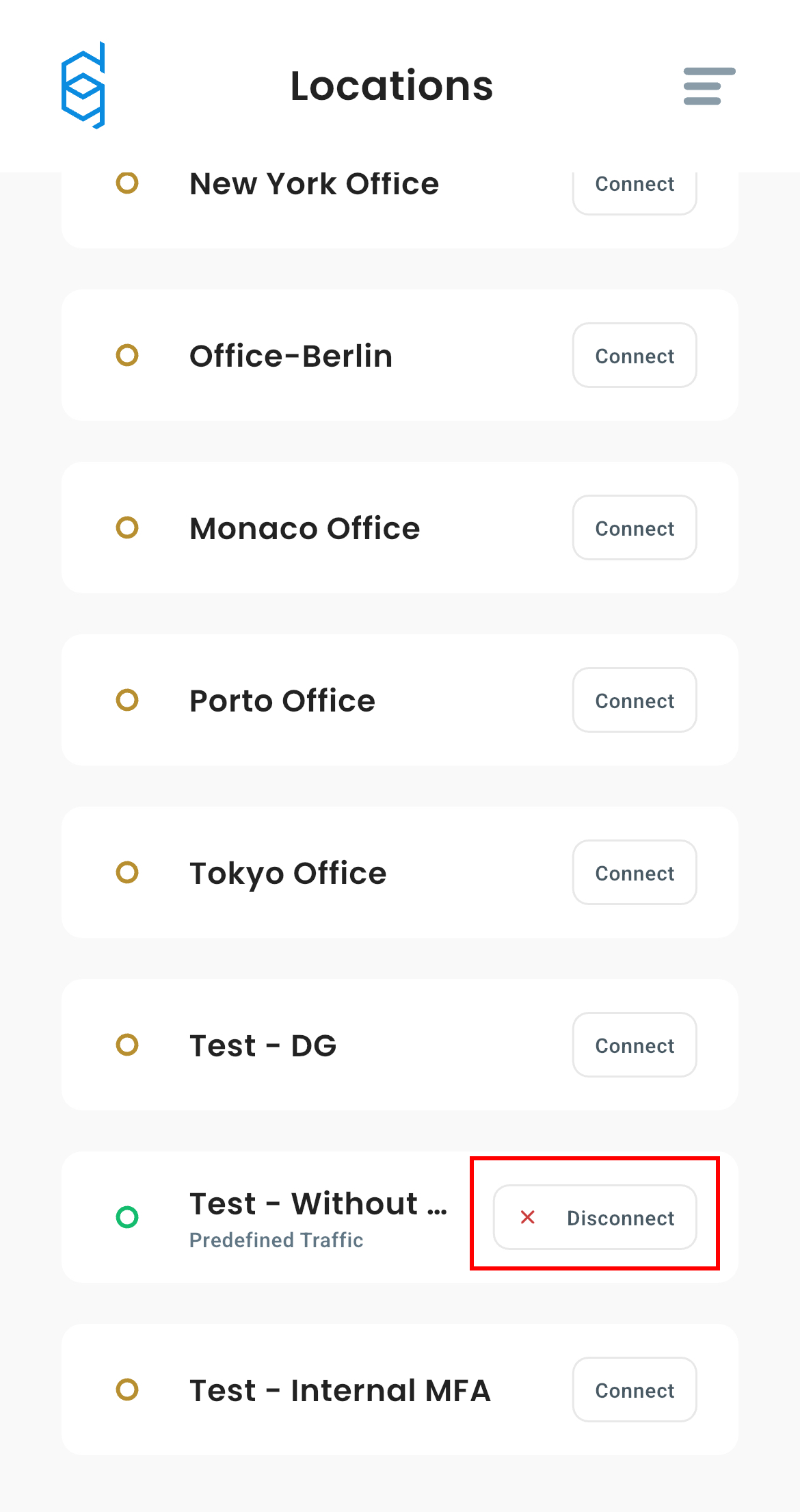
2. Go to the active instance
3. Click **Disconnect** button next to the location you are currently connected to.
{% hint style="info" %}
After disconnecting, your device will stop sending traffic through the VPN and return to your regular internet connection.
{% endhint %}
 * **Predefined traffic** will only route traffic specified by your administrator.
* **All traffic** will route everything through VPN tunnel.
You can select **Remember my choice** if you don't want to be asked again.
If you want to change your traffic routing method after your first connection go to [this article](/using-defguard-for-end-users/mobile-client/instance-manage.md#changing-traffic-routing-method-after-first-connection)
{% endhint %}
4. Choose your routing method
5. Confirm
{% hint style="warning" %}
Your phone will need to add new VPN configuration, you will see popup like this:
* **Predefined traffic** will only route traffic specified by your administrator.
* **All traffic** will route everything through VPN tunnel.
You can select **Remember my choice** if you don't want to be asked again.
If you want to change your traffic routing method after your first connection go to [this article](/using-defguard-for-end-users/mobile-client/instance-manage.md#changing-traffic-routing-method-after-first-connection)
{% endhint %}
4. Choose your routing method
5. Confirm
{% hint style="warning" %}
Your phone will need to add new VPN configuration, you will see popup like this:
 Please click **Allow**, without this permission, Defguard cannot establish VPN connection.
{% endhint %}
{% hint style="info" %}
If your location does not use MFA, your VPN connection should be established immediately after confirming your routing method.
{% endhint %}
{% hint style="info" %}
Some VPN locations require extra security when connecting. This is called MFA (Multi-Factor Authentication). There are two types:
* Internal MFA: You confirm your identity directly in the app, for example by entering a code from your Authenticator App or email.
* External MFA: You are redirected to a secure login page (like Google or Microsoft) outside the app to confirm your identity.
{% endhint %}
{% hint style="warning" %}
If your location is using MFA please go to [section 3.2 "Connecting to location with MFA](#connecting-to-location-with-mfa)
{% endhint %}
## Connecting to location with MFA
1. Open Defguard
2. Go to **Instances** and click **Connect** next to location you want to use.
Please click **Allow**, without this permission, Defguard cannot establish VPN connection.
{% endhint %}
{% hint style="info" %}
If your location does not use MFA, your VPN connection should be established immediately after confirming your routing method.
{% endhint %}
{% hint style="info" %}
Some VPN locations require extra security when connecting. This is called MFA (Multi-Factor Authentication). There are two types:
* Internal MFA: You confirm your identity directly in the app, for example by entering a code from your Authenticator App or email.
* External MFA: You are redirected to a secure login page (like Google or Microsoft) outside the app to confirm your identity.
{% endhint %}
{% hint style="warning" %}
If your location is using MFA please go to [section 3.2 "Connecting to location with MFA](#connecting-to-location-with-mfa)
{% endhint %}
## Connecting to location with MFA
1. Open Defguard
2. Go to **Instances** and click **Connect** next to location you want to use.