# Adding new Instance

In this guide, you will learn how to add Instance in mobile app.

If you are after the enrollment process, please follow [this guide](#adding-instance-in-defguard)

## Enrollment via external SSO

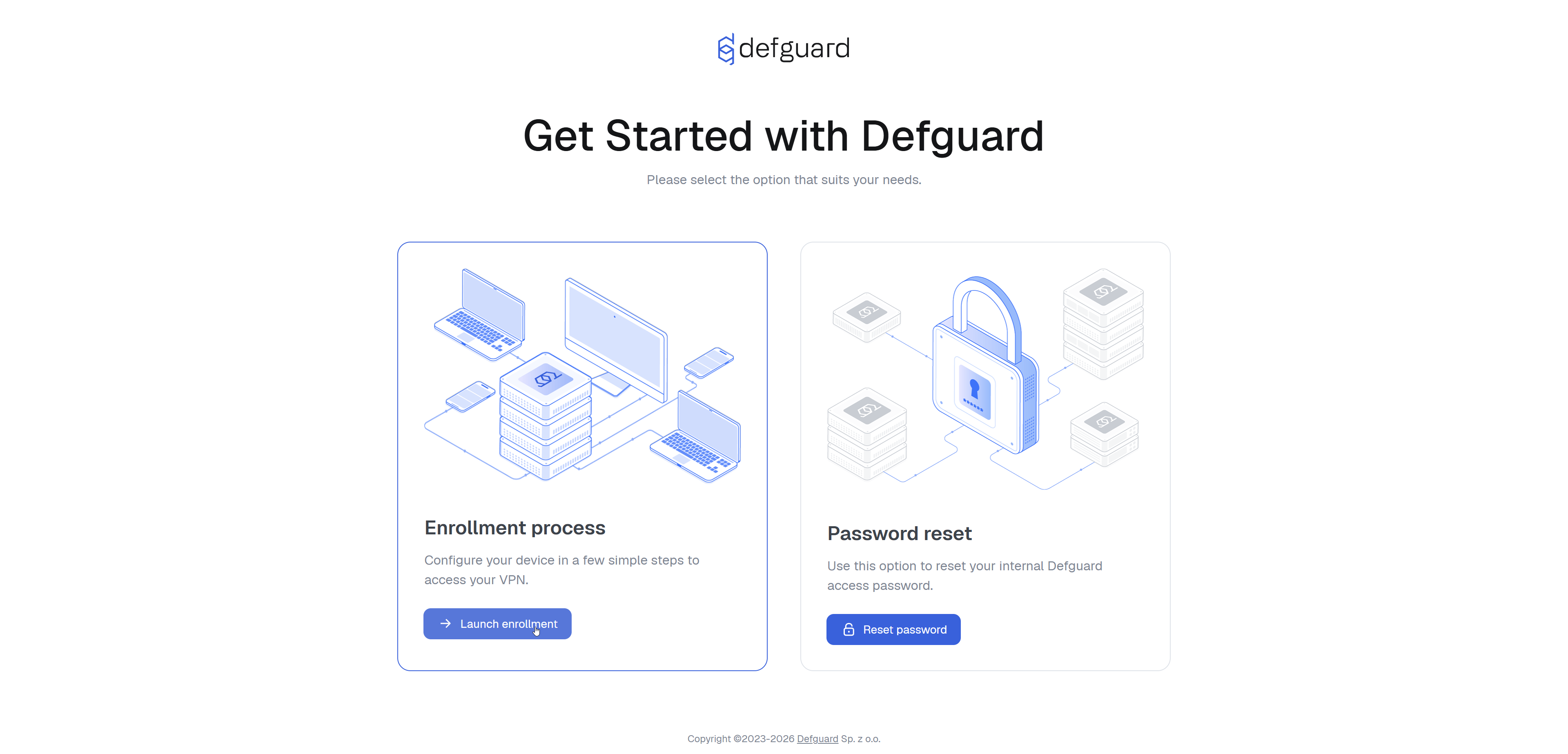
1. Go to your enrollment page. Click **Select** under "Enrollment process".<br>

   <figure><img src="https://2426002228-files.gitbook.io/~/files/v0/b/gitbook-x-prod.appspot.com/o/spaces%2FqPYuWxfmxFk6sz1LLLwd%2Fuploads%2Fgit-blob-132d3d49fdeee6f38c0292283fcf8ec1d27d9b6b%2Fchrome_yDm9p3U3RX.png?alt=media" alt="" width="563"><figcaption></figcaption></figure>
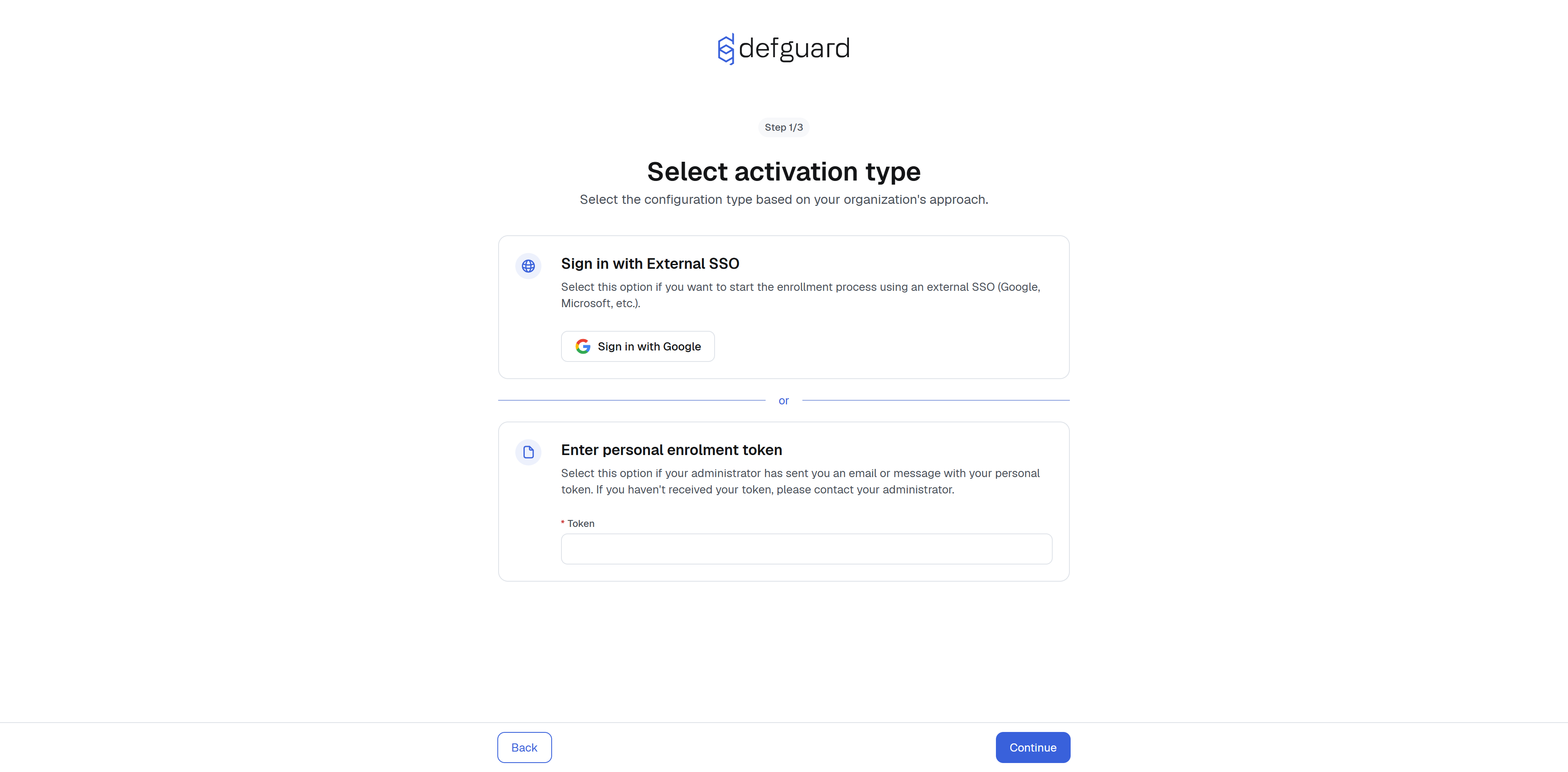
2. In this example we use Google as OIDC provider so our button is "Sign in with Google". Your organization can use different OIDC provider.<br>

   <figure><img src="https://2426002228-files.gitbook.io/~/files/v0/b/gitbook-x-prod.appspot.com/o/spaces%2FqPYuWxfmxFk6sz1LLLwd%2Fuploads%2Fgit-blob-c5e657e0060048c797e5903d890e5079b3097864%2Fimage.png?alt=media" alt="" width="563"><figcaption></figcaption></figure>
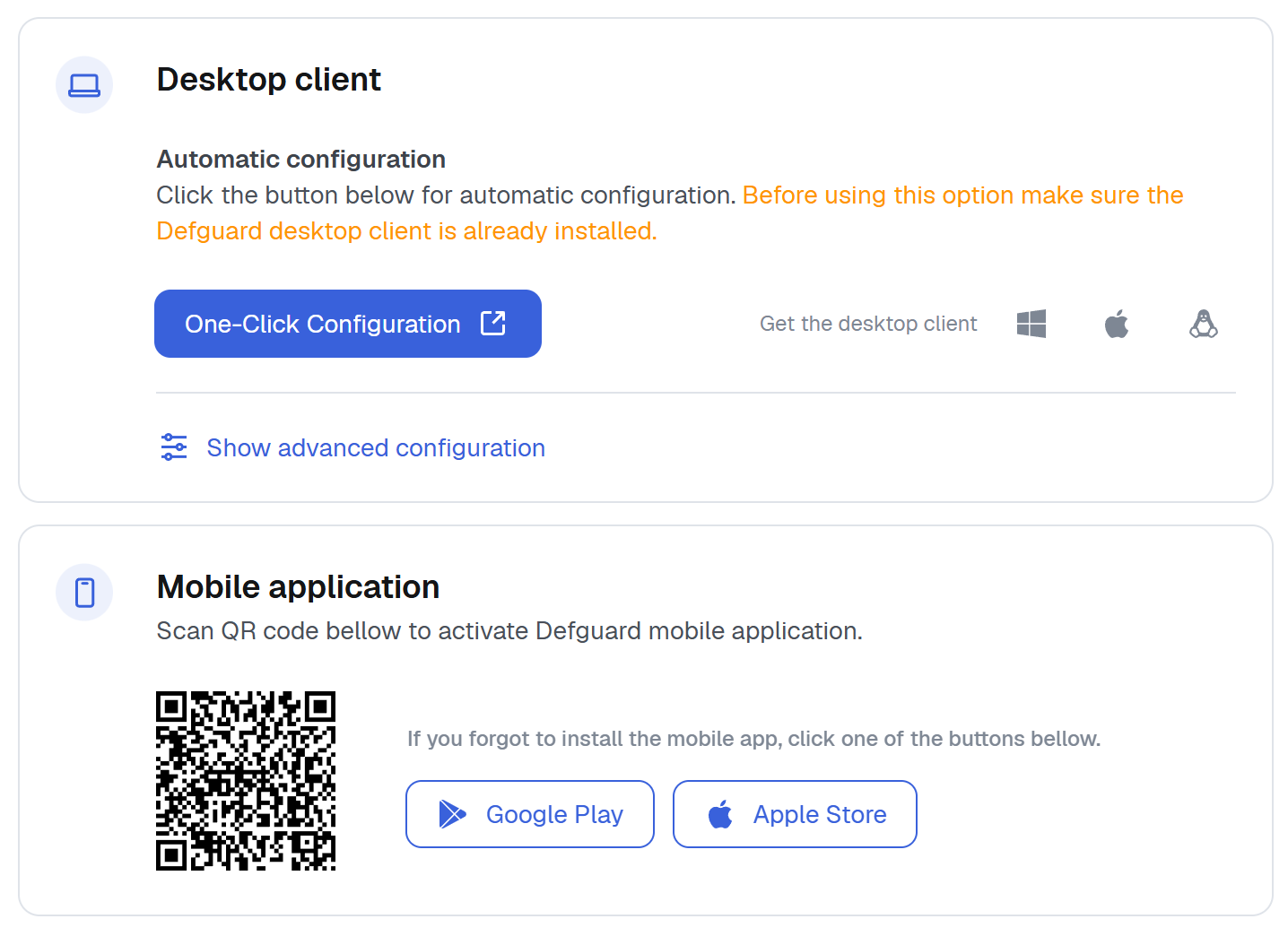
3. You will be redirected to your OIDC provider login page, please log in. After doing this, you will be redirected and shown a screen with **URL, Token and QR Code**.<br>

   <figure><img src="https://2426002228-files.gitbook.io/~/files/v0/b/gitbook-x-prod.appspot.com/o/spaces%2FqPYuWxfmxFk6sz1LLLwd%2Fuploads%2Fgit-blob-0a21751fa4dc28f03a2588832c603bfbc5e5c293%2Fchrome_uX7nvcTrjA.png?alt=media" alt="" width="375"><figcaption></figcaption></figure>
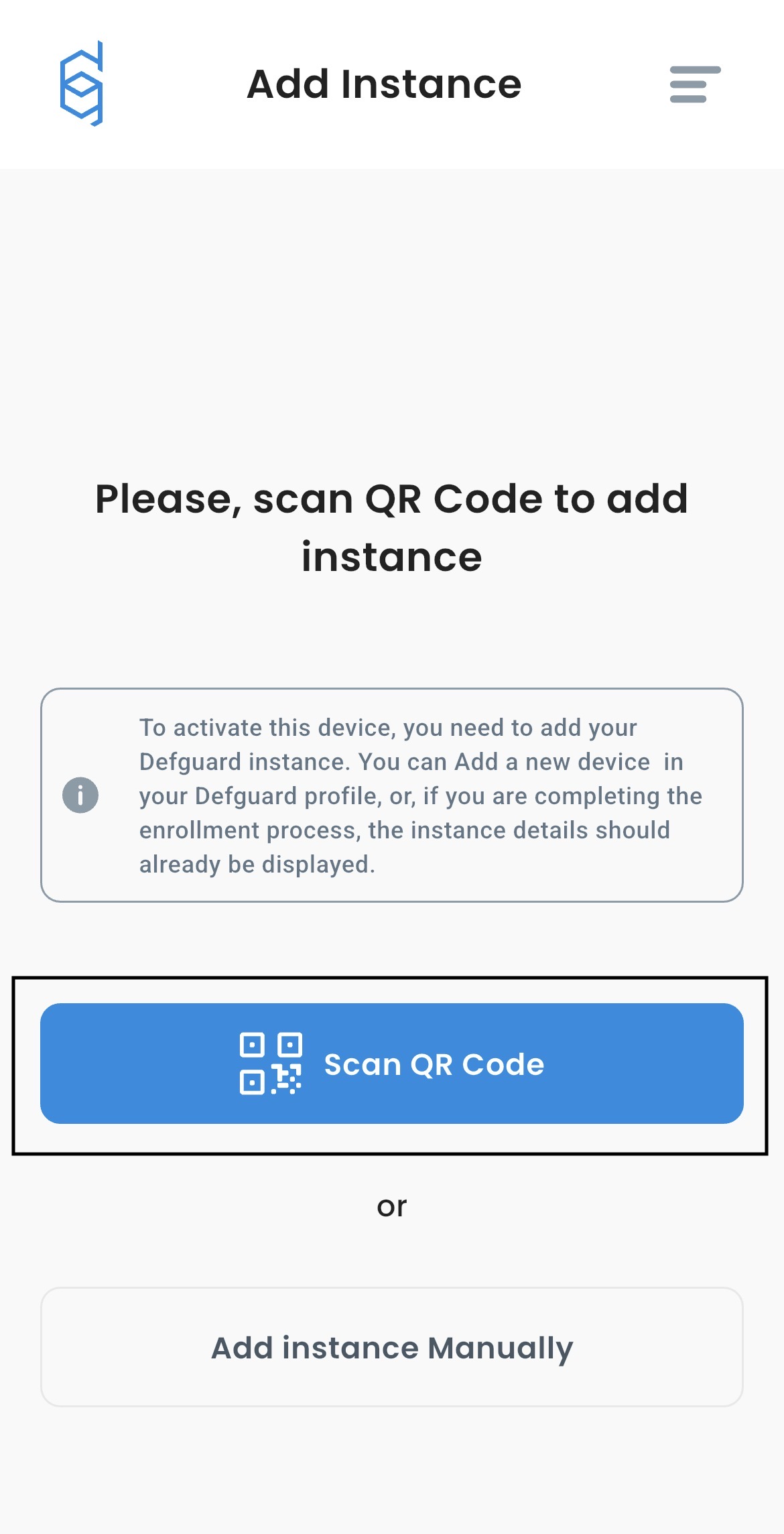
4. Open Defguard Mobile on your smartphone
5. Click **Scan QR Code**

<figure><img src="https://2426002228-files.gitbook.io/~/files/v0/b/gitbook-x-prod.appspot.com/o/spaces%2FqPYuWxfmxFk6sz1LLLwd%2Fuploads%2Fgit-blob-ae4742513dc67df12e51b1ce07dff9c274707c9a%2Fdefguard-mobile-add-instance.png?alt=media" alt="" width="375"><figcaption></figcaption></figure>

6. Scan QR generated in step 3.
7. Enter the name of your device. For example "iPhone 11"
8. Confirm

{% hint style="info" %}
If you can't scan QR Code, select **Add Instance Manually** in **step 5** and enter URL and Token from **step 3**.
{% endhint %}

## Enrollment via Email

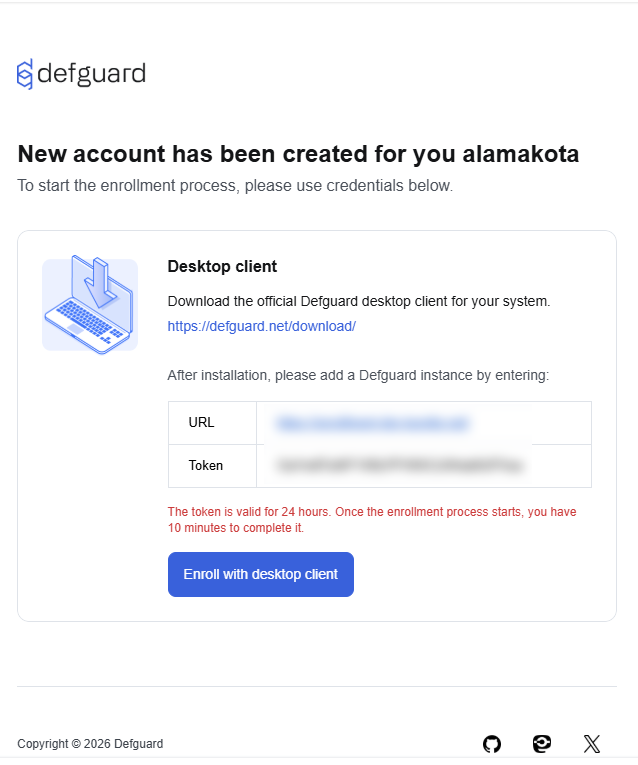
Find enrollment **Instance URL** and **Token** in your "Defguard user enrollment" email. It should look like this:

<figure><img src="https://2426002228-files.gitbook.io/~/files/v0/b/gitbook-x-prod.appspot.com/o/spaces%2FqPYuWxfmxFk6sz1LLLwd%2Fuploads%2Fgit-blob-435926346512e553023e0f86960d02f6f8e7ee70%2Fbrave_sDhXB25D0I.png?alt=media" alt="" width="479"><figcaption></figcaption></figure>

Now proceed enrollment with your Client app.

## Adding Instance in Defguard

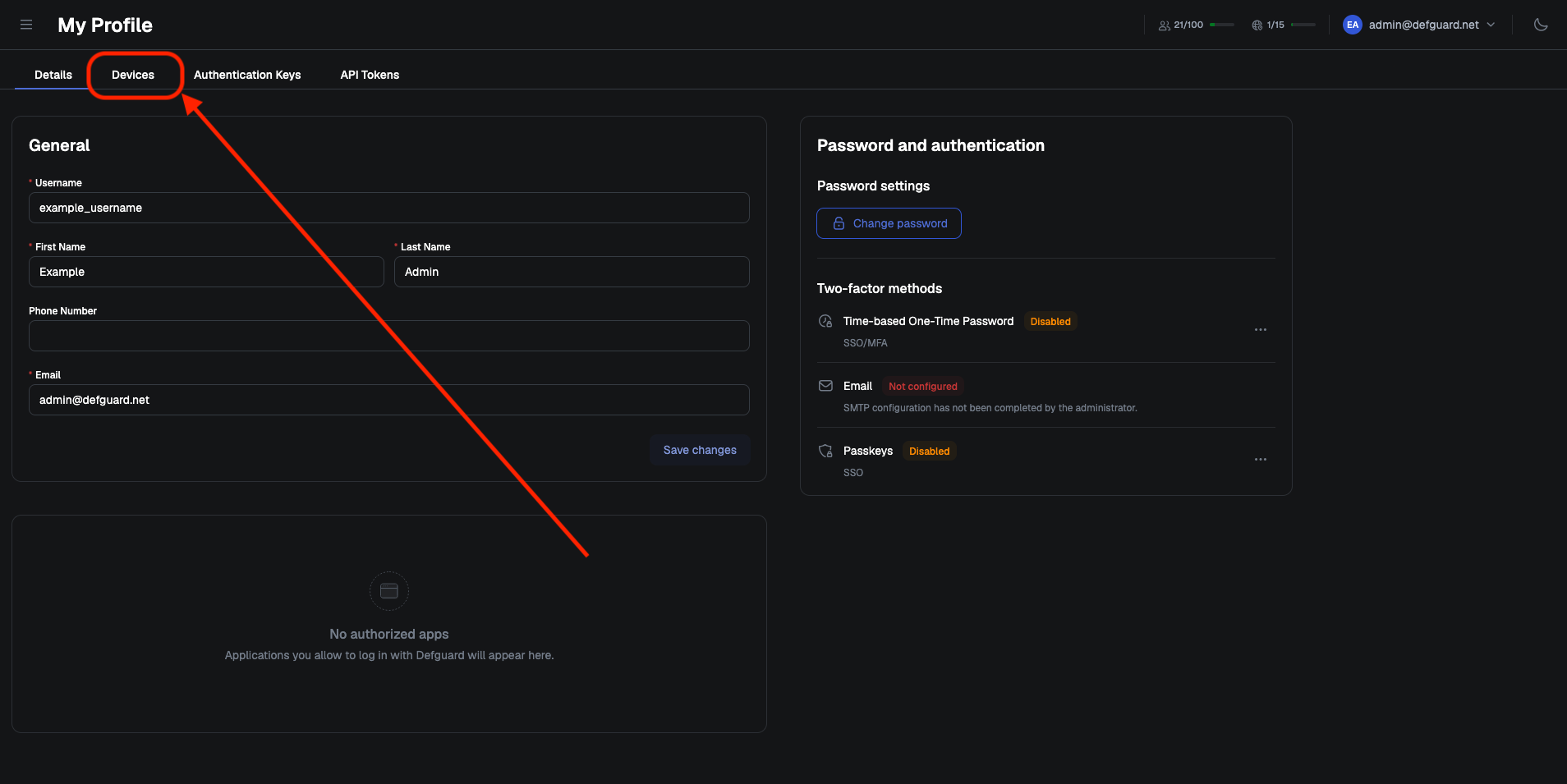
1. Log in to your Defguard account.
2. Go to **My Profile** tab.
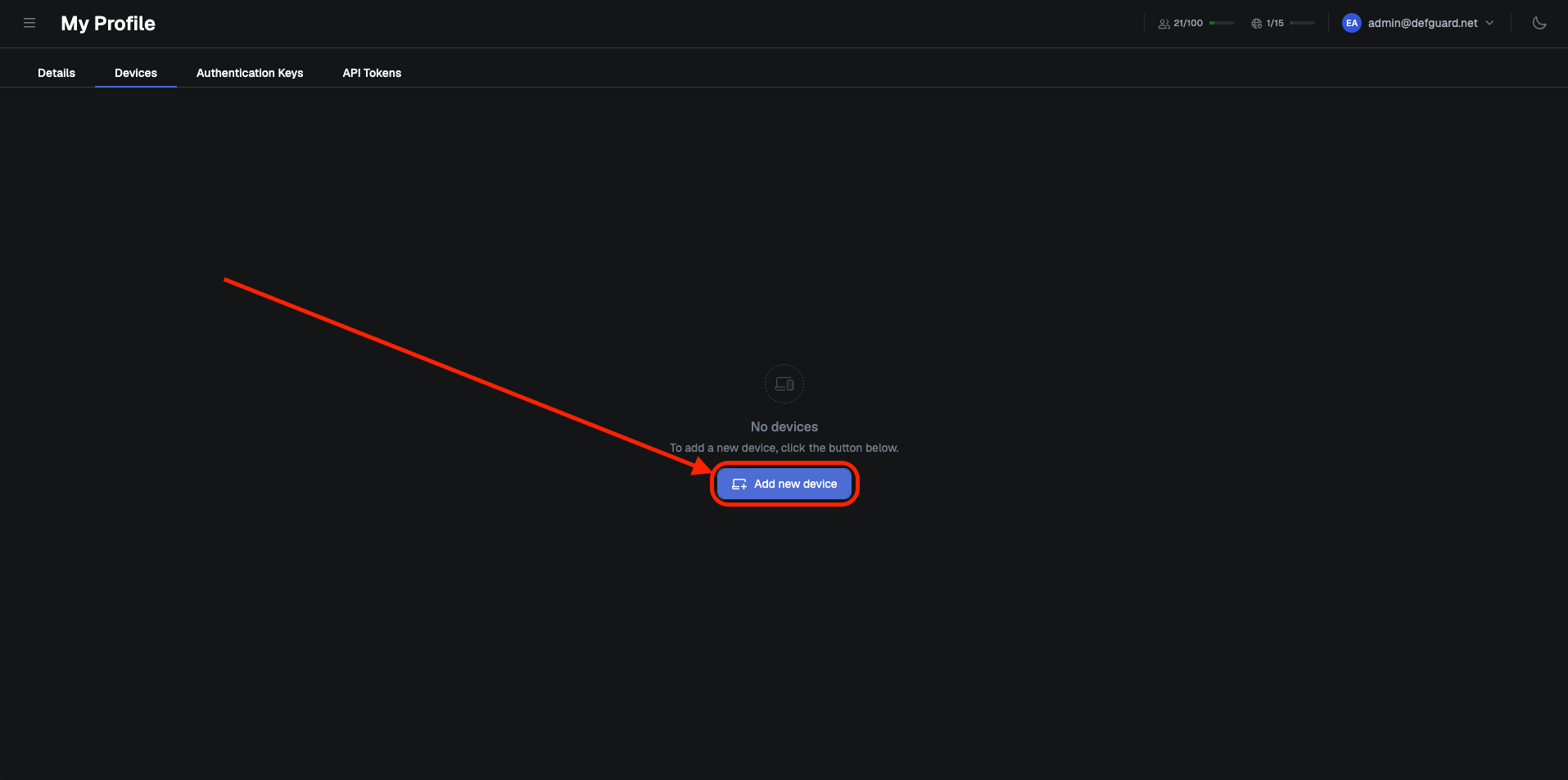
3. Click **Add new device** button inside **User Devices** list.

<figure><img src="https://2426002228-files.gitbook.io/~/files/v0/b/gitbook-x-prod.appspot.com/o/spaces%2FqPYuWxfmxFk6sz1LLLwd%2Fuploads%2Fgit-blob-f94744d0030be31a08e446336923f0ded9de24ce%2Fdefguard-myprofile-add-device.png?alt=media" alt="" width="50%"><figcaption></figcaption></figure>

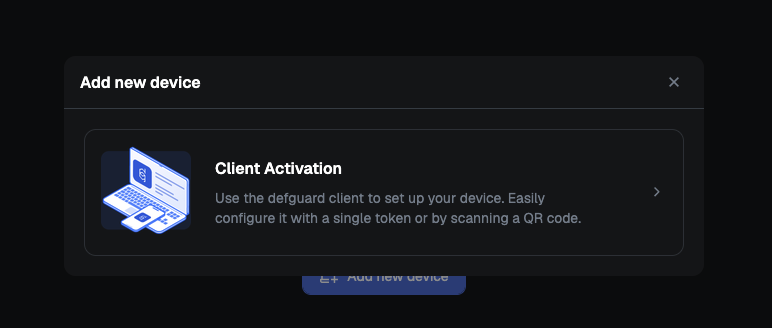
4. Select **Remote Device Activation** and click **Next**.

<figure><img src="https://content.gitbook.com/content/qPYuWxfmxFk6sz1LLLwd/blobs/3xhllenfsvcRPy6xG32f/defguard-add-new-device.png" alt="" width="50%"><figcaption></figcaption></figure>

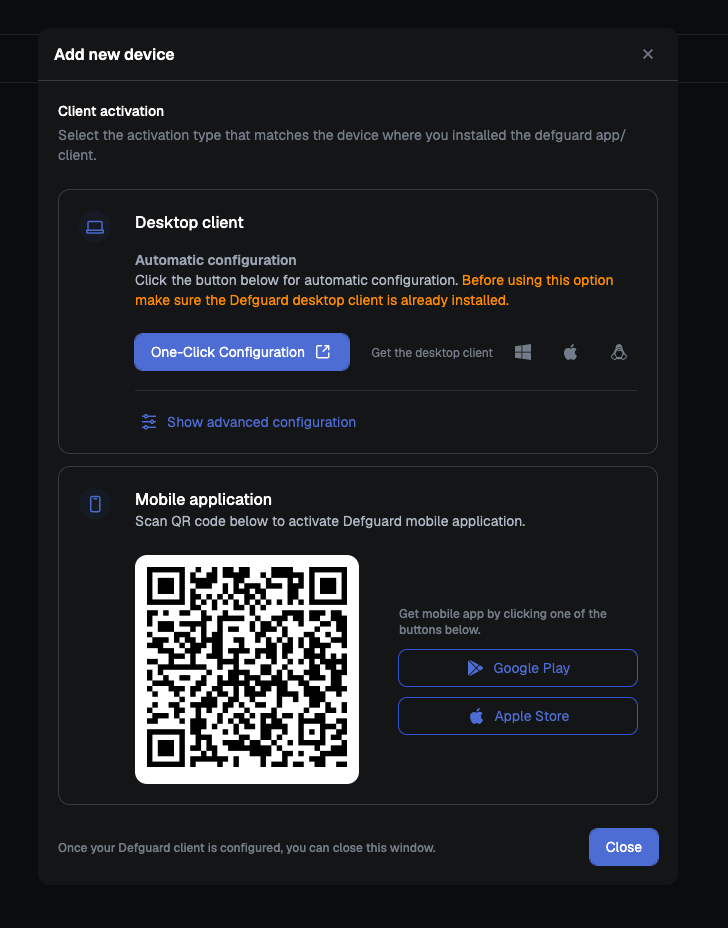
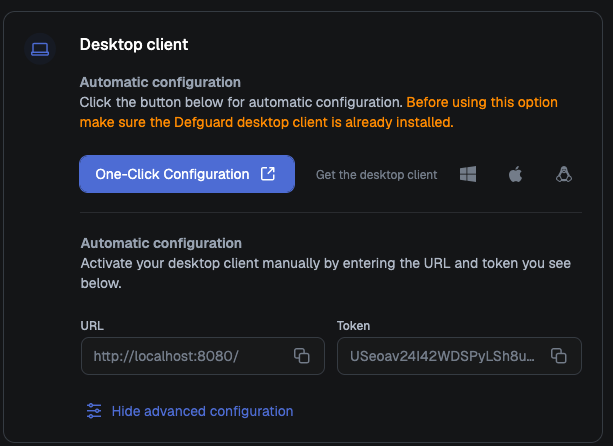
5. After that you will see URL, Token and QR Code. **Take a screenshot of QR code**, we will need it in next step.

<figure><img src="https://content.gitbook.com/content/qPYuWxfmxFk6sz1LLLwd/blobs/zWHYLKTo6Os3kpAr7YjX/defguard-add-instance-qr.png" alt="" width="50%"><figcaption></figcaption></figure>

6. Open Defguard Mobile on your smartphone
7. Click **Scan QR Code**

<figure><img src="https://2426002228-files.gitbook.io/~/files/v0/b/gitbook-x-prod.appspot.com/o/spaces%2FqPYuWxfmxFk6sz1LLLwd%2Fuploads%2Fgit-blob-ae4742513dc67df12e51b1ce07dff9c274707c9a%2Fdefguard-mobile-add-instance.png?alt=media" alt="" width="375"><figcaption></figcaption></figure>

8. Scan QR generated in step 5.
9. Enter the name of your device. For example "iPhone 11"
10. Confirm

{% hint style="info" %}
If you can't scan QR Code, select **Add Instance Manually** in **step 4** and enter URL and Token from **step 5**.
{% endhint %}


---

# Agent Instructions: Querying This Documentation

If you need additional information that is not directly available in this page, you can query the documentation dynamically by asking a question.

Perform an HTTP GET request on the current page URL with the `ask` query parameter:

```
GET https://docs.defguard.net/using-defguard-for-end-users/mobile-client/instance-adding.md?ask=<question>
```

The question should be specific, self-contained, and written in natural language.
The response will contain a direct answer to the question and relevant excerpts and sources from the documentation.

Use this mechanism when the answer is not explicitly present in the current page, you need clarification or additional context, or you want to retrieve related documentation sections.