> For the complete documentation index, see [llms.txt](https://docs.defguard.net/llms.txt). Markdown versions of documentation pages are available by appending `.md` to page URLs; this page is available as [Markdown](https://docs.defguard.net/using-defguard-for-end-users/enrollment/with-internal-defguard-sso.md).
# With internal Defguard SSO
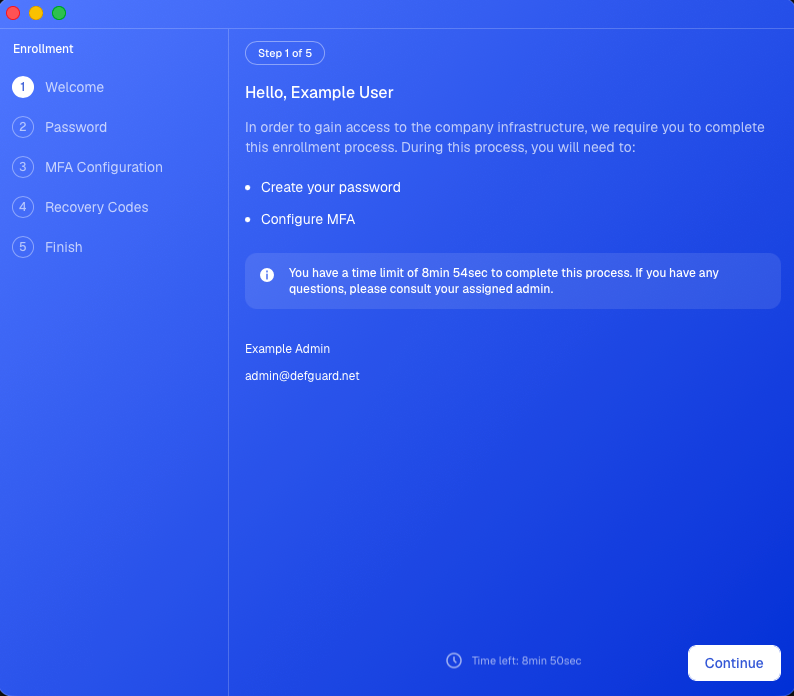
Defguard provides **a secure remote enrollment process (remote registration and account activation)**, during which the user can:
* Double-check their data
* Setup their password
* Add their initial device to access VPN as a nice wizard!
* See admin (that has added this user) **contact details**
This process includes account setup and/or VPN configuration, since Defguard is used as an SSO for:
* Accessing all your applications, meaning with Defguard's account you not only access/configure VPN but also log in to other applications.
* And accessing the VPN.
All done by a wizard:
This can be done in **two ways** - either in the **browser** (web based) or by using a **Defguard desktop client**. For both ways, there is an email that is sent to the user with explanation and relevant URLs/tokens.
{% hint style="warning" %}
When starting the enrollment process - a user will have only **10 minutes** to complete the process.
The **enrollment token is valid for 24 hours.**
{% endhint %}
### Enrollment using desktop client
In the desktop client, **when adding an instance** - the enrollment & onboarding process takes place.
What is great about this is that after the enrollment process is done - the desktop client is **automatically configured with all available VPN locations for the user.**
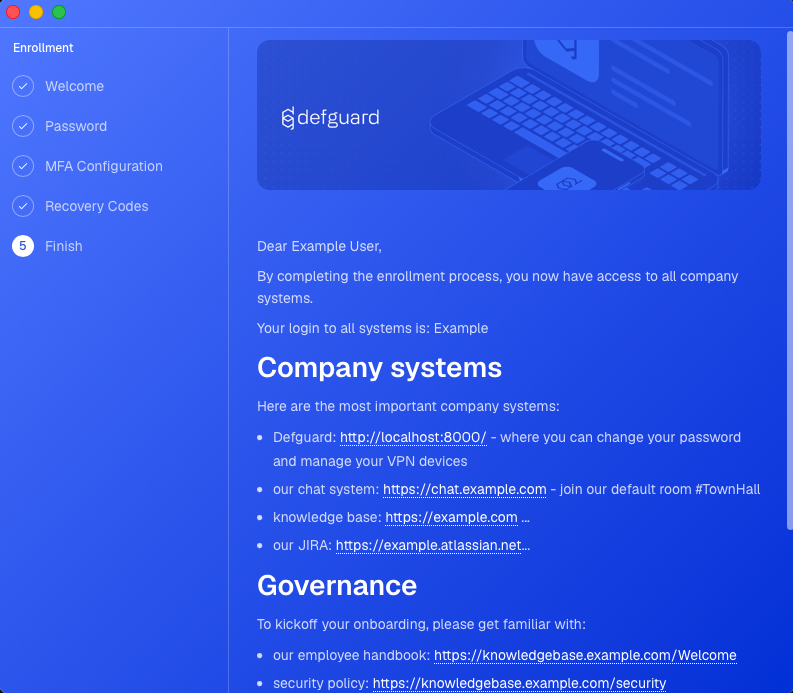
## User onboarding after enrollment
After the enrollment process, new users are provided with **any relevant company information, links to company systems, security guidelines**, etc.
The onboarding messages will be shown on the **last step of the enrollment process and sent to the user via email**: