> For the complete documentation index, see [llms.txt](https://docs.defguard.net/llms.txt). Markdown versions of documentation pages are available by appending `.md` to page URLs; this page is available as [Markdown](https://docs.defguard.net/features/external-openid-providers/jumpcloud.md).
# JumpCloud
Firstly, we need to obtain credentials such as
* `Client ID`
* `Client secret`
If you already have them, please skip to [#configuring-jumpcloud-as-external-oidc-in-defguard](#configuring-jumpcloud-as-external-oidc-in-defguard "mention")
## Obtaining basic credentials
1. Login to your JumpCloud admin account
2. Navigate to SSO Applications
3. Add a new SSO Application
4. Select "Custom" on this screen
5. Select "Configure SSO with OIDC"
6. Fill the app's display label in the next form
7. After finishing this configuration, you will be redirected to your newly created SSO Application's settings. Go to the "SSO" tab first
8. Configure as following:
Make sure to set the correct Redirect URI and Login URL that will reflect your Defguard's setup.\
If you access your Defguard dashboard at e.g., `https://defguard.example.net` your redirect URI will be `https://defguard.example.net/auth/callback` and the login URL `https://defguard.example.net/auth/login`.\
Additionally, if you are using Defguard Edge to enroll users, you can also add another redirect URI in the form of `/openid/callback` and `/openid/mfa/callback` if you wish to use the [External MFA feature](broken://pages/XIinkq9ofULvuZFxYwCL) (`` is the address at which your Edge enrollment page is accessible).
9. Next, select the profile scope and add an `email` user attribute mapping by hand, like so:
It's important **not** to select the email standard scope checkbox, as it will automatically add a constant `email_verified` field which doesn't conform to the OpenID standard and doesn't work with Defguard.\
You can see the following section for more information: [External SSO/OpenID providers](/features/external-openid-providers.md#jumpcloud).
10. Click "**Activate**". You will be presented with a client ID and a secret. Copy both of them, as you will need to insert them in Defguard's settings.
## Obtaining Directory synchronization credentials
{% hint style="warning" %}
JumpCloud API keys are bound to users and don't support granular permissions nor generating more than one at a time, we recommend generating the API key for a user with read only permissions, as Defguard doesn't require write permissions to your directory.
{% endhint %}
* Login to your [JumpCloud admin portal](https://console.jumpcloud.com/)
* Generate a new API key (or use an existing one). This can be done by clicking your user icon in the upper right corner and selecting "My API key"
* If you already generated an API key, you will have to regenerate it here (please note that regenerating the API key may break your existing integrations that already use it).
The JumpCloud directory synchronization should now work and your users' state and group memberships should be periodically synchronized
## Configuring JumpCloud as external OIDC in Defguard
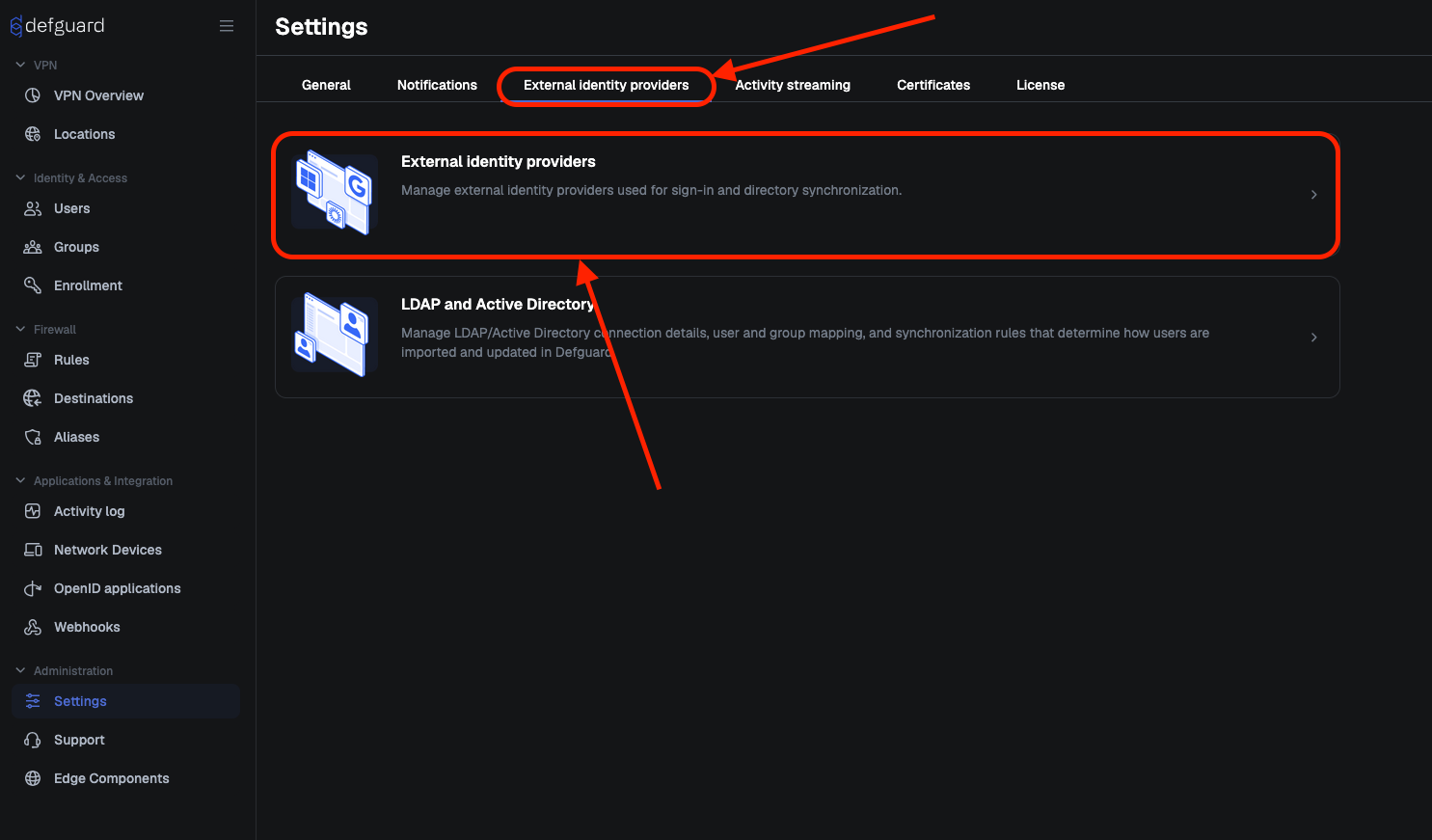
1. Go to **Settings → External identity providers**
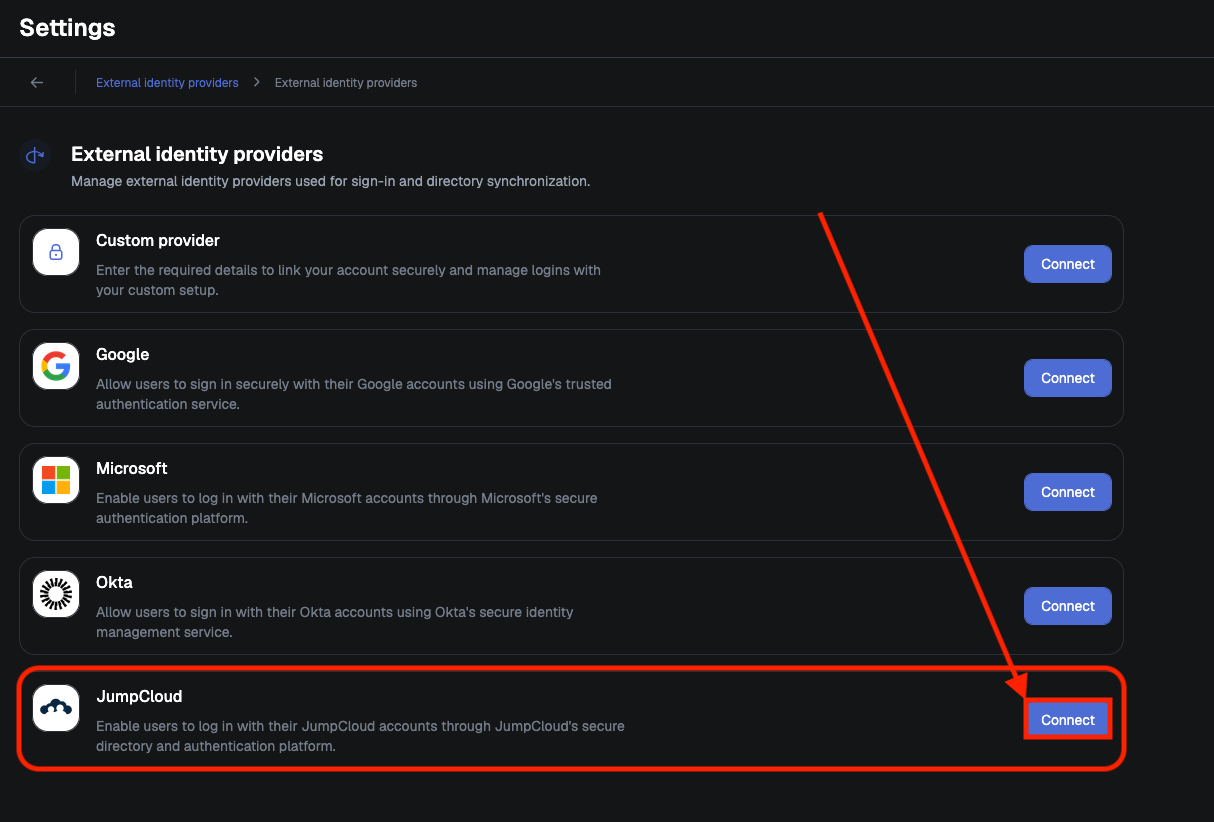
2. Click "**Connect**" in row with **JumpCloud**
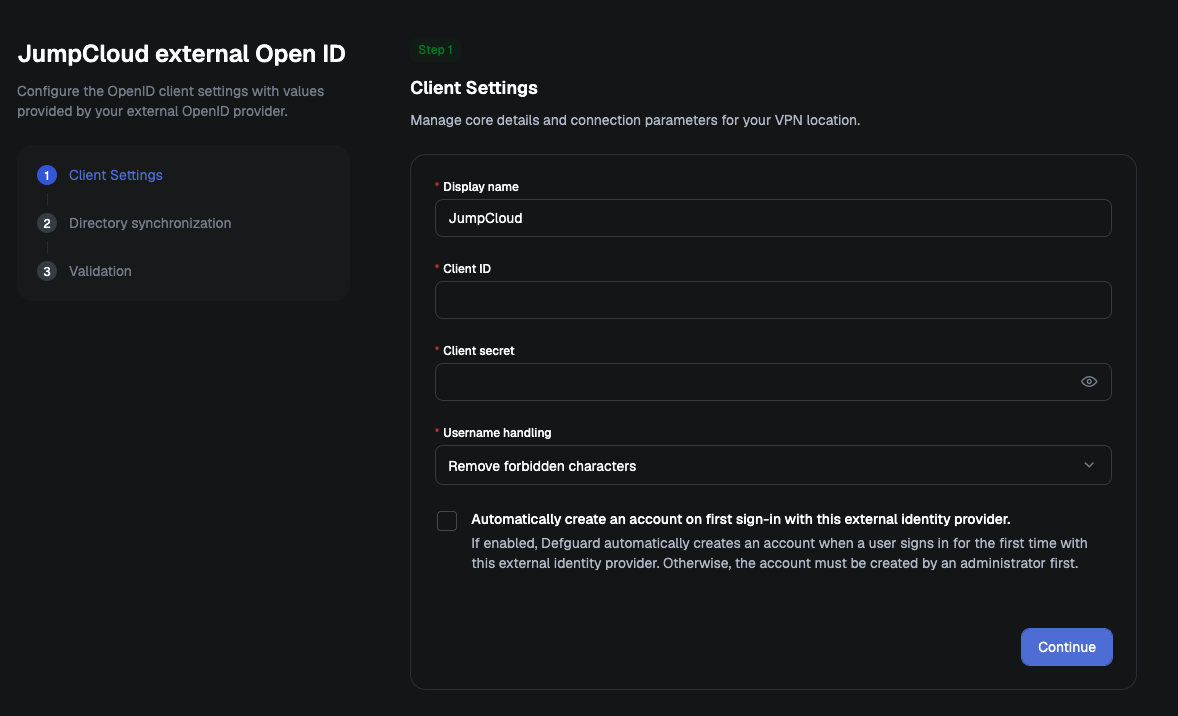
3. Fill out **Client ID** and **Client secret** (Check [#obtaining-basic-credentials](#obtaining-basic-credentials "mention"))
4. Click **Continue**
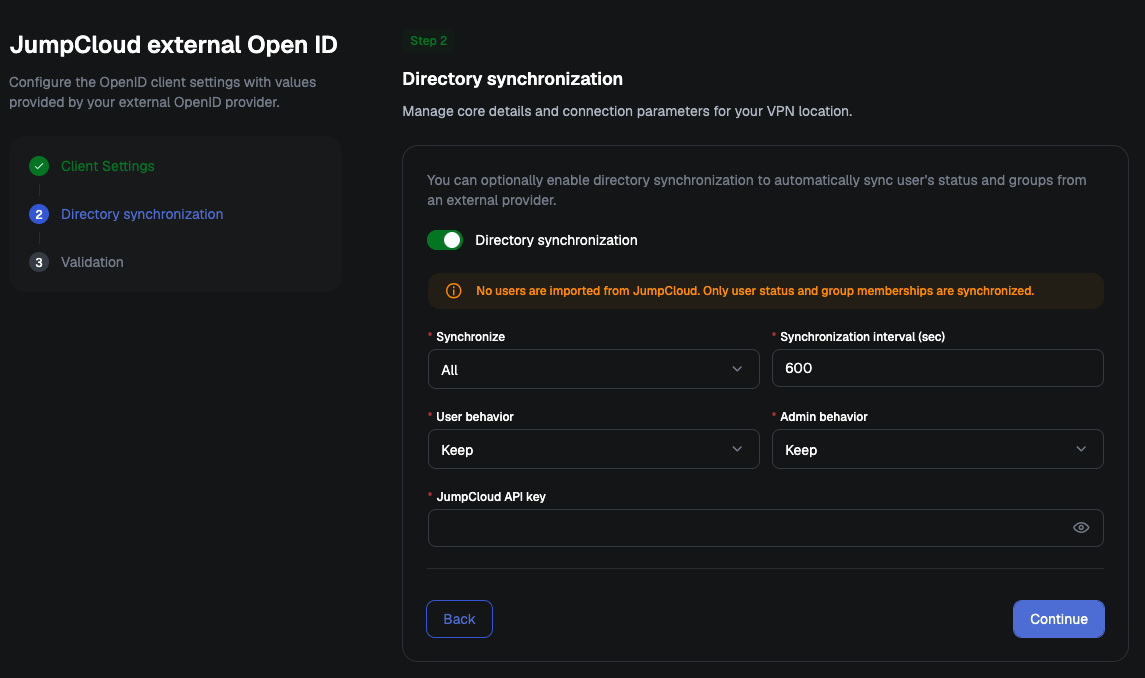
5. If you decide to use **Directory Synchronization**, enter **JumpCloud API Key**\
(Check [#obtaining-directory-synchronization-credentials](#obtaining-directory-synchronization-credentials "mention"))
6. Confirm with "**Continue**" button
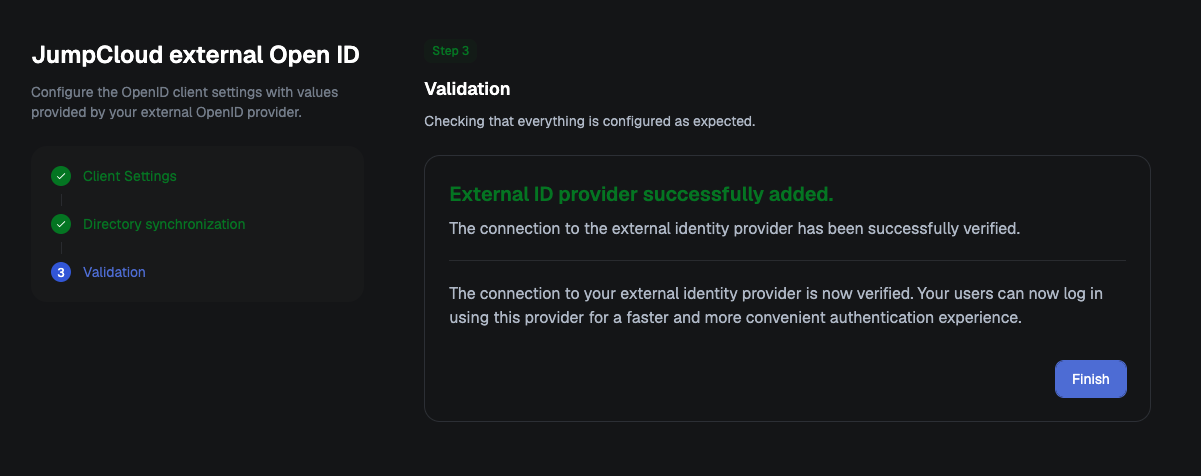
If no errors occurred during configuration, you will see a message indicating that your OIDC provider has been successfully added
7. Click "**Finish**" button
### Verifying setup
Back in JumpCloud, make sure your users have access to the SSO Application. You can enable it by navigating to the `User groups` menu and selecting the group you want to enable logging in through JumpCloud for. Only users from this group will be able to log in to Defguard with JumpCloud. In this example, we will select the `All users` group, which is a dynamic group containing every user.
Now in the group settings menu, select the `Applications` tab and select the checkbox next to your newly created app, this will enable the app for that group. Click `Save group` when you finish.
Now you should be able to log in to Defguard with JumpCloud.