> For the complete documentation index, see [llms.txt](https://docs.defguard.net/llms.txt). Markdown versions of documentation pages are available by appending `.md` to page URLs; this page is available as [Markdown](https://docs.defguard.net/features/external-openid-providers/google.md).
# Google
Firstly, we need to obtain credentials such as
* `Client ID`
* `Client secret`
* `Admin email` (optionally)
* `Service account key` (optionally)
If you already have them, please skip to [#configuring-google-as-external-oidc-in-defguard](#configuring-google-as-external-oidc-in-defguard "mention")
## Obtaining basic credentials
{% hint style="info" %}
Here is [full Google documentation](https://developers.google.com/identity/openid-connect/openid-connect) about this process.
{% endhint %}
1. The Google OpenID Connect can be configured in the [Google Cloud Console](https://console.cloud.google.com)
2. If you don't have any project setup already (or you want to create a new one for this purpose), create it by clicking the dropdown menu here:
If you already have project, make sure to select it in the above dropdown menu.
3. Now, navigate to [`APIs & Services`](https://console.cloud.google.com/apis)
4. We will focus on the consent screen first, select `OAuth consent screen`
5. Pick the User Type according to your needs, this example will focus on the internal type
6. Fill in all required details. Make sure to fill the correct domain. This should be the top domain under which your Defguard dashboard can be accessed, not the subdomain (e.g. `defguard.example.com` -> `example.com`)
7. On the scopes config screen, click `ADD OR REMOVE SCOPES`, Defguard requires at least the following scopes:
8. Proceed until the end and return to the OAuth consent screen dashboard.
9. Now, go to [`Credentials`](https://console.cloud.google.com/apis/credentials), click `CREATE CREDENTIALS` and choose `OAuth client ID`
10. On the next screen, fill out all required information:
Make sure to select "Web application" as the application type. The other thing to note here is the redirect URI. It is the URI to which the user will be redirected from the external provider's authorization. This URI is in the form of `/auth/callback`. Replace `` with the URL under which your dashboard is accessible, e.g., `https://defguard.example.com`. If you'd like to use OpenID enrollment through Edge (and MFA, make sure to enter an additional URIs here in the form of `/openid/callback`, and if you use External MFA please add also: `/openid/mfa/callback`
11. After you proceed further, you will be presented with a popup containing your `Client ID` and `Client Secret`, copy them as you will need them in Defguard
## Obtaining Directory Synchronization credentials
1. Navigate to [Service Accounts](https://console.cloud.google.com/iam-admin/serviceaccounts) in the Google Cloud console
2. Click "Create service account"
3. Give your service account a descriptive name
4. Skip step 2 and 3 if you are not sure what to configure there
5. Go to your newly created service account and add a new key in the "KEYS" tab
6. A JSON file will be downloaded after you click "CREATE". Store it securely as it may grant access to your Google Workspace directory
7. Next, navigate to the "DETAILS" tab and copy the unique ID of your service account. It will be needed later.
8. Open the Advanced settings and under Domain-wide delegation click "View Google Workspace admin console"
9. Now in the admin console, navigate to [API controls](https://admin.google.com/u/1/ac/owl)
10. In the API controls, click "Manage domain wide delegation"
11. On the next screen, add a new API client
In the `Client ID` field paste `unique ID` from step 7.\
\
Specify the following scopes for your client:\
`openid, email, profile, https://www.googleapis.com/auth/admin.directory.customer.readonly, https://www.googleapis.com/auth/admin.directory.group.readonly, https://www.googleapis.com/auth/admin.directory.user.readonly`
12. Navigate to the Defguard settings and upload the **JSON** file you obtained previously. Make sure to also input the email of the account on which behalf the API calls will be made. This account should have access to users and their groups (e.g., email of your account as an admin)
## Configuring Google as external OIDC in Defguard
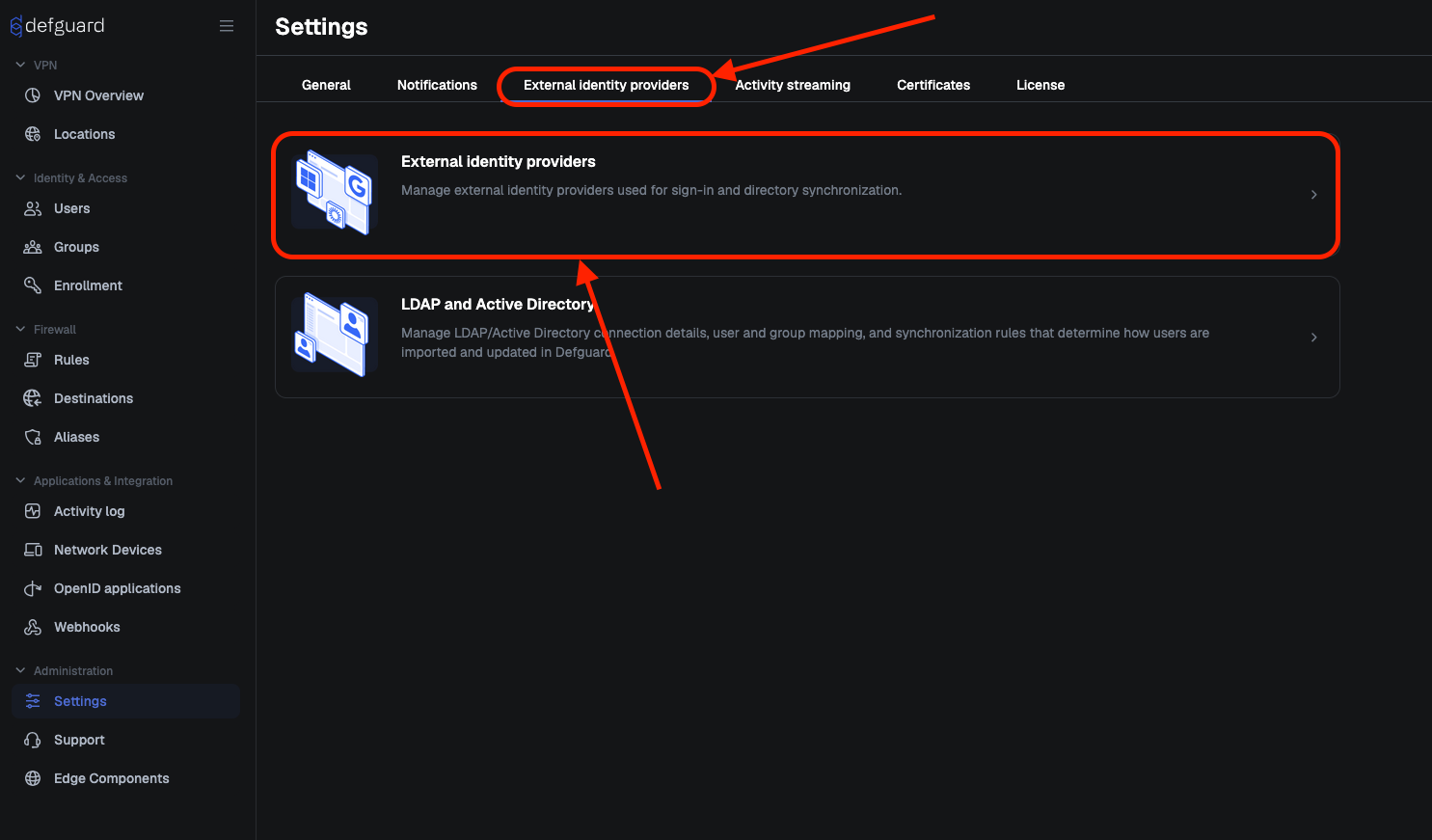
1. Go to **Settings → External identity providers**
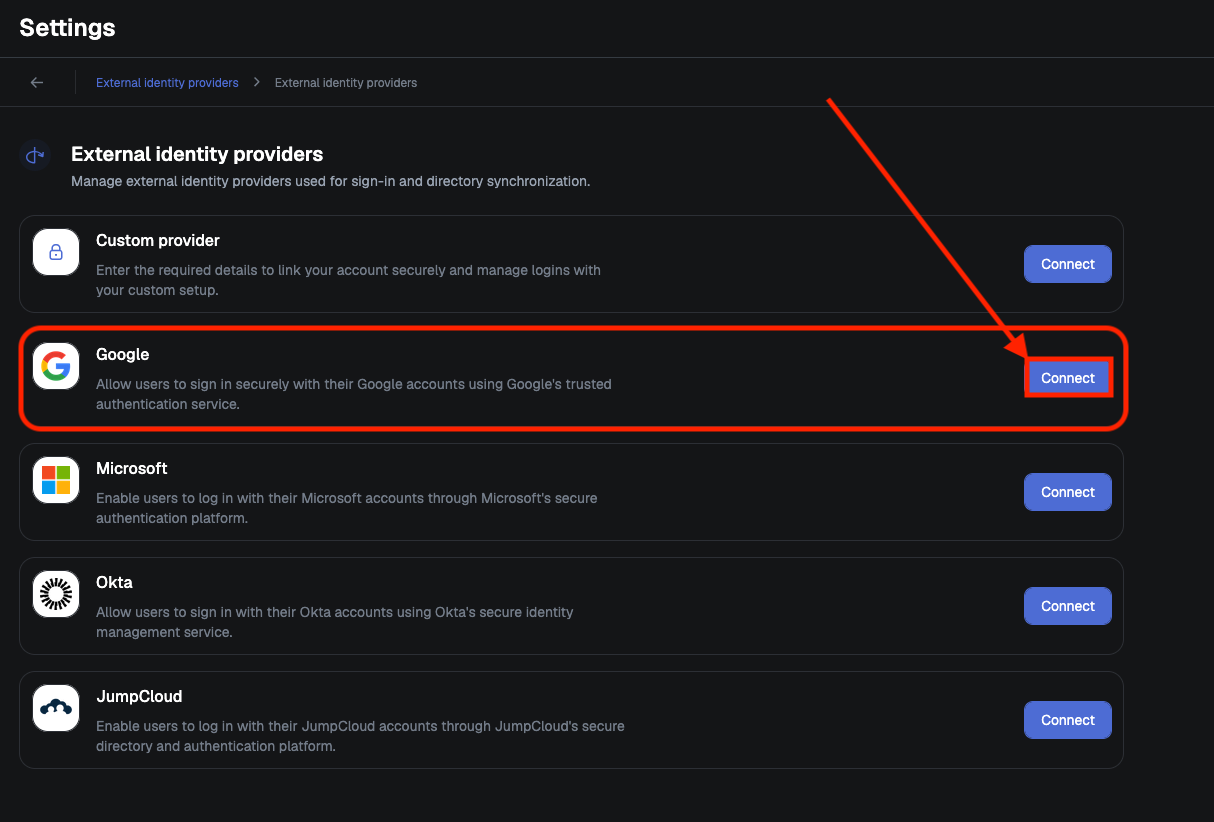
2. Click "**Connect"** in row with **Google**
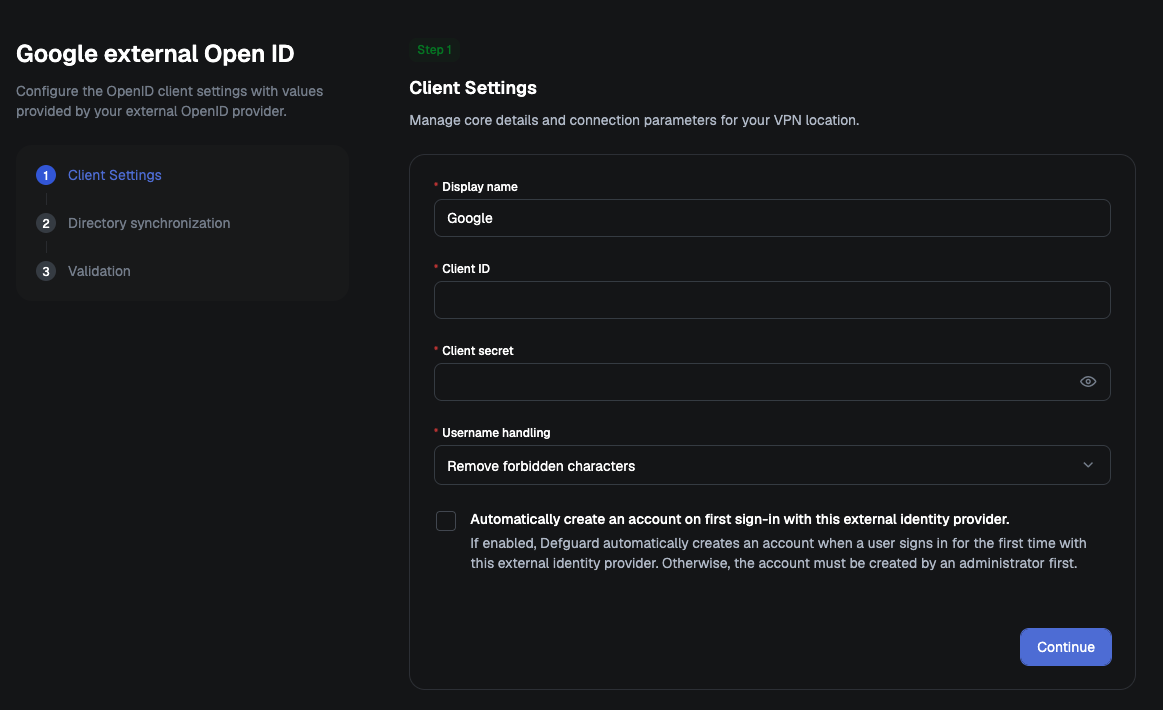
3. Fill **Client ID** and **Client secret**. (See [#obtaining-basic-credentials](#obtaining-basic-credentials "mention"))
4. Click "**Continue**"
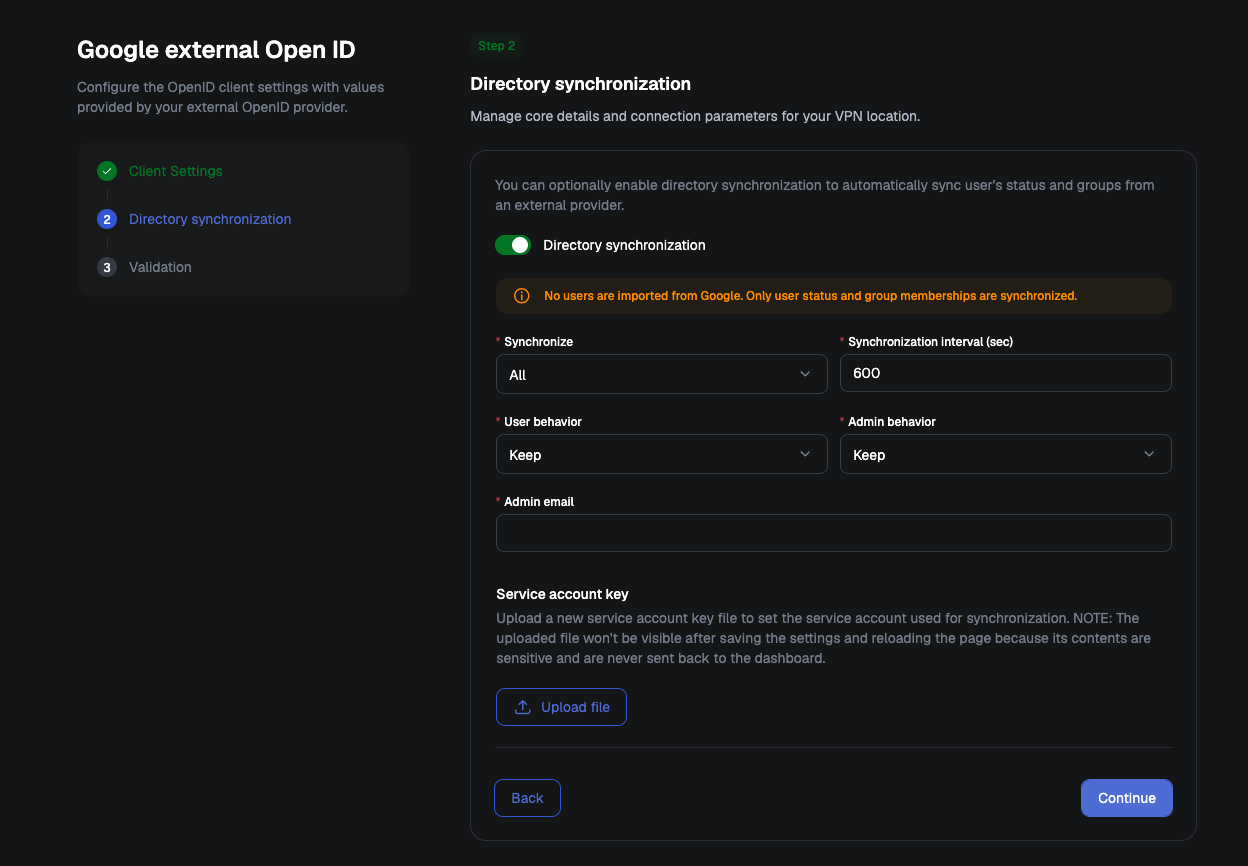
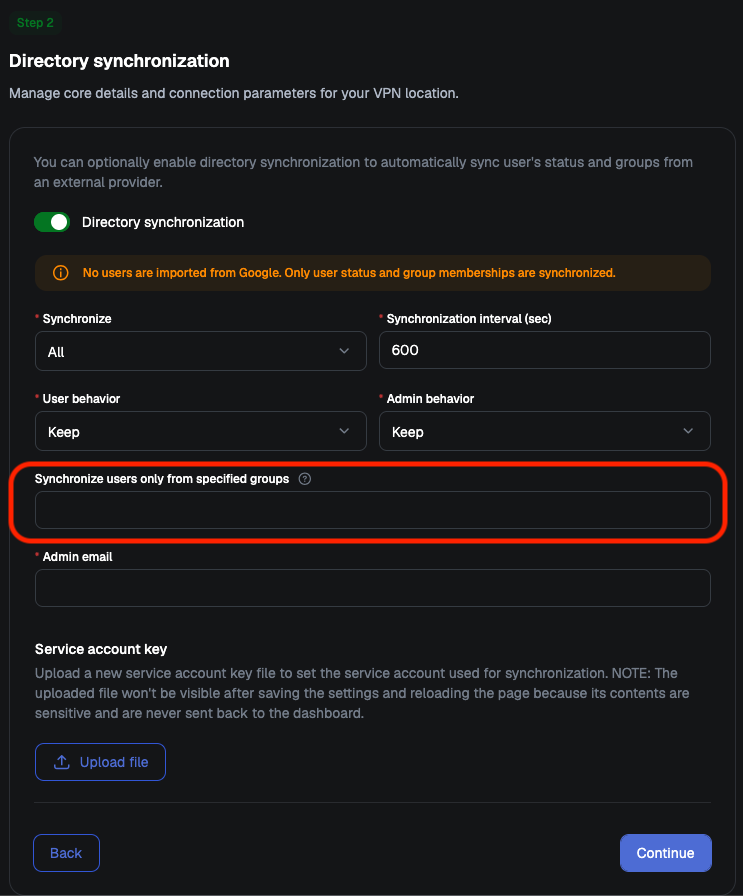
5. If you decide to use **Directory Synchronization**, enable it and fill out "**Admin email"** and upload **Service account key** file. (See [#obtaining-directory-synchronization-credentials](#obtaining-directory-synchronization-credentials "mention"))
{% hint style="warning" %}
This feature is currently technically limited to 10000 members or groups. High user or group counts may still trigger your provider API limits even below this threshold. If you have many users (200+), we recommend you test this feature first before you decide to turn on automatic user deletion.
{% endhint %}
* **Admin email:** The email of the Google Workspace admin user on whose behalf Defguard will call the Google API
* **Service Account Key:** JSON file used to authenticate your application with Google APIs using a service account
* **Synchronize users only from specified groups:** Restricts synchronization to the members of the Google Workspace groups you list here, separated by commas. Leave it empty to allow all users. See [External SSO/OpenID providers](/features/external-openid-providers.md#directory-synchronization) for details.
6. Click "**Continue"**
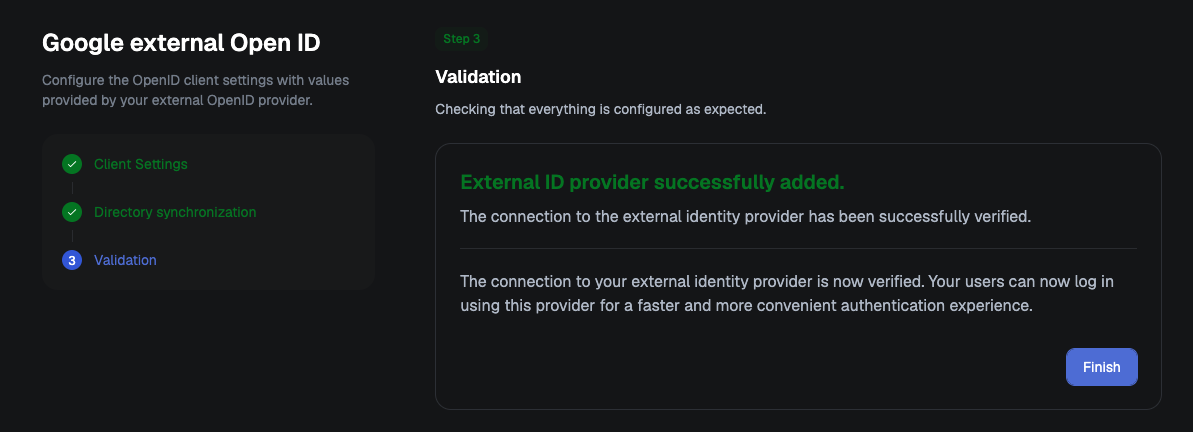
If no errors occurred during configuration, you will see a message indicating that your OIDC provider has been successfully added
7. Click "**Finish**"