> For the complete documentation index, see [llms.txt](https://docs.defguard.net/llms.txt). Markdown versions of documentation pages are available by appending `.md` to page URLs; this page is available as [Markdown](https://docs.defguard.net/features/certificate-management.md).
# Certificate management
Certificate management in Defguard covers how certificates are generated, provided, and applied for both the Core and Edge components. Defguard can generate and manage certificates for the Core and Edge web servers, and it also issues certificates used for secure gRPC communication between components.
Depending on your setup, you can use the built-in Defguard CA, provide your own certificates, or for Edge use Let's Encrypt. This section explains the available options and when each approach is appropriate.
## CA configuration
A certificate authority (CA) is the entity that issues and signs certificates used to secure HTTPS communication. In Defguard, the built-in CA can be used to generate certificates for both Core and Edge, which simplifies certificate management in environments where you control the trusted clients and infrastructure.
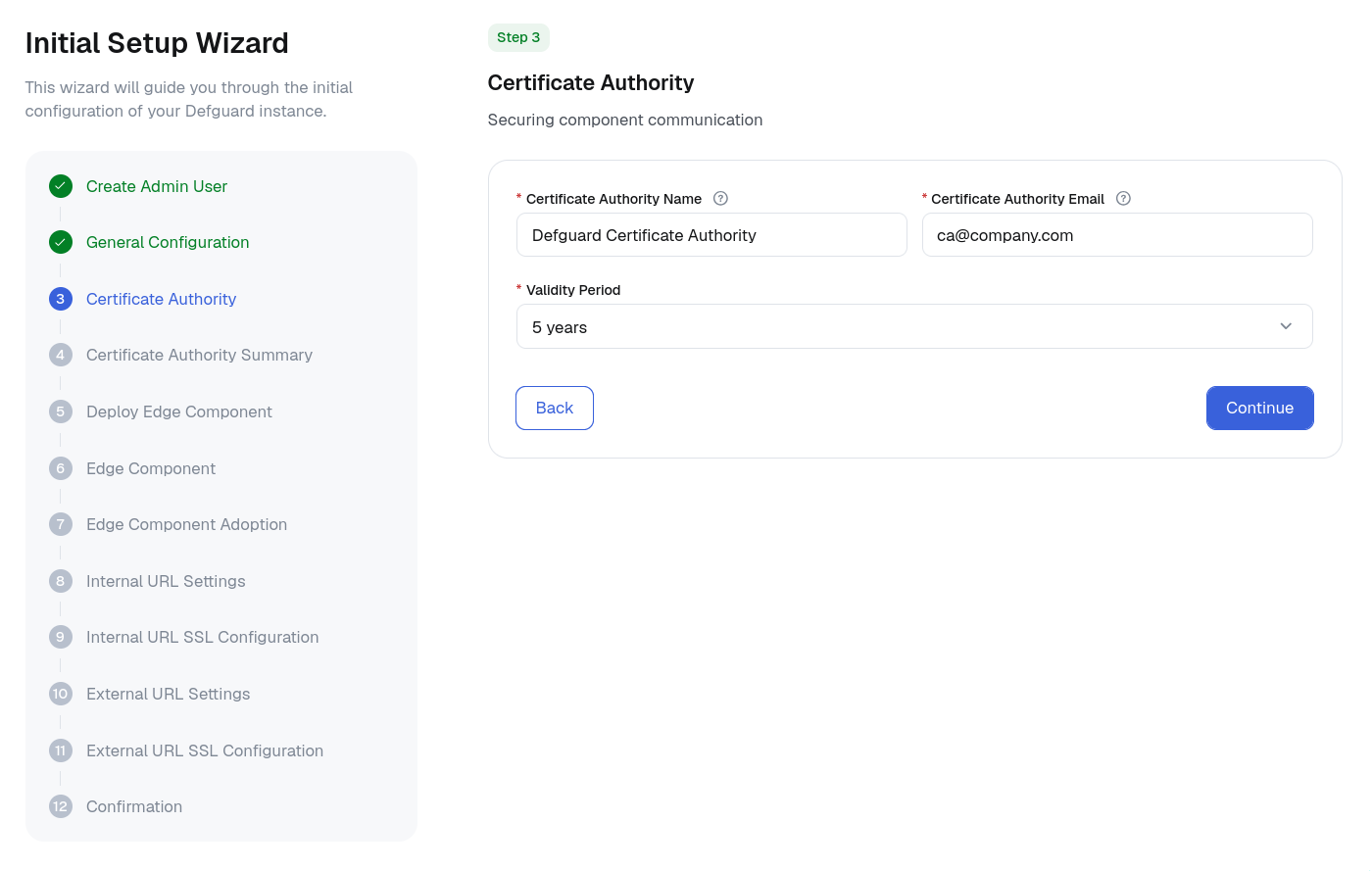
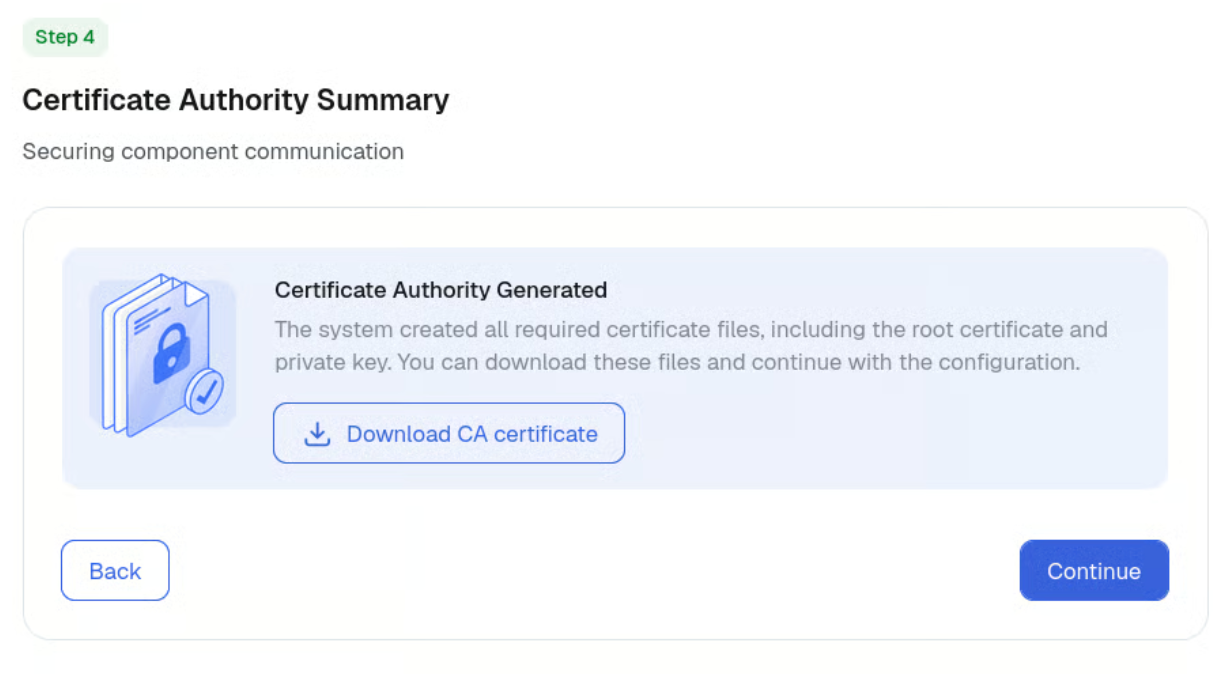
Certificate authority is configured during the setup process, where the user is asked to provide relevant information.
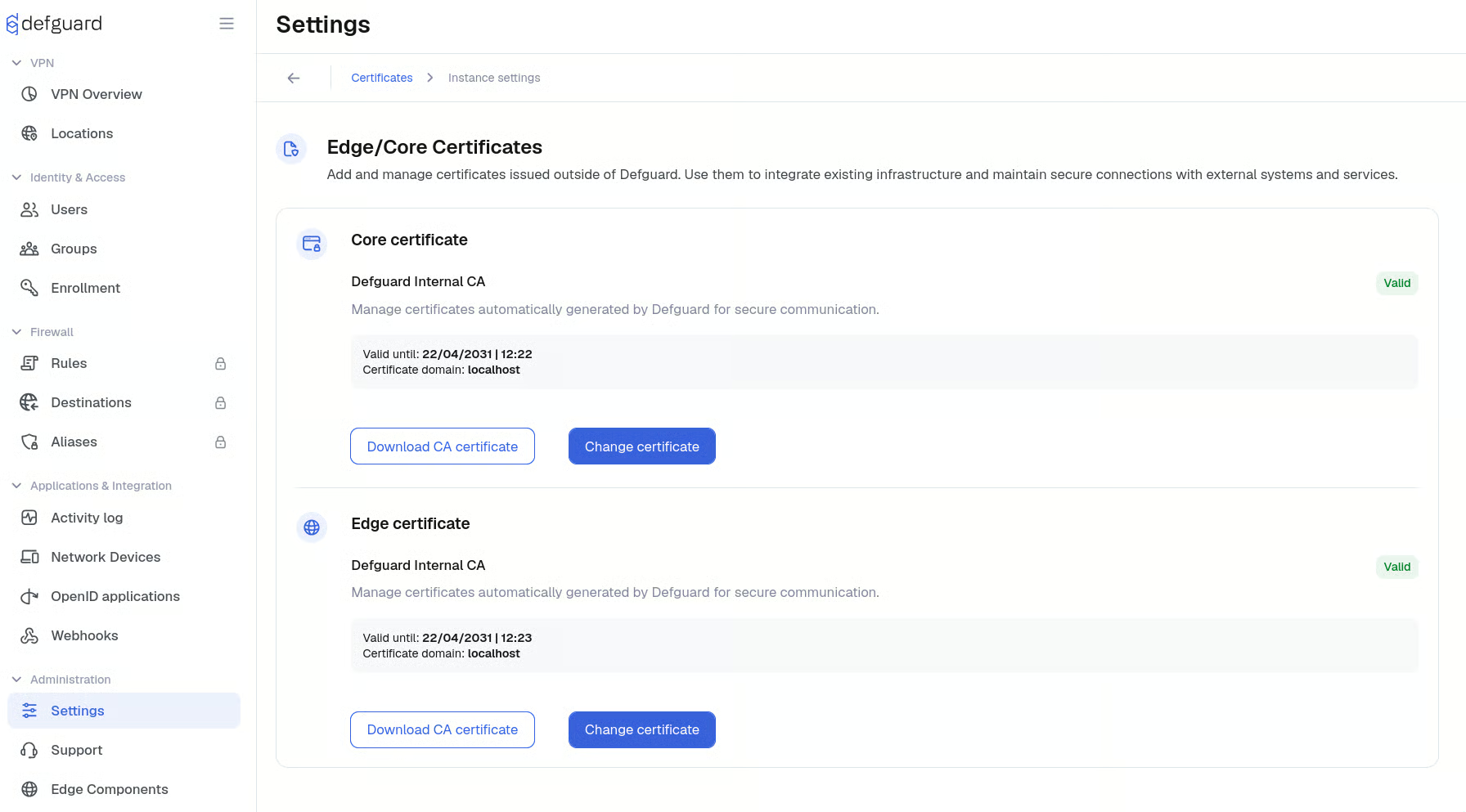
Once configured, the CA certificate can be downloaded and imported into browsers as a trusted certificate.
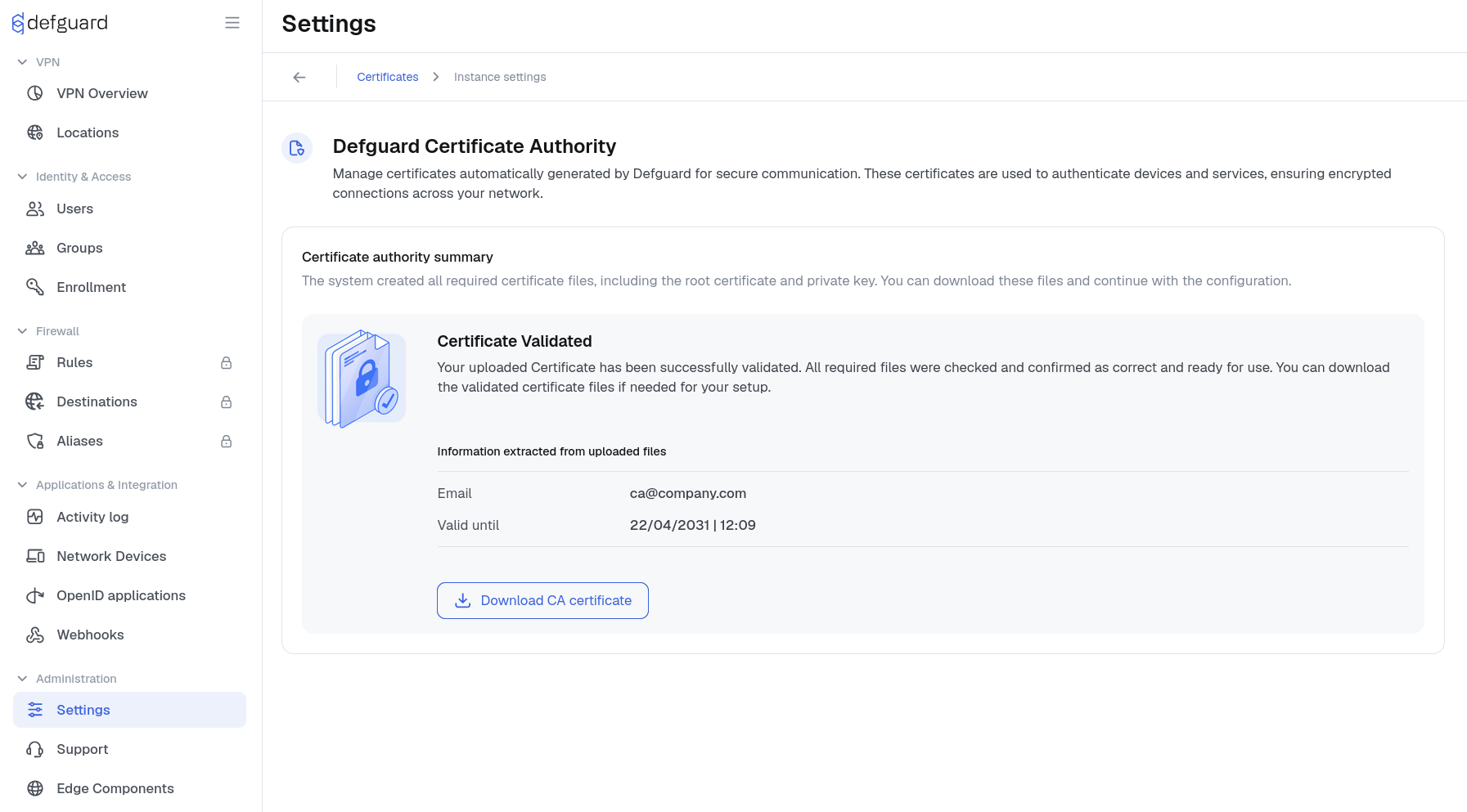
CA details and the CA certificate remain available on the Settings page after setup is complete:
When using the Defguard CA, client devices must trust its CA certificate for certificates issued by Defguard to be recognized without warnings. In practice, this usually means downloading the CA certificate and importing it into the operating system trust store or directly into the browser, depending on your environment.
Once the CA certificate is trusted, certificates issued for Core and Edge will be treated as valid by that client, as long as the hostname matches. If the CA certificate is not trusted, browsers and other clients will show certificate warnings even though the connection is still encrypted.
## Core certificate configuration
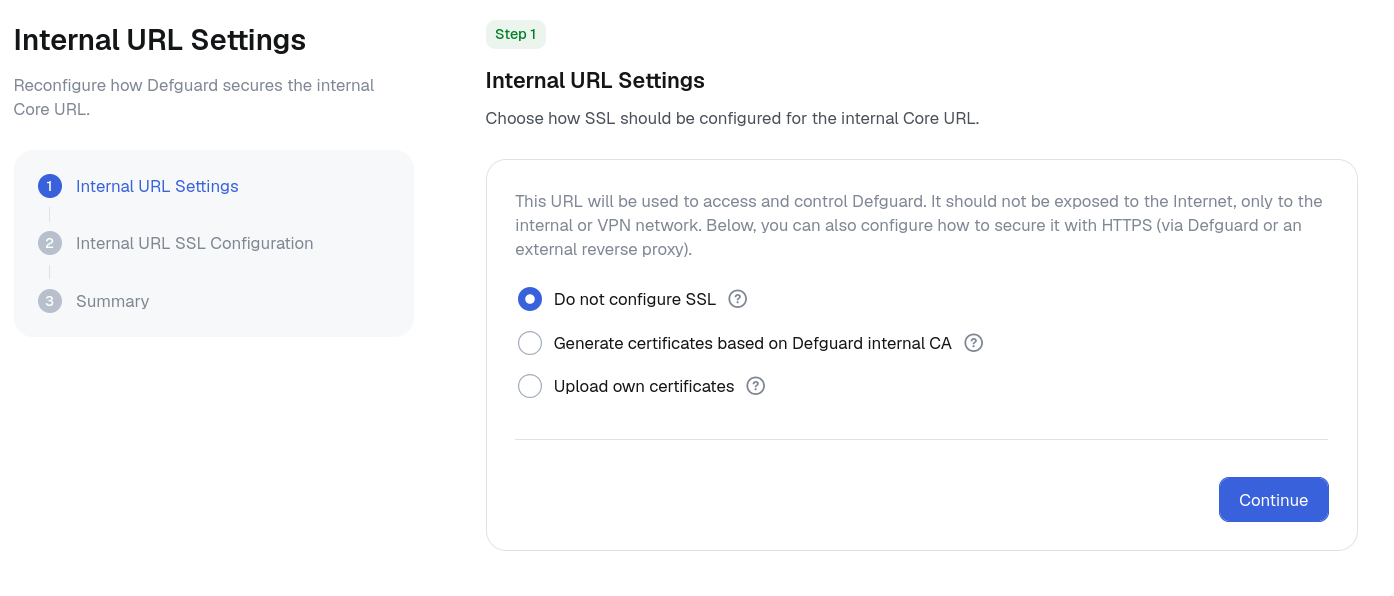
Core certificate configuration defines how HTTPS is handled for the Defguard Core web server. Defguard supports three approaches for Core:
* using certificates issued by the built-in Defguard CA
* providing your own certificate and private key
* running Core without a certificate
The none option is intended for deployments where TLS termination is handled externally, for example by a reverse proxy or load balancer in front of Defguard. In that case, HTTPS should be configured on that external component so that user traffic is still protected.
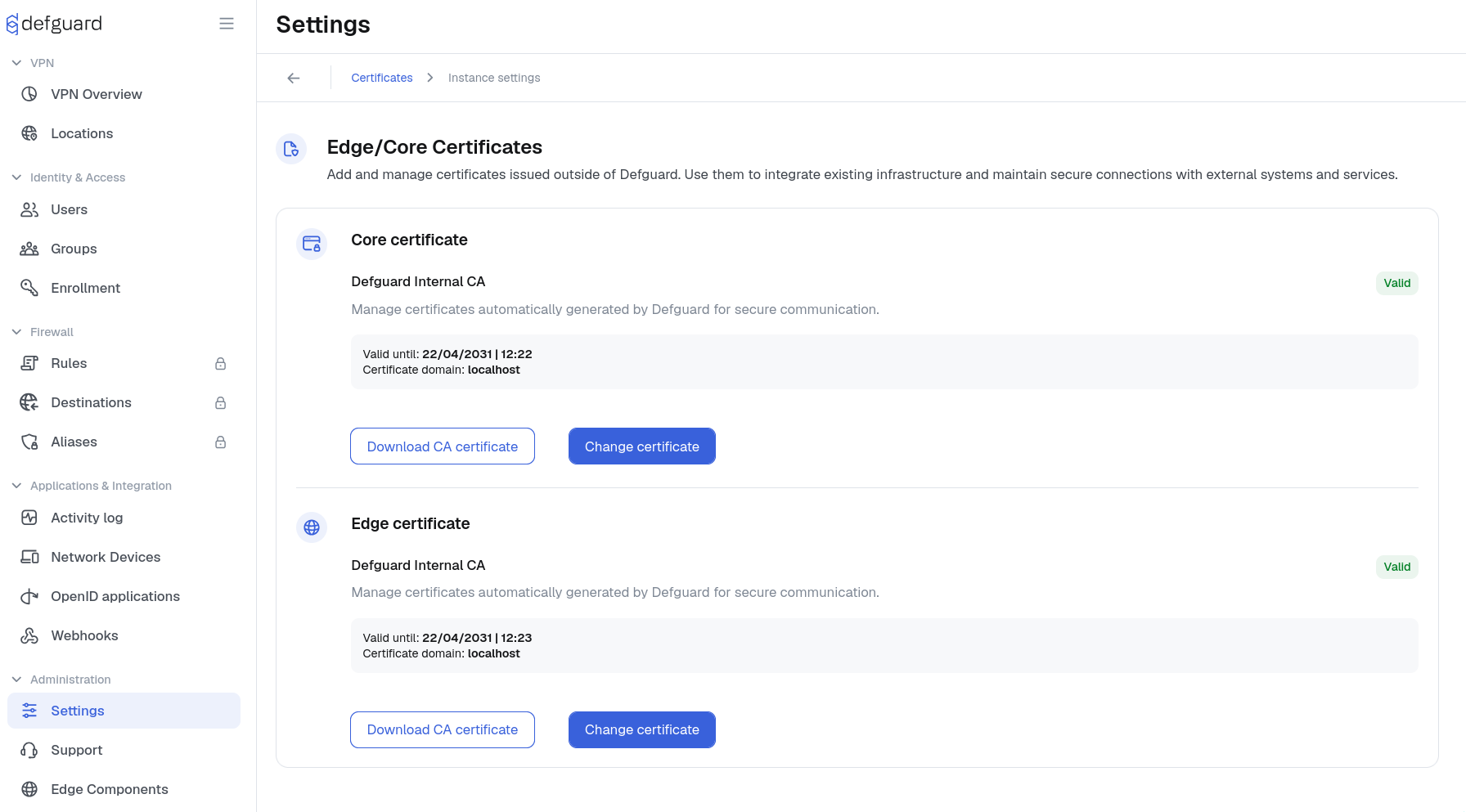
Core certificate can be configured either during the initial setup process, or from the settings section.
### Providing your own certificate
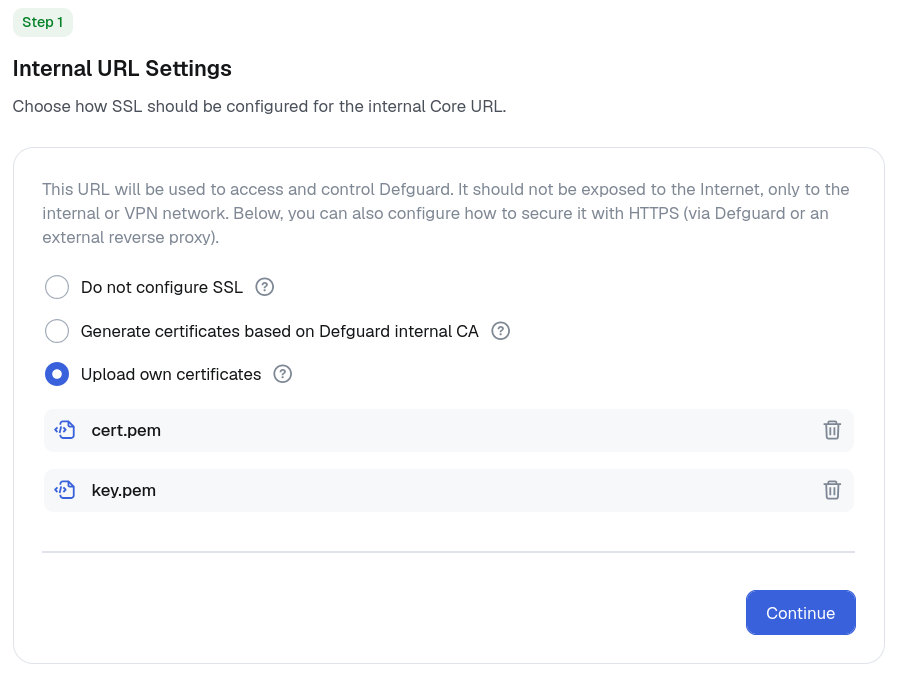
When providing your own certificate, you upload the certificate and its matching private key directly to Defguard. The certificate should be provided in PEM format, typically using a .pem, .crt, or .cer file, and the private key should also be PEM-encoded, usually as a .pem or .key file.
Defguard validates the uploaded files before applying them, so invalid, mismatched, expired, or not-yet-valid certificates are rejected.
This option is useful when certificates are issued by your organization’s internal PKI or by a public certificate authority managed outside of Defguard, but renewal and replacement must then be handled outside of Defguard as well.
## Edge certificate configuration
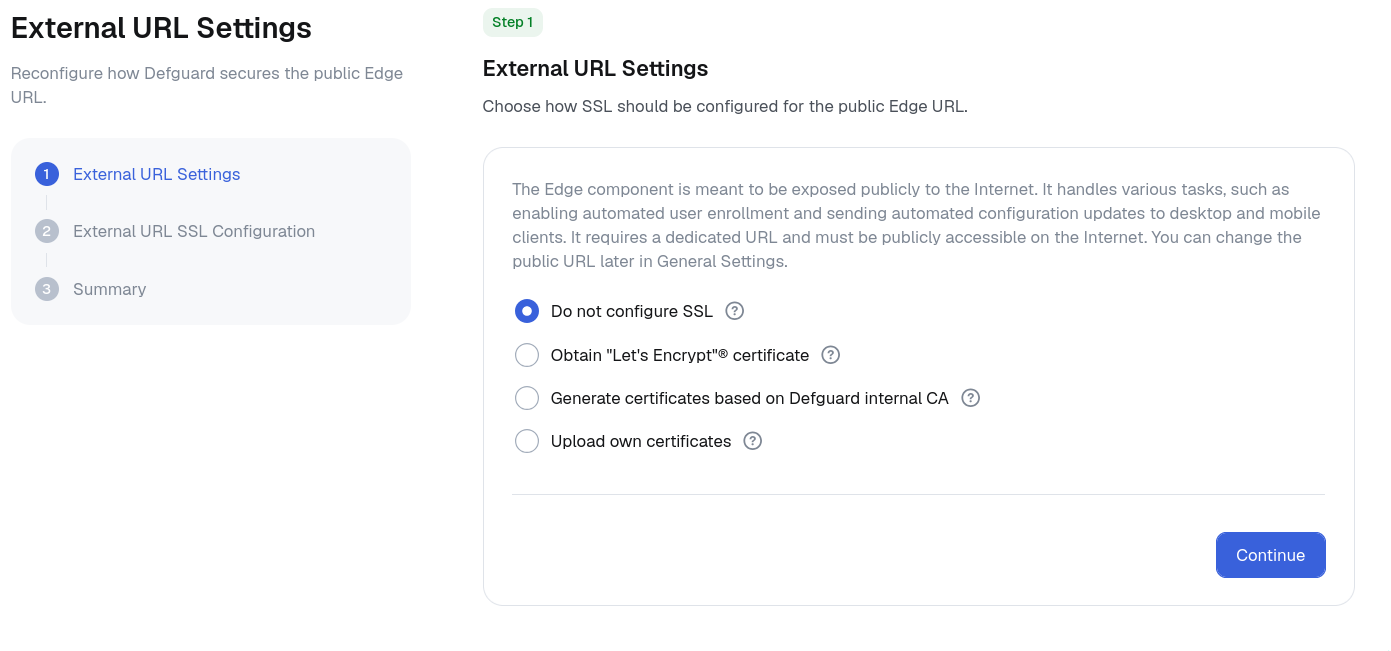
Edge certificate configuration determines how HTTPS is provided for the Defguard Edge web server. Unlike Core, Edge supports four possible approaches:
* using a certificate issued by the built-in Defguard CA
* uploading your own certificate and private key
* obtaining a certificate from Let's Encrypt
* running without a certificate
The none option is mainly intended for environments where TLS is terminated by external infrastructure, such as a reverse proxy or load balancer placed in front of Edge. In that case, HTTPS should be configured on that external component so that traffic to Edge remains protected. Edge certificates can be configured either during the initial setup flow or later from the Settings page:
### Using Let's Encrypt for Edge Certificates
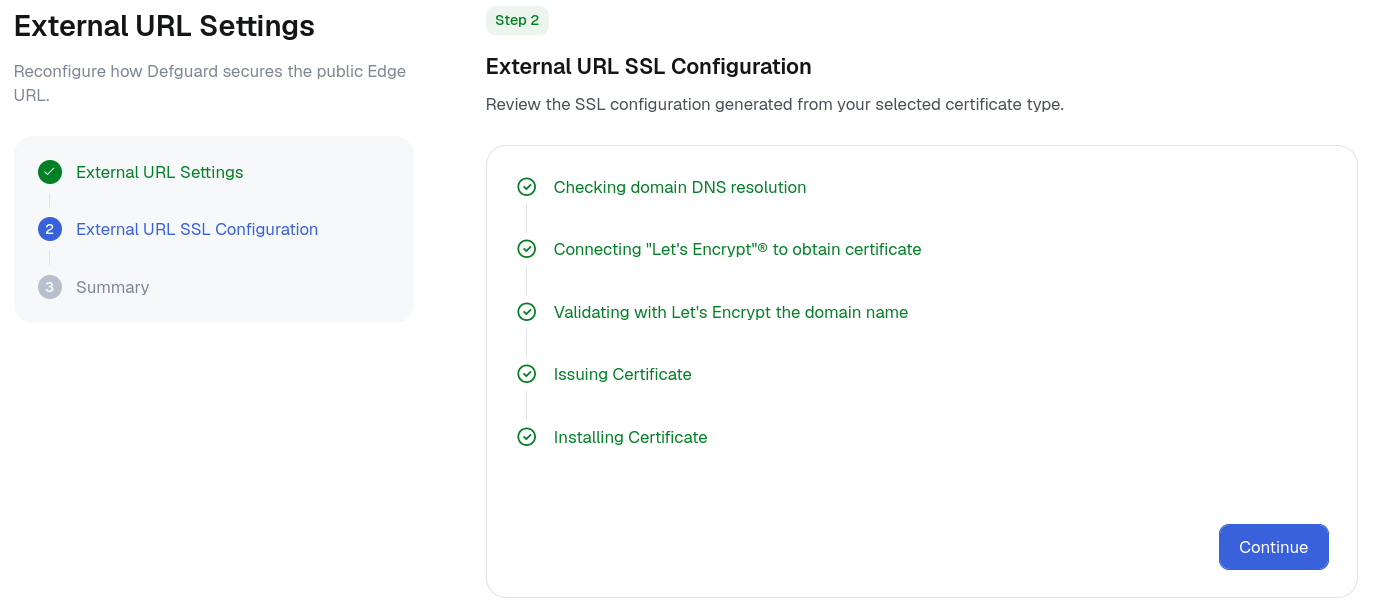
Let's Encrypt is a public certificate authority that issues trusted TLS certificates free of charge. It is commonly used to secure public web services without requiring administrators to manually purchase and install certificates from a commercial provider. In practice, Let's Encrypt verifies that you control a domain and then issues a certificate for that domain. In Defguard, this is used for the Edge component, which is typically the publicly accessible part of the deployment. At a high level, the process works as follows:
* Defguard provides the public domain name assigned to Edge
* Let's Encrypt checks that the domain resolves correctly and can be reached
* Defguard completes the ACME HTTP-01 challenge to prove control of that domain
* once validation succeeds, a trusted certificate is issued and installed for Edge
This option is useful when you want a browser-trusted certificate without managing your own CA or manually uploading certificate files.
{% hint style="warning" %}
Let's Encrypt validation in Defguard currently uses the ACME HTTP-01 challenge, which requires port 80 to be publicly accessible from the internet. This means the Edge HTTP service must be reachable on port 80 during certificate issuance, so Let's Encrypt can verify domain ownership. If port 80 is blocked, filtered, or forwarded elsewhere, certificate issuance will fail.
{% endhint %}
To use Let's Encrypt in Defguard, select the Let's Encrypt option when configuring Edge certificates. This can be done either during the initial setup process or later from the Settings->Certificates page. Defguard will then guide you through the certificate issuance flow and attempt to obtain and install the certificate for the configured Edge domain. For this to succeed, the domain must be publicly reachable and correctly resolve to the server where Edge is running.