> For the complete documentation index, see [llms.txt](https://docs.defguard.net/llms.txt). Markdown versions of documentation pages are available by appending `.md` to page URLs; this page is available as [Markdown](https://docs.defguard.net/2.2/using-defguard-for-end-users/mobile-client/instance-adding.md).
# Adding new Instance
In this guide, you will learn how to add Instance in mobile app.
If you are after the enrollment process, please follow [this guide](#adding-instance-in-defguard)
## Enrollment via external SSO
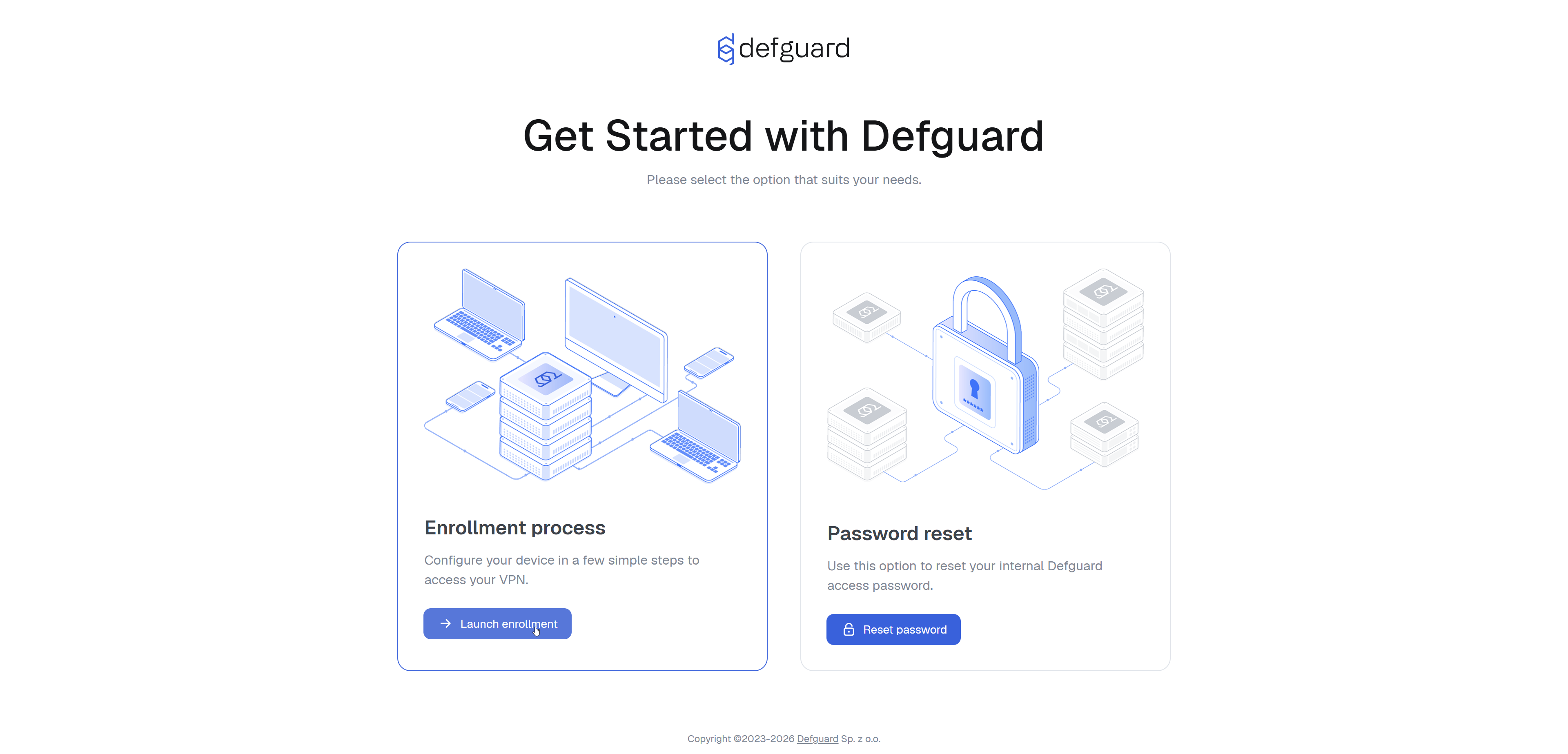
1. Go to your enrollment page. Click **Select** under "Enrollment process".
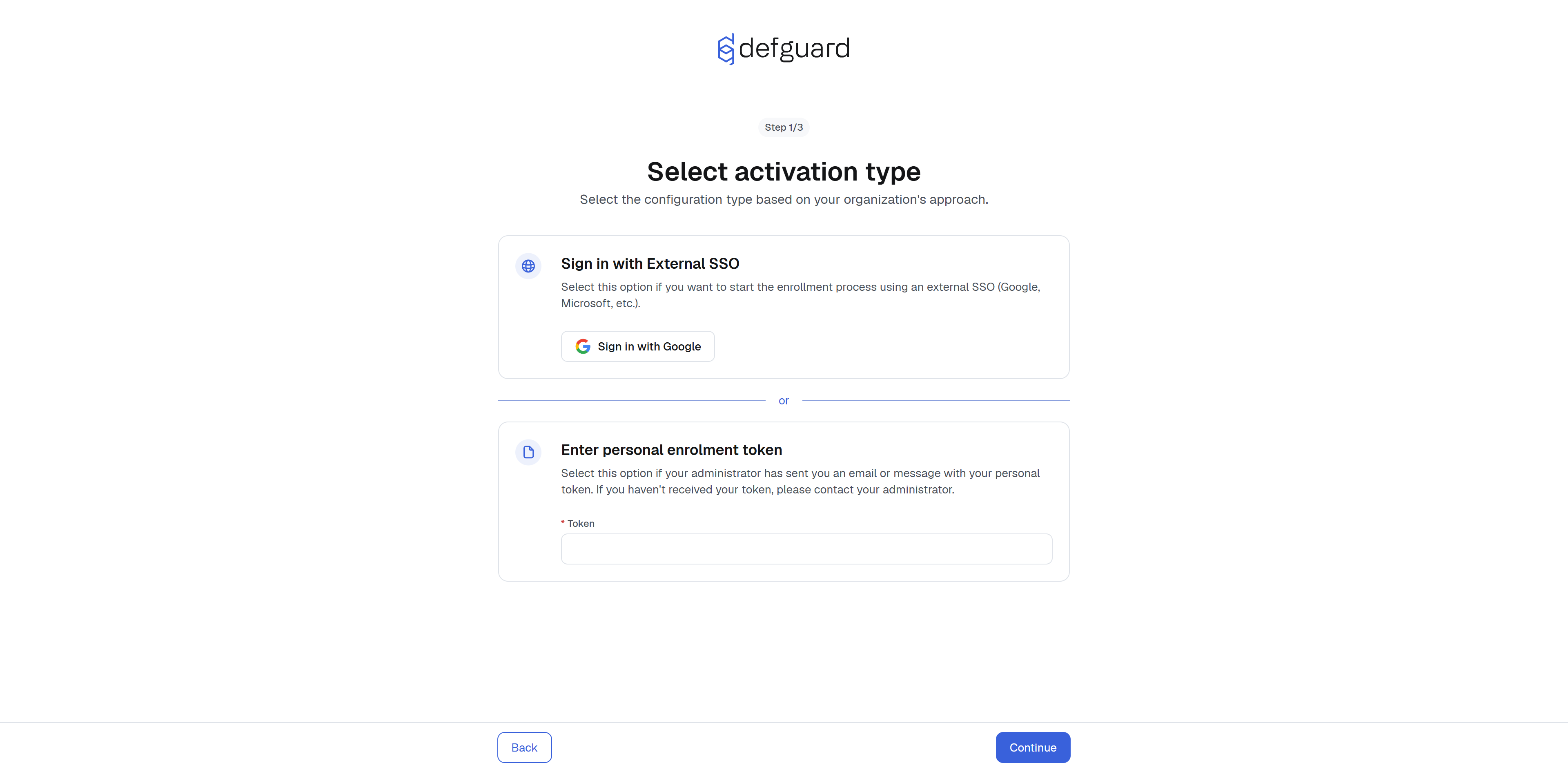
2. In this example we use Google as OIDC provider so our button is "Sign in with Google". Your organization can use different OIDC provider.
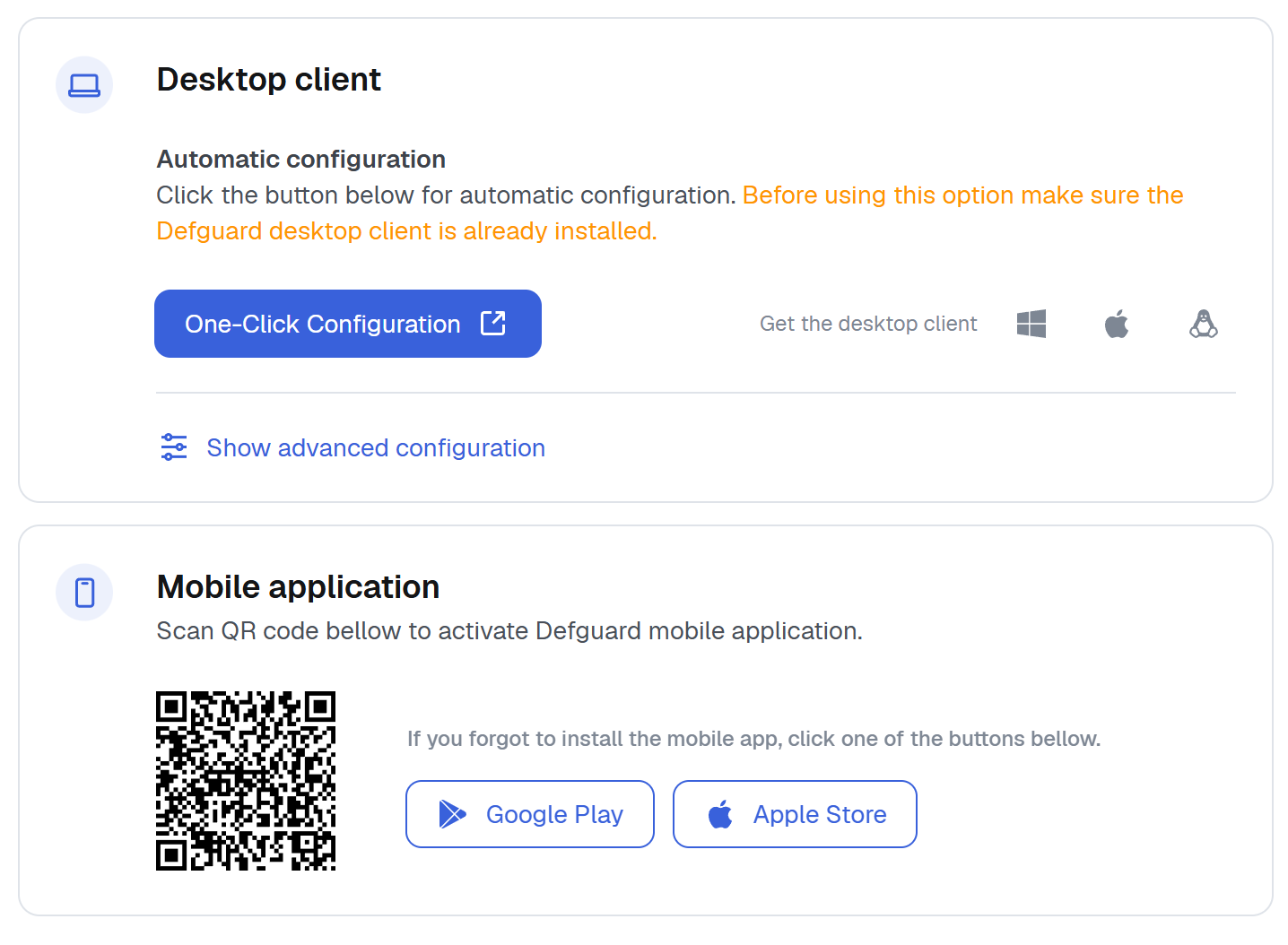
3. You will be redirected to your OIDC provider login page, please log in. After doing this, you will be redirected and shown a screen with **URL, Token and QR Code**.
4. Open Defguard Mobile on your smartphone
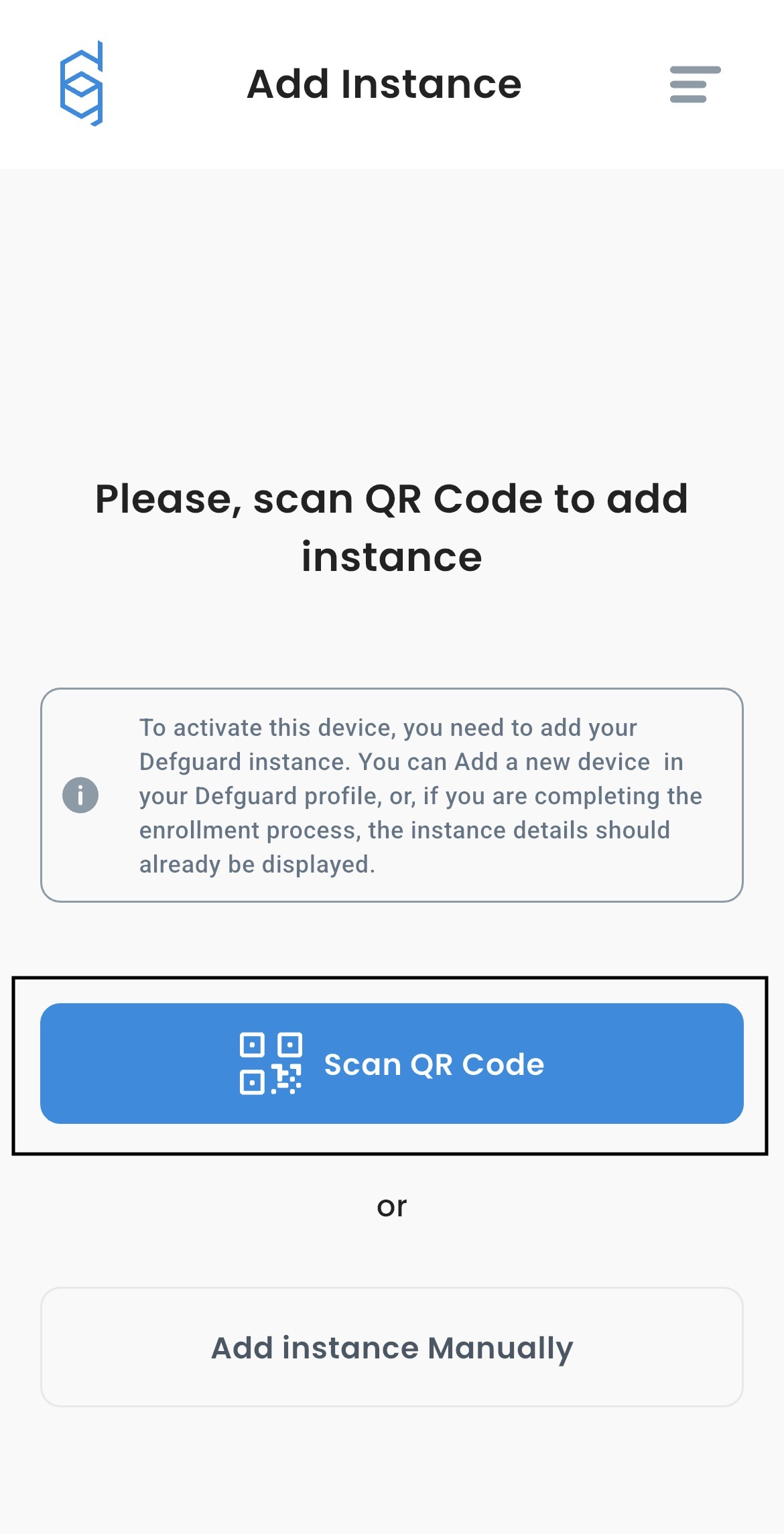
5. Click **Scan QR Code**
6. Scan QR generated in step 3.
7. Enter the name of your device. For example "iPhone 11"
8. Confirm
{% hint style="info" %}
If you can't scan QR Code, select **Add Instance Manually** in **step 5** and enter URL and Token from **step 3**.
{% endhint %}
## Enrollment via Email
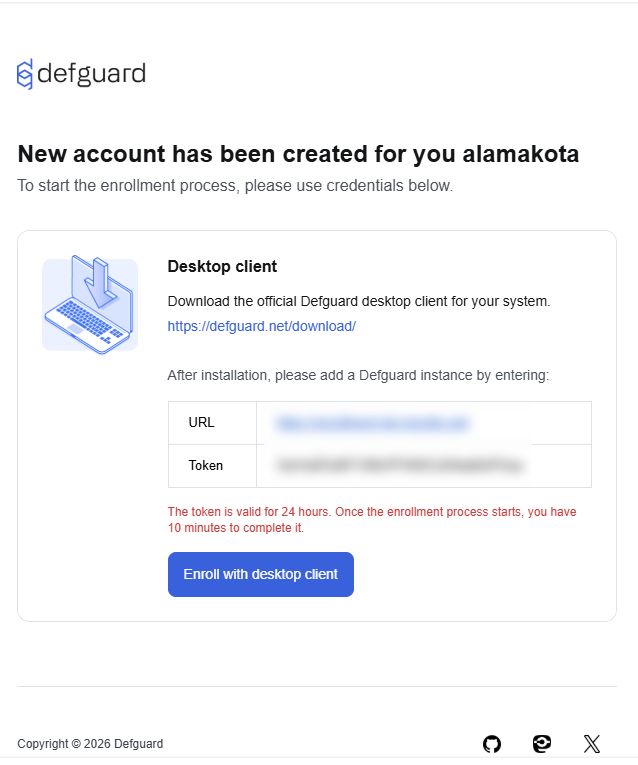
Find enrollment **Instance URL** and **Token** in your "Defguard user enrollment" email. It should look like this:
Now proceed enrollment with your Client app.
## Adding Instance in Defguard
1. Log in to your Defguard account.
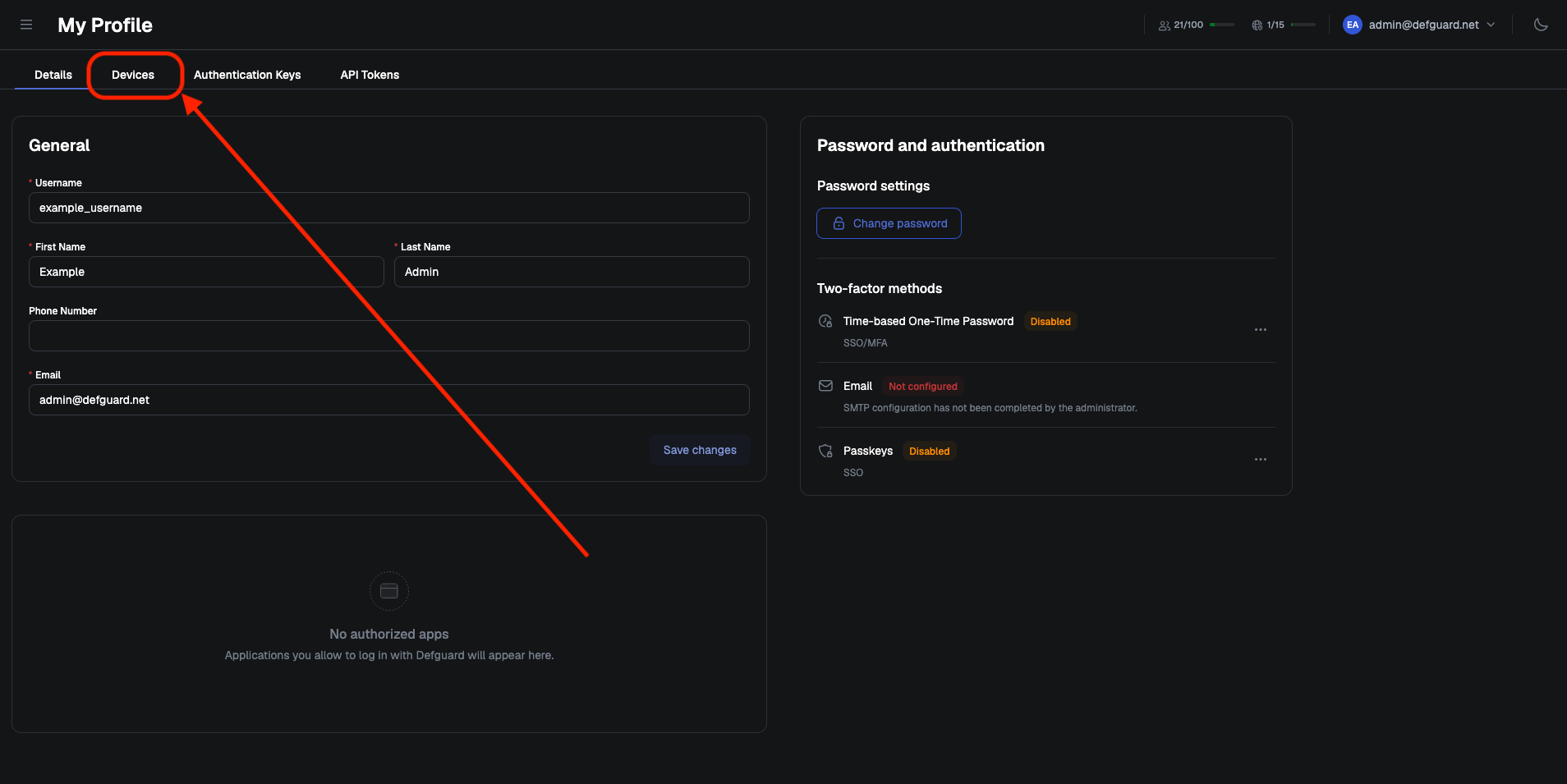
2. Go to **My Profile** tab and select **Devices** tab.
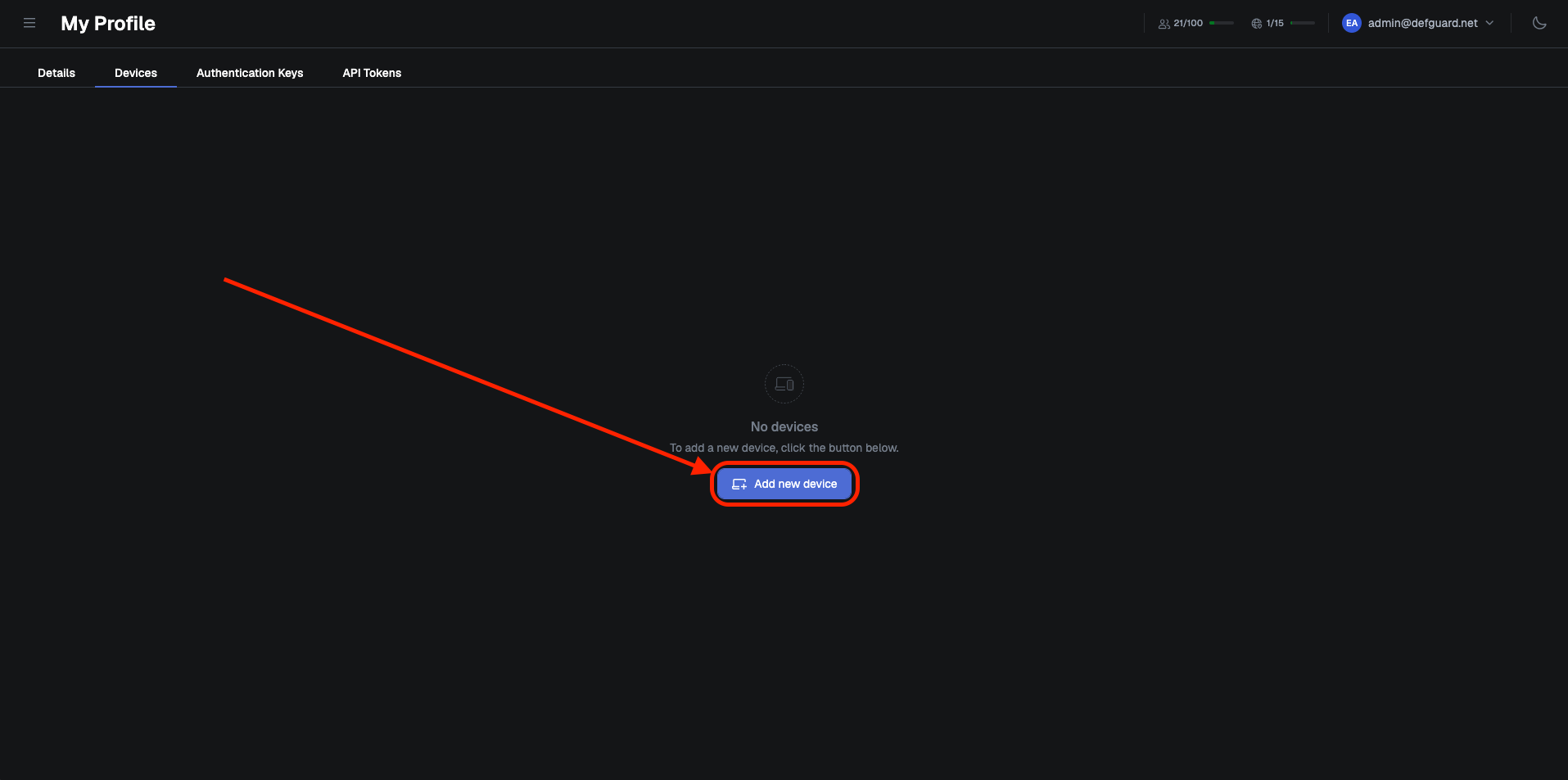
3. Click **Add new device** button.
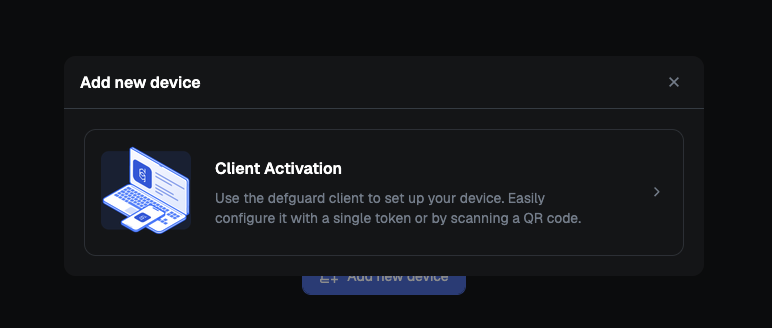
4. Click **Client Activation**.
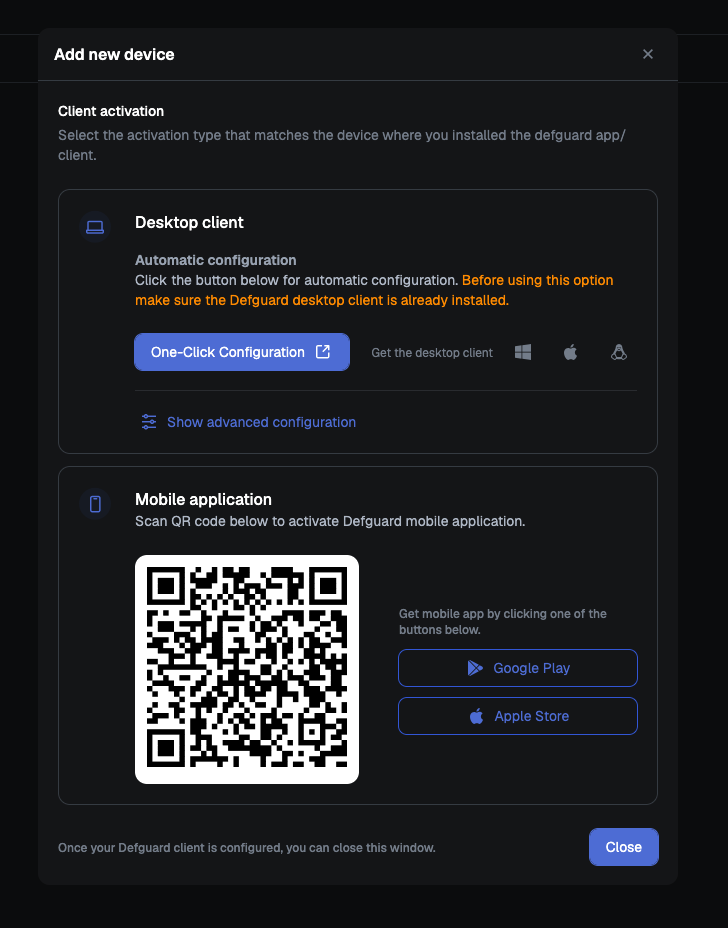
5. After that you will see a QR Code. **Do not close this screen**, we will need it in next step.
6. Open **Defguard Mobile** on your smartphone
7. Click **Scan QR Code**
8. Scan QR generated in step 5.
9. Enter the name of your device. For example "iPhone 11"
10. Confirm
{% hint style="info" %}
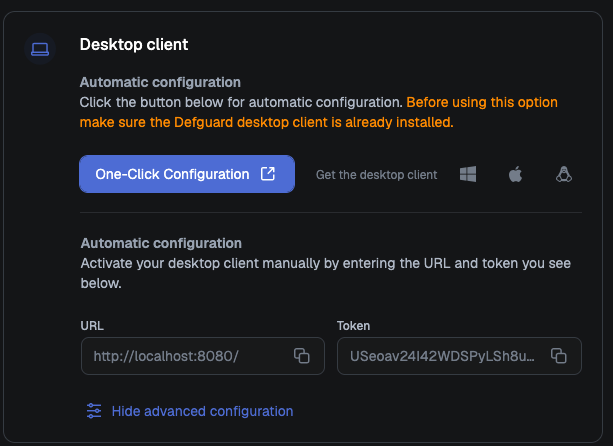
If you can't scan QR Code, select **Add Instance Manually** in **step 7**, go back to the screen in **step 5**, click "Show advanced configuration", copy **URL** and **Token** and then enter them in **Defguard Mobile**.
{% endhint %}
 {% endhint %}