> For the complete documentation index, see [llms.txt](https://docs.defguard.net/llms.txt). Markdown versions of documentation pages are available by appending `.md` to page URLs; this page is available as [Markdown](https://docs.defguard.net/2.2/features/wireguard/network-overview.md).
# Network overview
Once your gateway service is up and users start connecting to the VPN, upload/download summary data is stored and can be displayed on the **VPN Overview** page of the Defguard web application. See [architecture overview](/2.2/in-depth/architecture.md) for details of core-gateway interaction.
On the **VPN Overview** page, you'll see who is currently connected and how much data each connected user transferred. You'll also see overall network transfer charts.
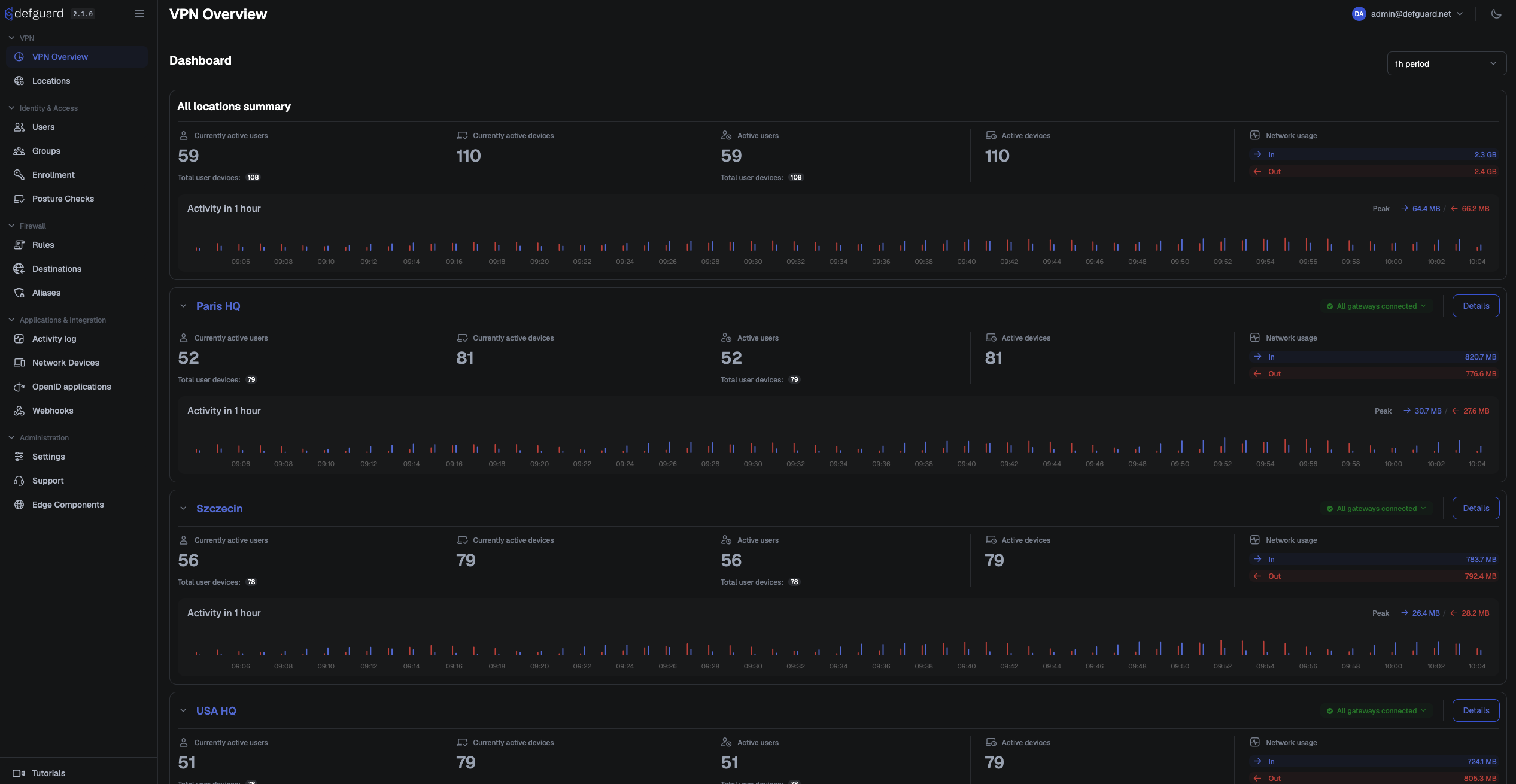
The Defguard dashboard allows administrators to see:
* Current amount of active users / network devices
* Active users / network devices during time period
* Network usage
* Gateway status
### Dashboard
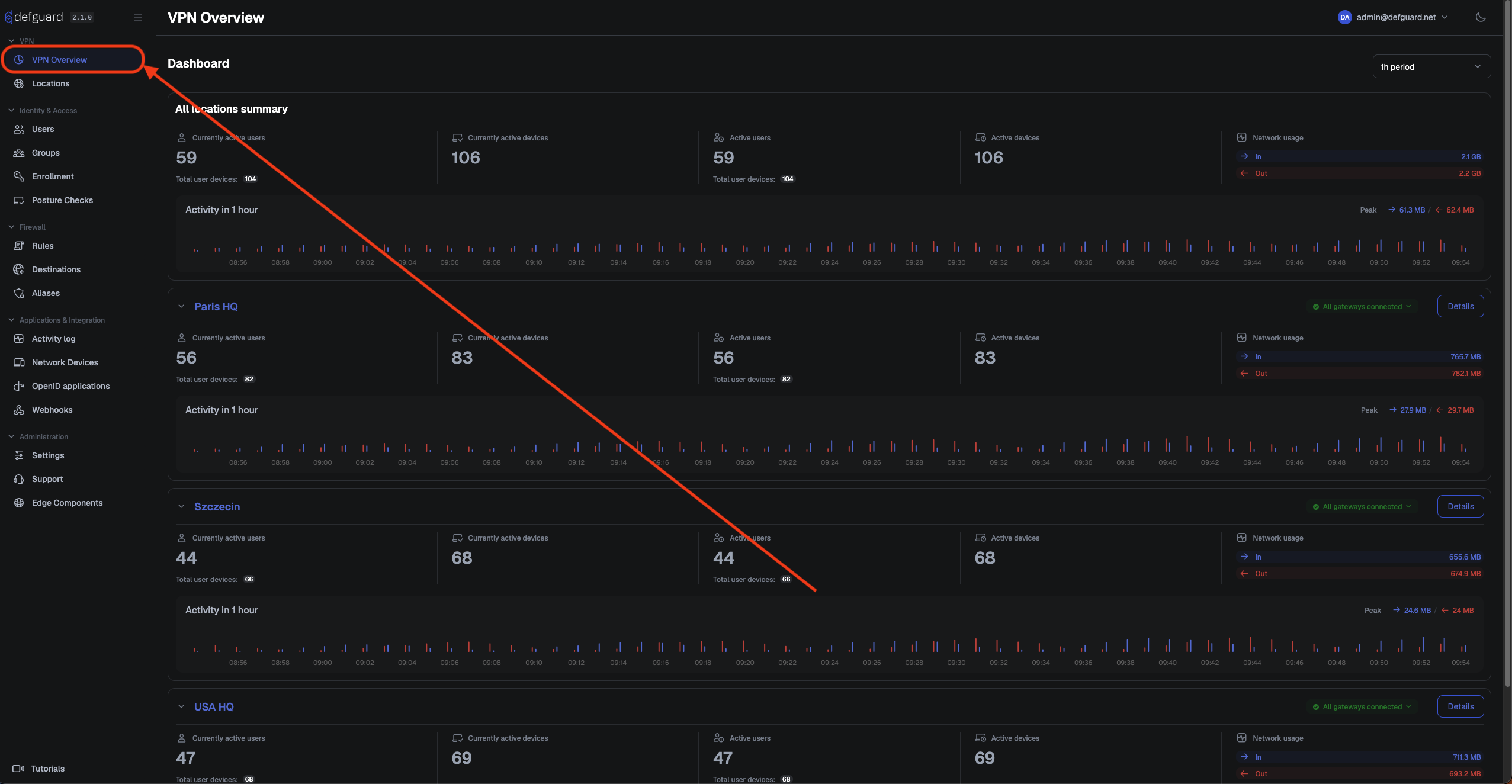
To access this dashboard, go to **VPN Overview** tab.
Dashboard looks like this, if you want to see more details about location, proceed to [this section.](#detailed-location-overview)
### Detailed location overview
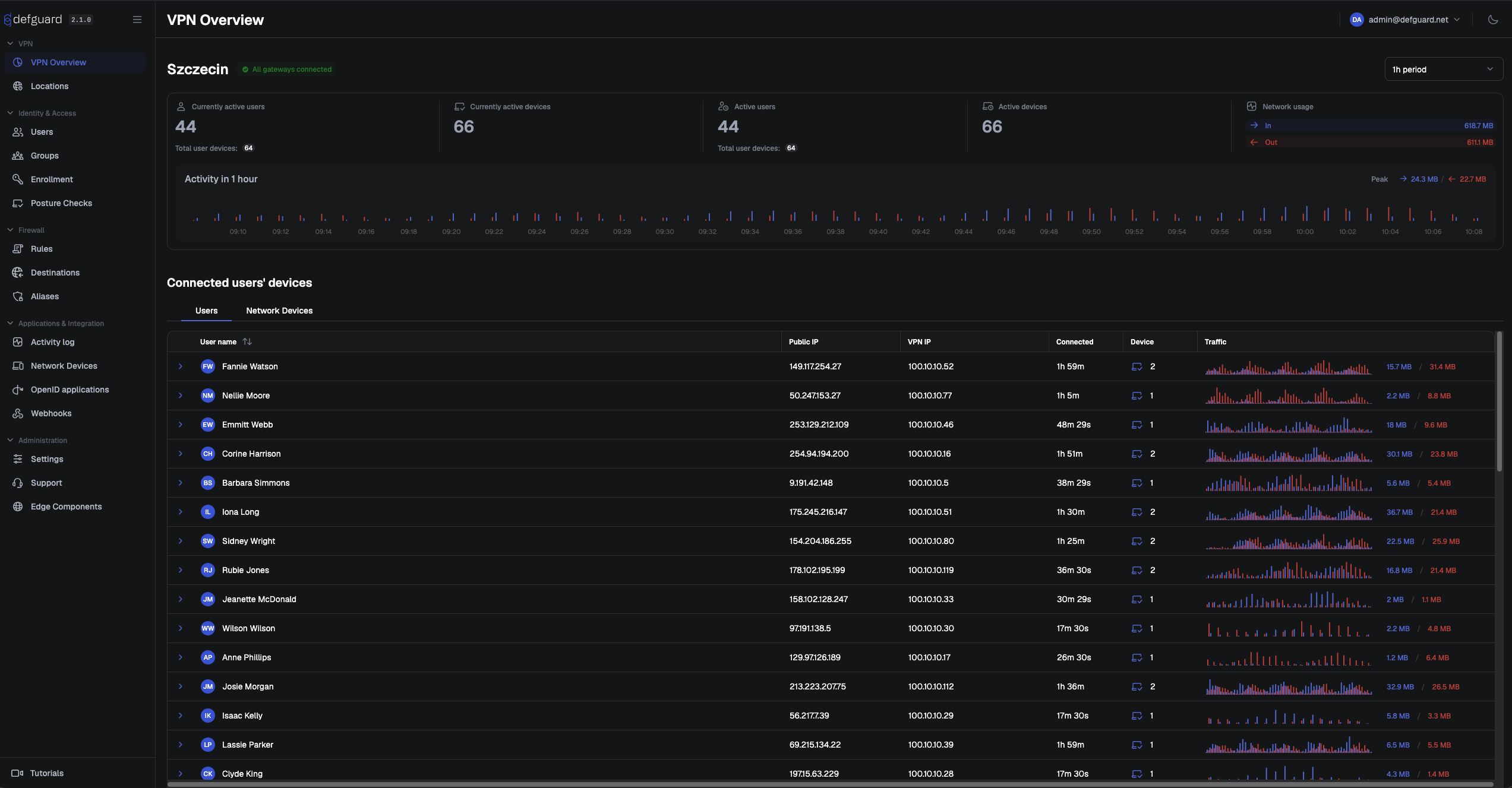
To access a dashboard with detailed information click **Details** on location.
In this view, you can see individual users and network devices using this specific location.
To access detailed information about a specific user, click the blue icon located next to the username.
After expanding, you will see devices which are currently being used by the user.