> For the complete documentation index, see [llms.txt](https://docs.defguard.net/llms.txt). Markdown versions of documentation pages are available by appending `.md` to page URLs; this page is available as [Markdown](https://docs.defguard.net/2.0/using-defguard-for-end-users/adding-wireguard-devices.md).
# Other WireGuard® Clients
## Installing Wireguard/VPN client
First, you have to install Wireguard application. On this [site](https://www.wireguard.com/install/) you can find information on how to download Wireguard for any operating system.
{% hint style="warning" %}
Please note that WireGuard clients other than [Defguard Desktop Client](/2.0/using-defguard-for-end-users/desktop-client.md) do not work with Multi-Factor Authentication **and they can only be used for Locations without MFA** - as the only client supporting this feature is our desktop client.
{% endhint %}
## Adding a device to connect to VPN
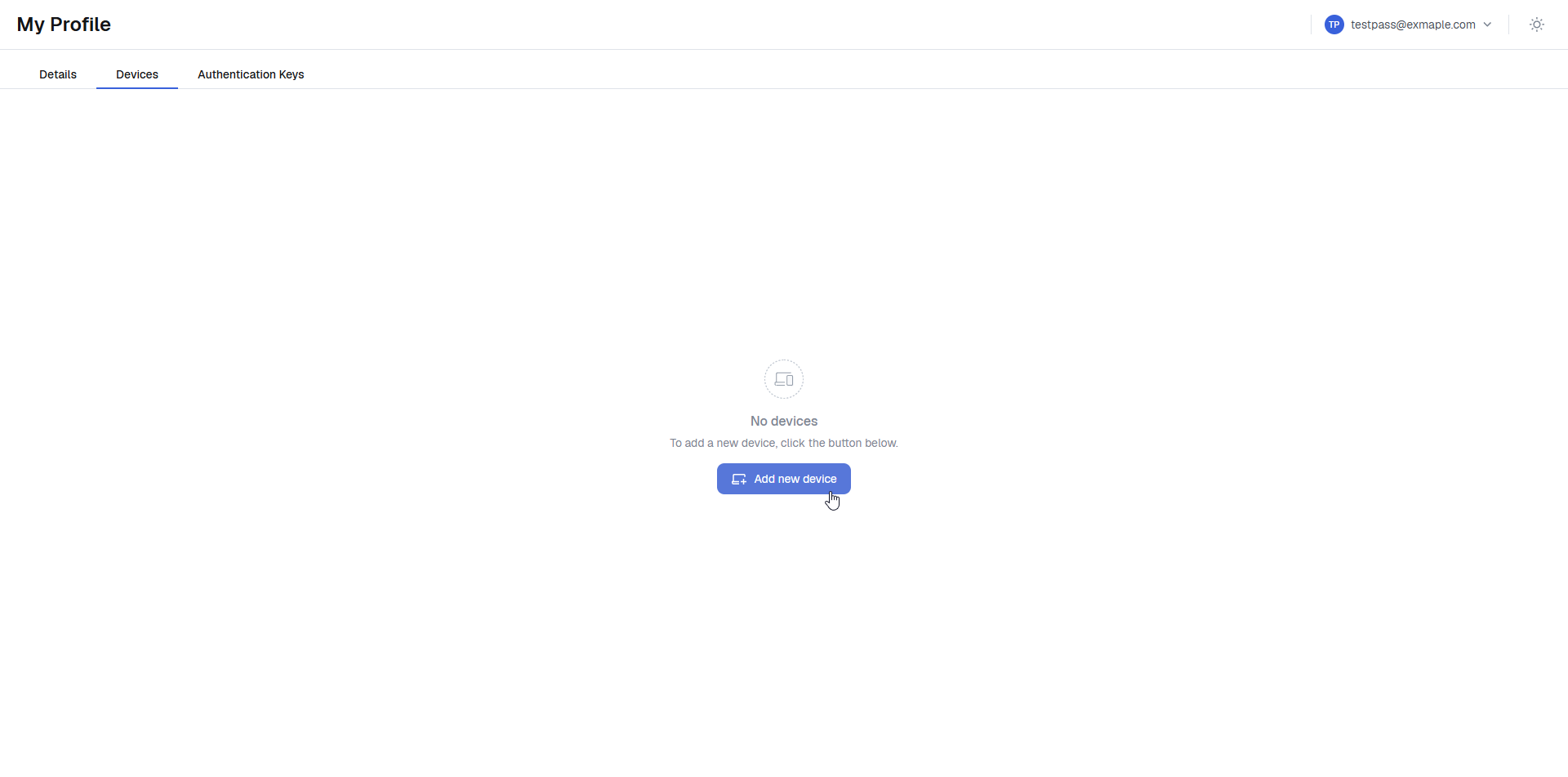
1. On your account profile, open **Devices** tab.
2. Click on *Add new device*
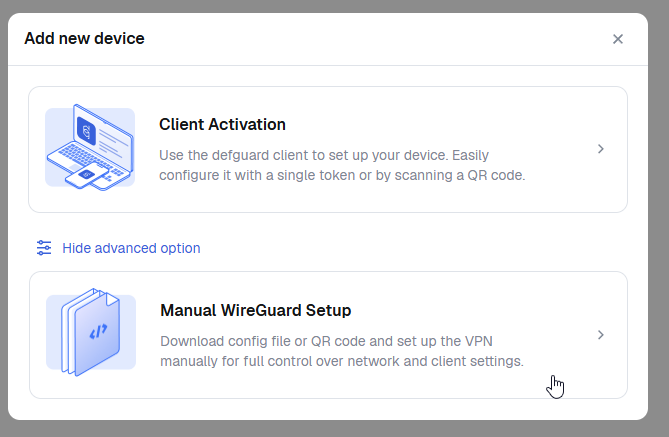
3. Click **Show advanced option** and click **Manual WireGuard Setup**.
a. **Generate key pair** - if you are a new user, just select this option - it will generate a secure key pair (private and public key) - **securly in you browser (Defguard doesn't store user private keys)**
{% hint style="info" %}
Choosing this option - when you download your configuration (or use QR Code to configure Wireguard on your mobile device) - **the private key will be included in your configuration and there will be noting else you need to do**
{% endhint %}
b. **Use my own public key** - if you are an advanced user and know how to generate a key pair yourself - you can choose this option and enter **your own public key (keeping your private key to yourself)**
{% hint style="warning" %}
Choosing this option - **you will need to change PrivateKey (insert the private key you hold)** in the configuration file you download
{% endhint %}
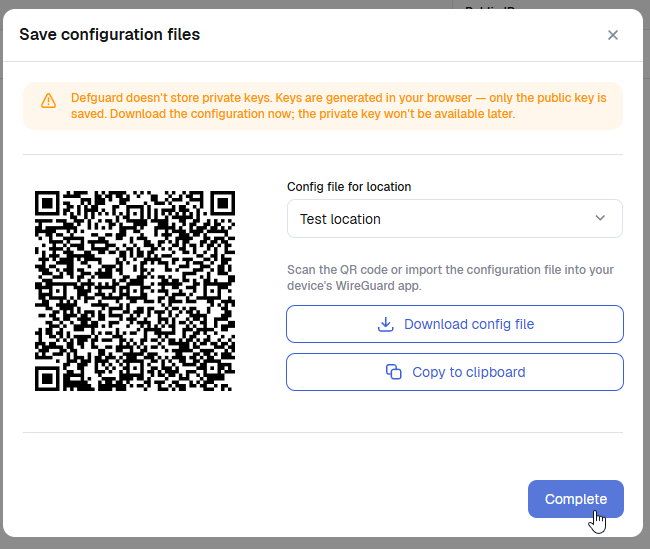
4. Now you can **download/configure your Wireguard/VPN client by:**
1. **downloading** the configuration
2. **Copy** configuration to Clipboard
3. Use Wireguard feature to configure by scanning the **QR Code**
{% hint style="info" %}
If you have **multiple VPN locations** - you can choose to download configuration for **each of the location - by selecting the location as shown**
{% endhint %}