> For the complete documentation index, see [llms.txt](https://docs.defguard.net/llms.txt). Markdown versions of documentation pages are available by appending `.md` to page URLs; this page is available as [Markdown](https://docs.defguard.net/2.0/tutorials/adding-edge-component.md).
# Adding Edge component
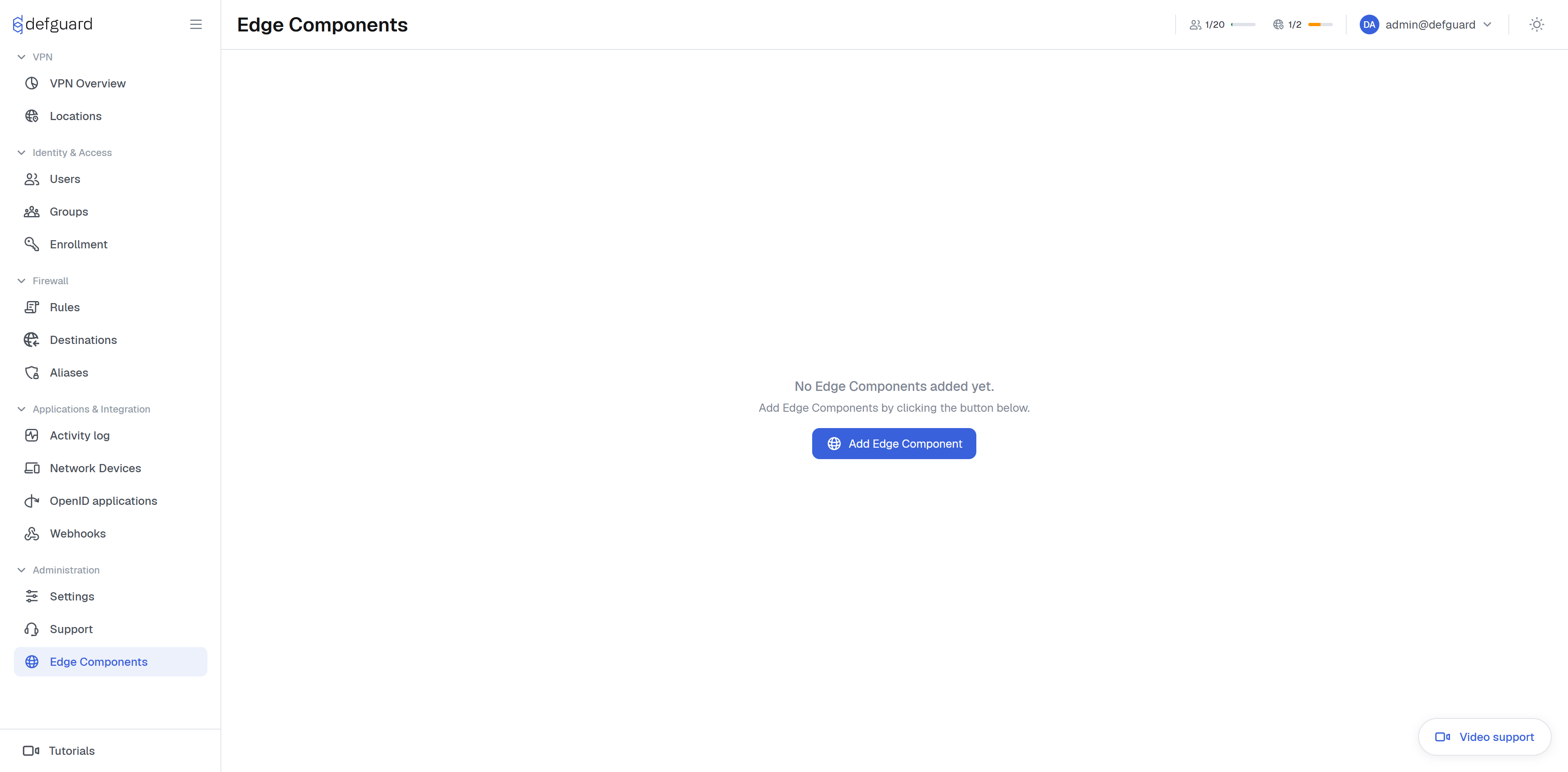
### Navigate to Edge Components
1. Log in to the Defguard web UI as an administrator.
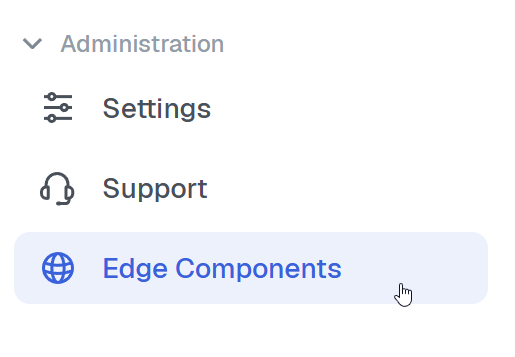
2. In the left sidebar, click **Edge Components**.
3. Click "Add Edge Component"
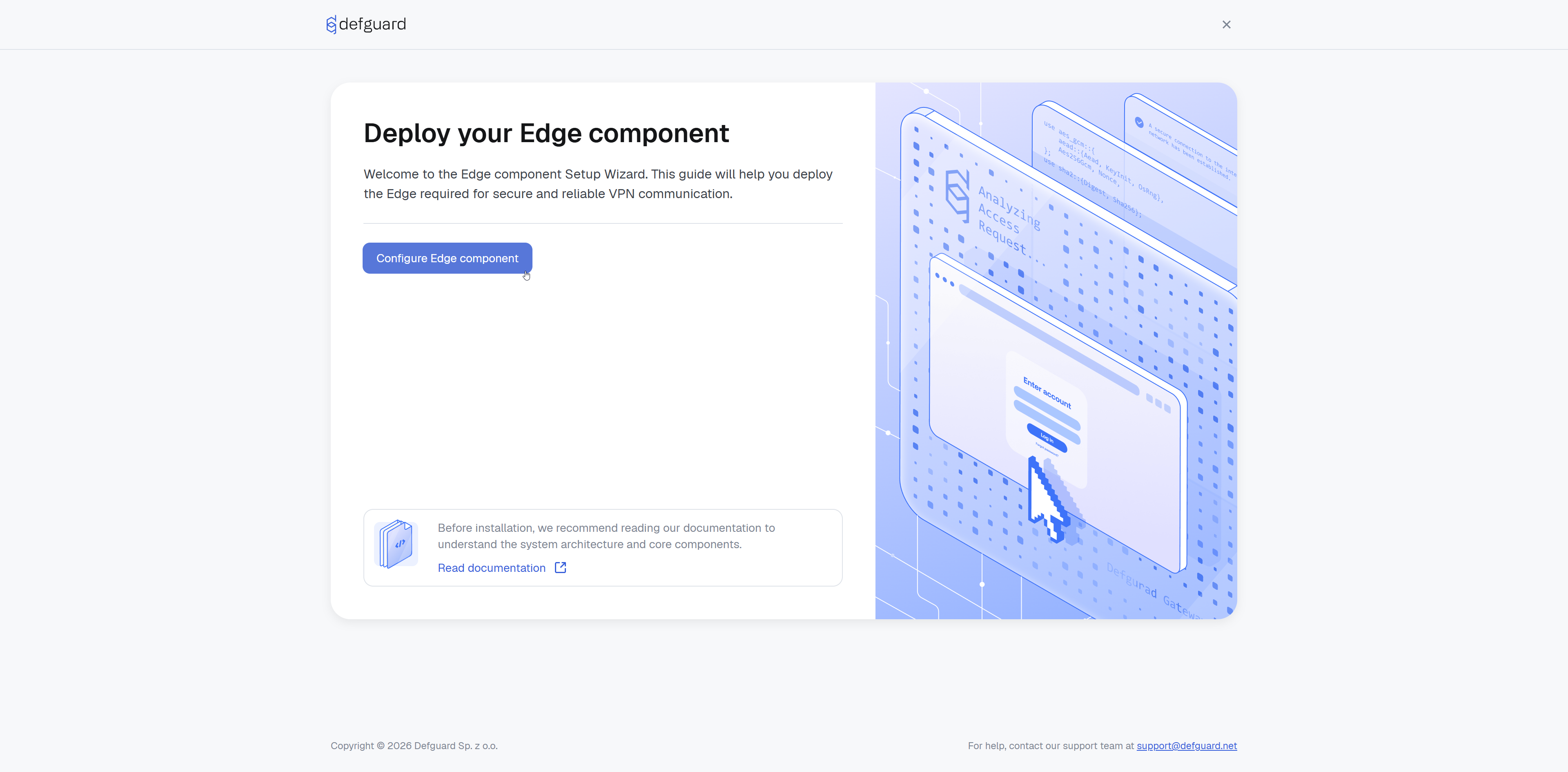
### Welcome screen
Click **Configure Edge component**.
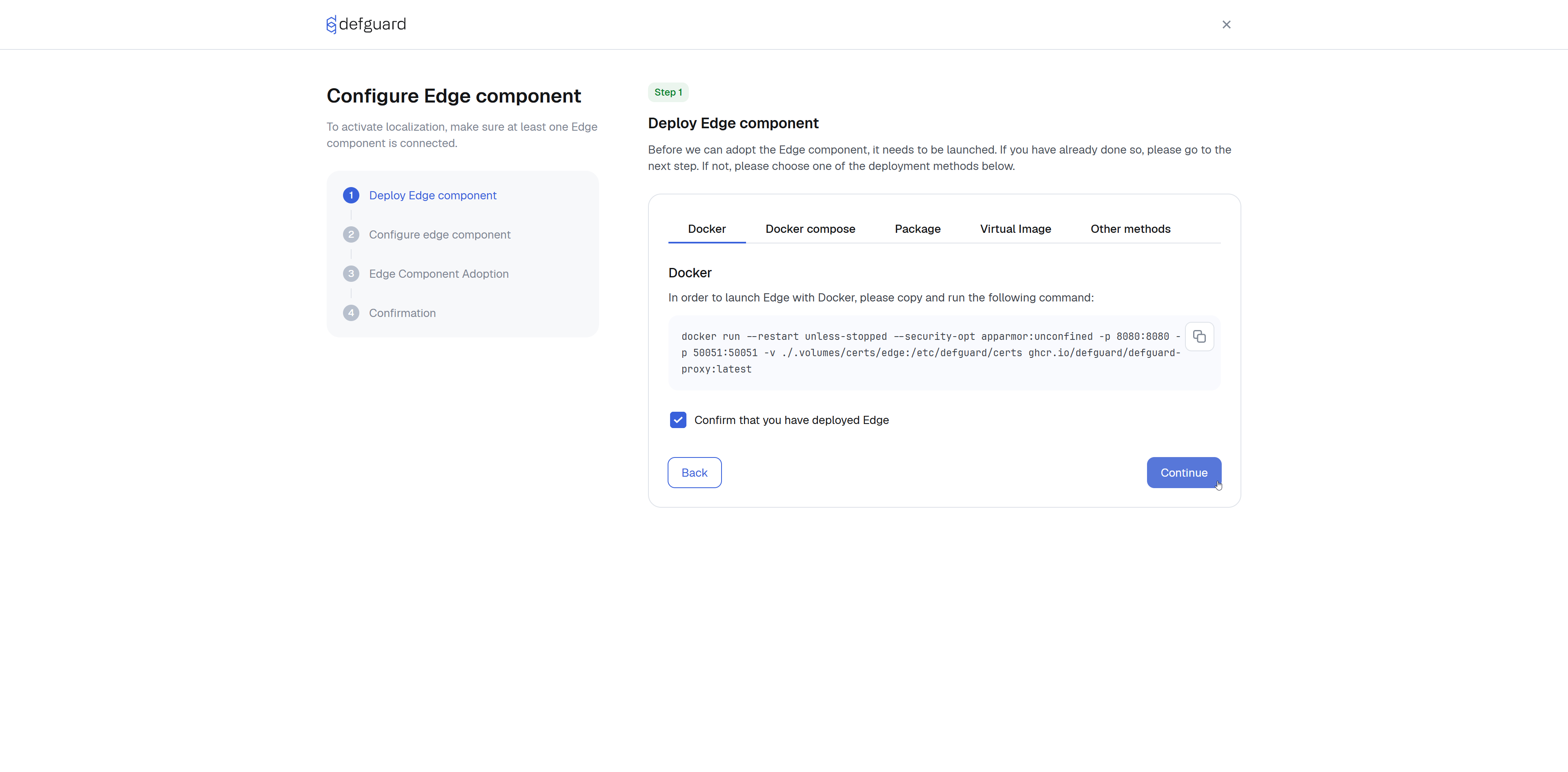
### Deploy Edge component
This step provides ready-to-use deployment commands for every supported method. Choose the tab that matches your environment and continue when your Edge component is up and running ready to be adapted.
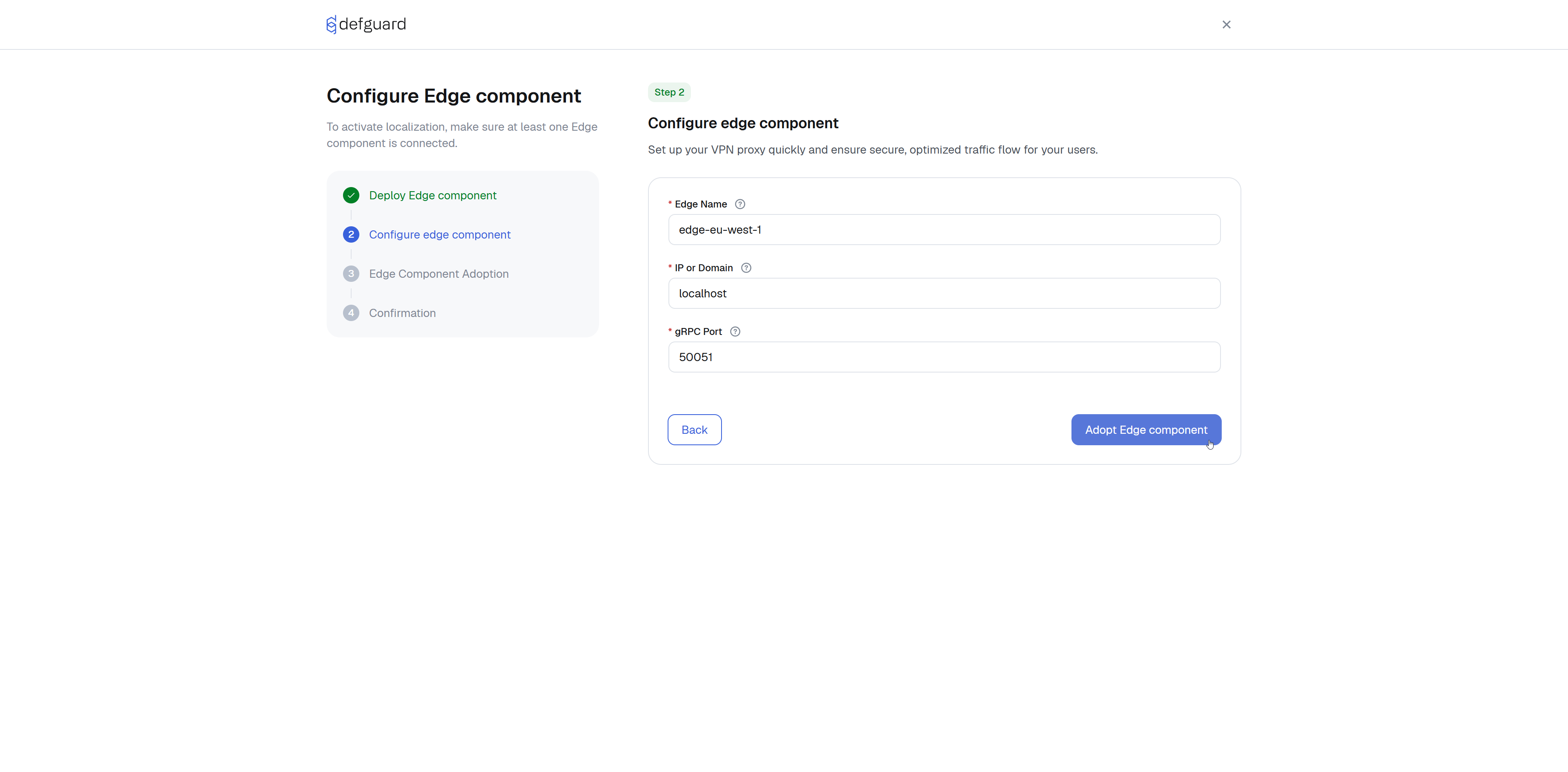
### Configure Edge component
This step registers the running Edge instance in Defguard Core.
| Field | Description | Example |
| ---------------- | -------------------------------------------------------------------------------------------------------- | --------------------------------- |
| **Edge Name** | A unique, human-readable identifier for this instance. Shown in the Edge Components list. | `edge-eu-west-1` |
| **IP or Domain** | The IP address or hostname of the server where Edge is deployed. Core connects here to perform adoption. | `edge.example.com` or `10.0.1.50` |
| **gRPC Port** | The port Edge listens on for gRPC. Change only if you modified the default. | `50051` |
> The Edge Name must be unique, the wizard will warn you if a component with the same name already exists.
When all fields are valid, click **Adopt Edge component**.
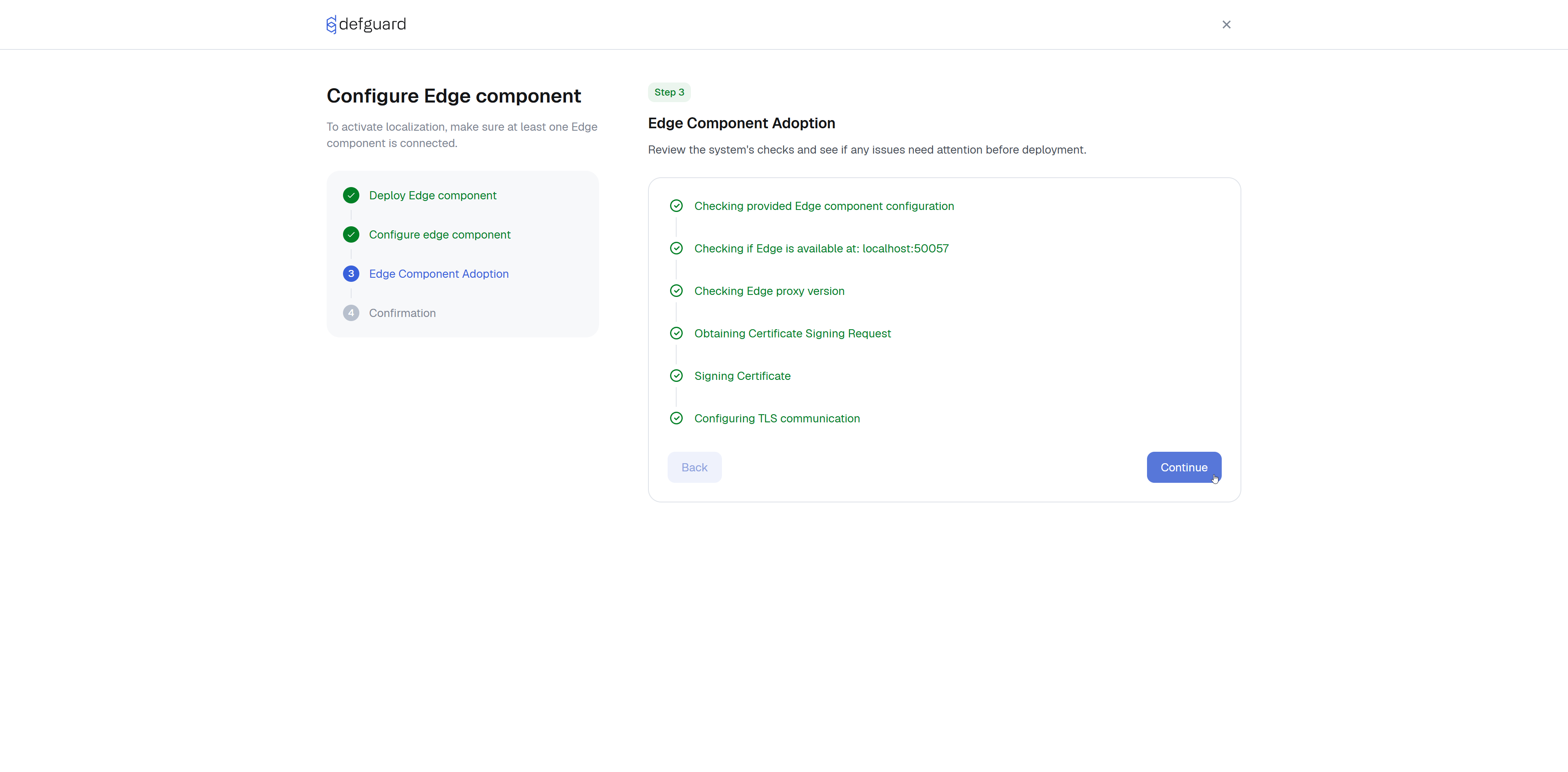
### Edge Component Adoption
Core now connects to the Edge service and performs automated adoption. The wizard shows live progress through each stage.
If any stage fails, an **error log** is shown and a **Retry** button becomes available. You can also click **Back** and correct the configuration from the pervious step.
Once all stages complete, click **Continue**.
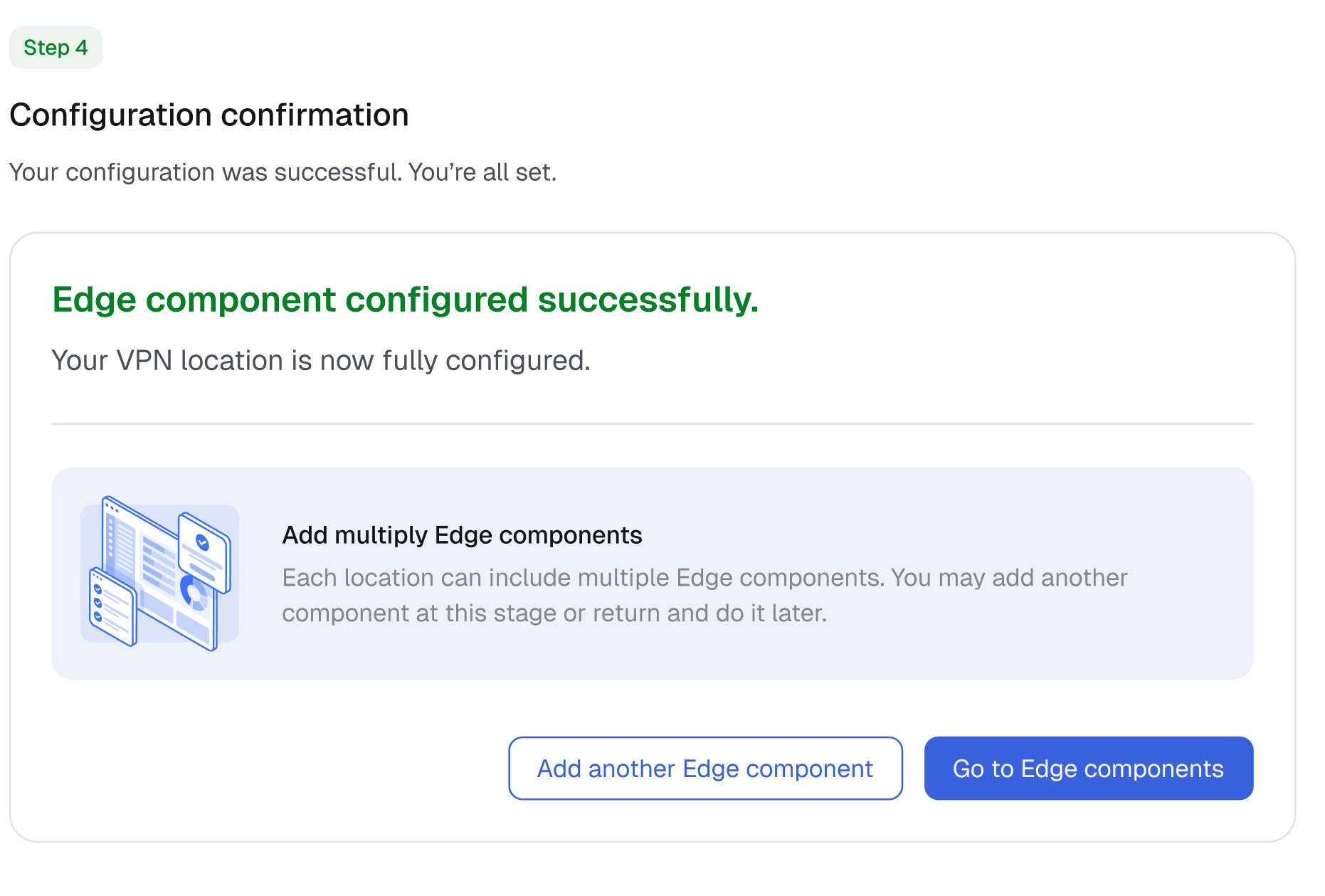
### Confirmation
Success! You’ve finished setting up the Edge component.