> For the complete documentation index, see [llms.txt](https://docs.defguard.net/llms.txt). Markdown versions of documentation pages are available by appending `.md` to page URLs; this page is available as [Markdown](https://docs.defguard.net/2.0/getting-started/one-line-install.md).
# One-line install script
## One-line install script
Welcome to getting started with Defguard. This section guides you through setting up a simplified Defguard instance so you can get familiar with its features.
{% hint style="info" %}
The instance deployed by the script serves as a starting point and makes some tradeoffs to enable automated setup. In general, it is not recommended for production. We strongly encourage you to customize it for your infrastructure using more [advanced deployment strategies](/2.0/deployment-strategies/overview.md).
{% endhint %}
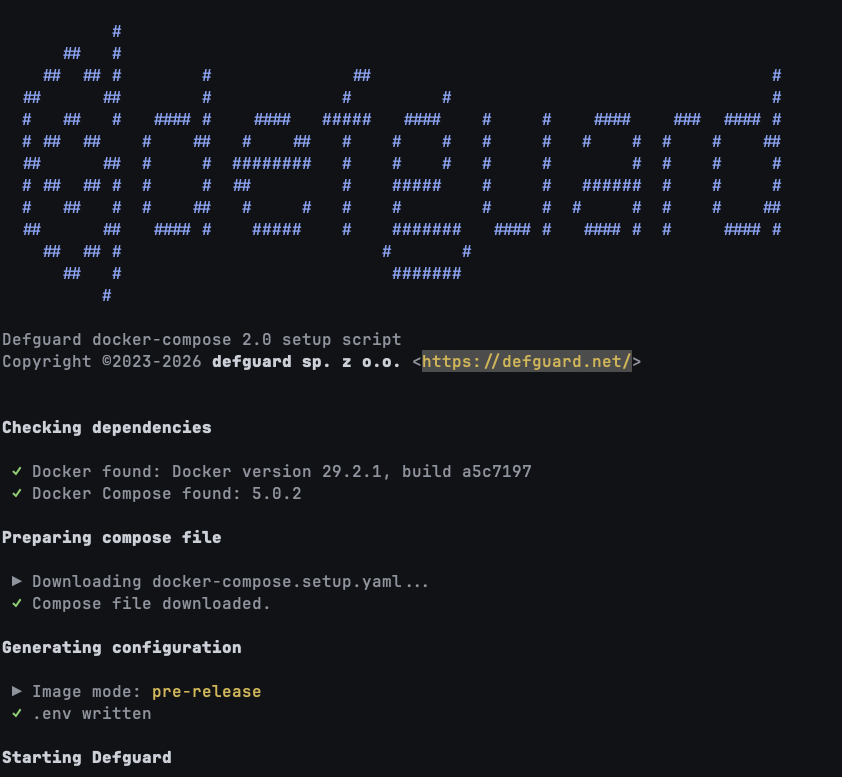
To simplify setup and enable automated deployment, we prepared a script that deploys a complete Defguard instance, including an enrollment Edge component and VPN Gateway.
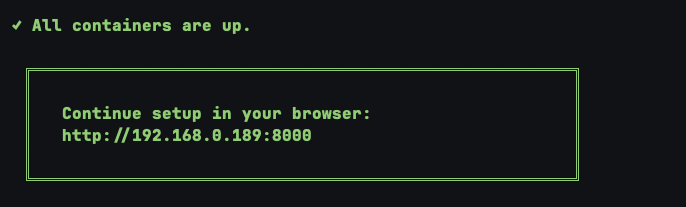
The command will automatically provision all Defguard components and perform an initial configuration. Once complete, a step-by-step wizard will guide you through the remaining setup in your browser.
Use one of the following commands to run the script:
#### Production Release (most stable)
```sh
bash <(curl -sSL https://raw.githubusercontent.com/defguard/deployment/main/docker-compose2.0/setup.sh)
```
#### Pre-release (latest alpha/beta/release candidate)
```sh
bash <(curl -sSL https://raw.githubusercontent.com/defguard/deployment/main/docker-compose2.0/setup.sh) --pre-release
```
If you used the installation script before and would like to upgrade to the pre-release version, you can update your `.env` file. It should be located next to the `docker-compose.yml` file created by the script:
```
CORE_IMAGE_TAG=pre-release
PROXY_IMAGE_TAG=pre-release
GATEWAY_IMAGE_TAG=pre-release
```
Running `docker compose down` and `docker compose up -d` afterwards should pull the correct images.
{% hint style="warning" %}
Downgrading to the production release may not be trivial afterwards because of the changes made to the database during the upgrade.
{% endhint %}
#### Latest development builds
```sh
bash <(curl -sSL https://raw.githubusercontent.com/defguard/deployment/main/docker-compose2.0/setup.sh) --dev
```
If you used the installation script before and would like to upgrade to the development version, you can update your `.env` file. It should be located next to the `docker-compose.yml` file created by the script:
```
CORE_IMAGE_TAG=dev
PROXY_IMAGE_TAG=dev
GATEWAY_IMAGE_TAG=dev
```
{% hint style="warning" %}
Downgrading to the production release may not be trivial afterwards because of the changes made to the database during the upgrade.
{% endhint %}
Running `docker compose down` and `docker compose up -d` afterwards should pull the correct images.
After the script finishes, open the displayed URL in your browser and continue with the provided instructions.
If you feel uneasy about running a shell script from the internet, inspect the [source code](https://github.com/DefGuard/deployment/blob/main/docker-compose2.0/setup.sh) first.
The script does the following:
* Prepares a Docker Compose file
* Automatically generates an `.env` file for the compose stack
* Creates a `.volumes` directory for persistent storage
* Automatically adopts all Defguard components (Edge and Gateway)
* Starts the compose stack
{% hint style="info" %}
By default, the script enables masquerade on the Gateway container. This allows all traffic coming through the VPN to leave the container and reach any destination accessible from the host system. To disable this behaviour, use the relevant [configuration](#cli-options) option or set up proper [ACL](/2.0/features/firewall.md)/firewall rules.
{% endhint %}
### Prerequisites
The script requires specific tools and a few infrastructure settings.
#### Tools
* `bash`
* `openssl`
* `curl`
* `sed`
* `grep`
* `docker` - **we recommend official** [**Docker Engine packages**](https://docs.docker.com/engine/install/) rather than packages shipped with distributions
* `docker-compose` - not required if you use Docker 20.10+ with the `docker compose` command
#### Environment setup and securing access
{% hint style="danger" %}
Deploy this setup on a bare-metal server or a virtual machine. It will **not run inside an LXC container.**
{% endhint %}
* A server with a public IP address, if you want Defguard to provision HTTPS certificates with Let's Encrypt
* A public domain/DNS record for Defguard Edge
* An internal domain/DNS record for Defguard Core
* Permission for Docker to bind to host ports 80 and 443. Sometimes this requires setting the `net.ipv4.ip_unprivileged_port_start` sysctl variable to `80`
* Firewall rules:
* Allow incoming traffic on the VPN UDP port chosen during the web wizard
* Allow incoming traffic on one of the following ports:
* If you chose NOT to provision HTTPS: **TCP 8080**
* If you chose to provision HTTPS using self signed certificates or your own uploaded certificates: **TCP 443**
* If you chose to provision HTTPS using Let's Encrypt: **TCP 443** and **TCP 80** (required for domain validation)
#### CLI options
```
Available options:
--dev use development images
--pre-release use pre-release images
--no-masquerade disable IP masquerade on the gateway
--help show this help and exit
```
### Advanced deployment strategies
For more advanced deployment strategies, go to our [deployment strategies section](/2.0/deployment-strategies/overview.md).