> For the complete documentation index, see [llms.txt](https://docs.defguard.net/llms.txt). Markdown versions of documentation pages are available by appending `.md` to page URLs; this page is available as [Markdown](https://docs.defguard.net/2.0/features/wireguard/network-overview.md).

# Network overview

Once your gateway service is up and users start connecting to the VPN, upload/download summary data is stored and can be displayed on the **VPN Overview** page of the Defguard web application. See [architecture overview](/2.0/in-depth/architecture.md) for details of core-gateway interaction.

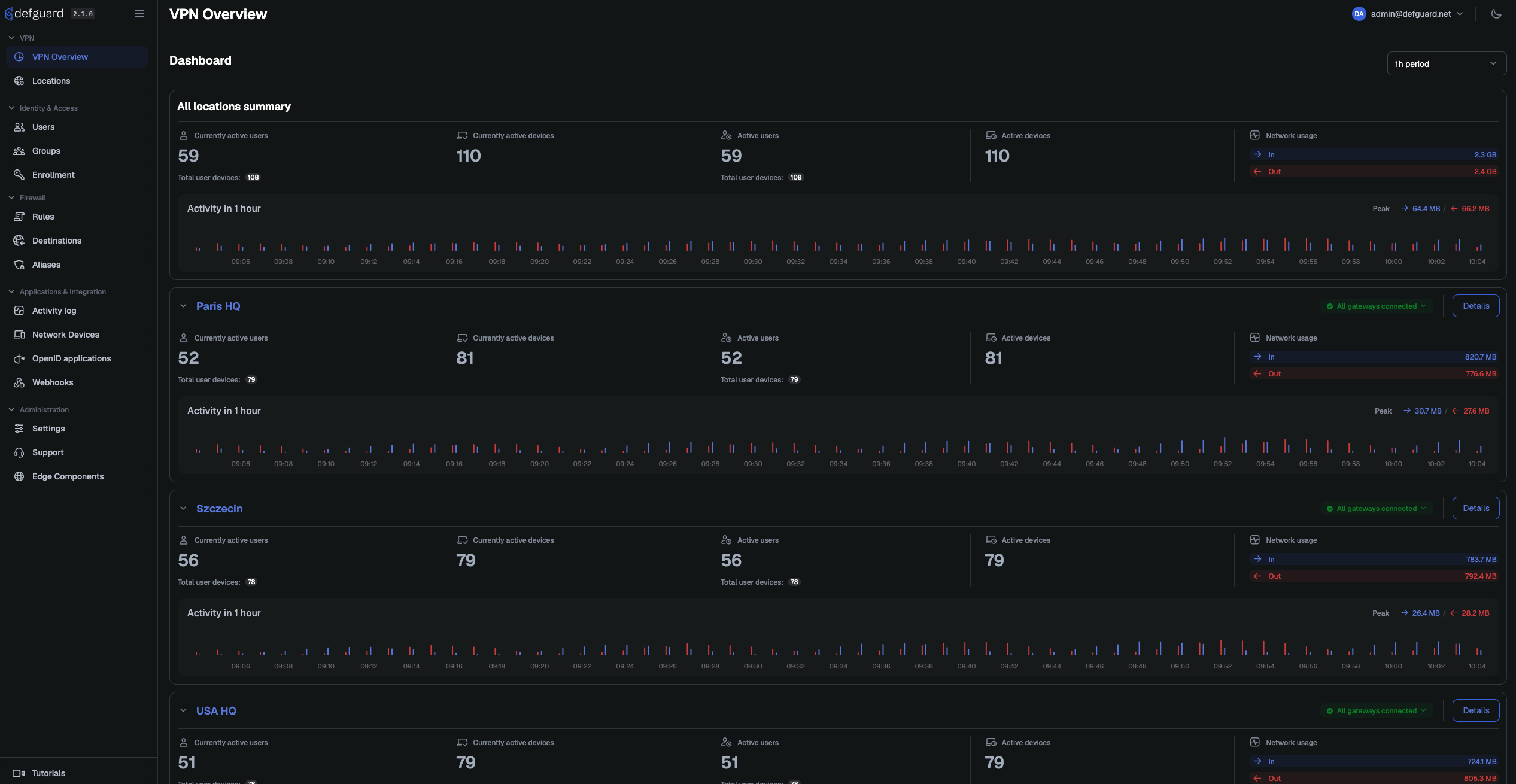
On the **VPN Overview** page, you'll see who is currently connected and how much data each connected user transferred. You'll also see overall network transfer charts.

The Defguard dashboard allows administrators to see:

* Current amount of active users / network devices
* Active users / network devices during time period
* Network usage
* Gateway status

### Dashboard

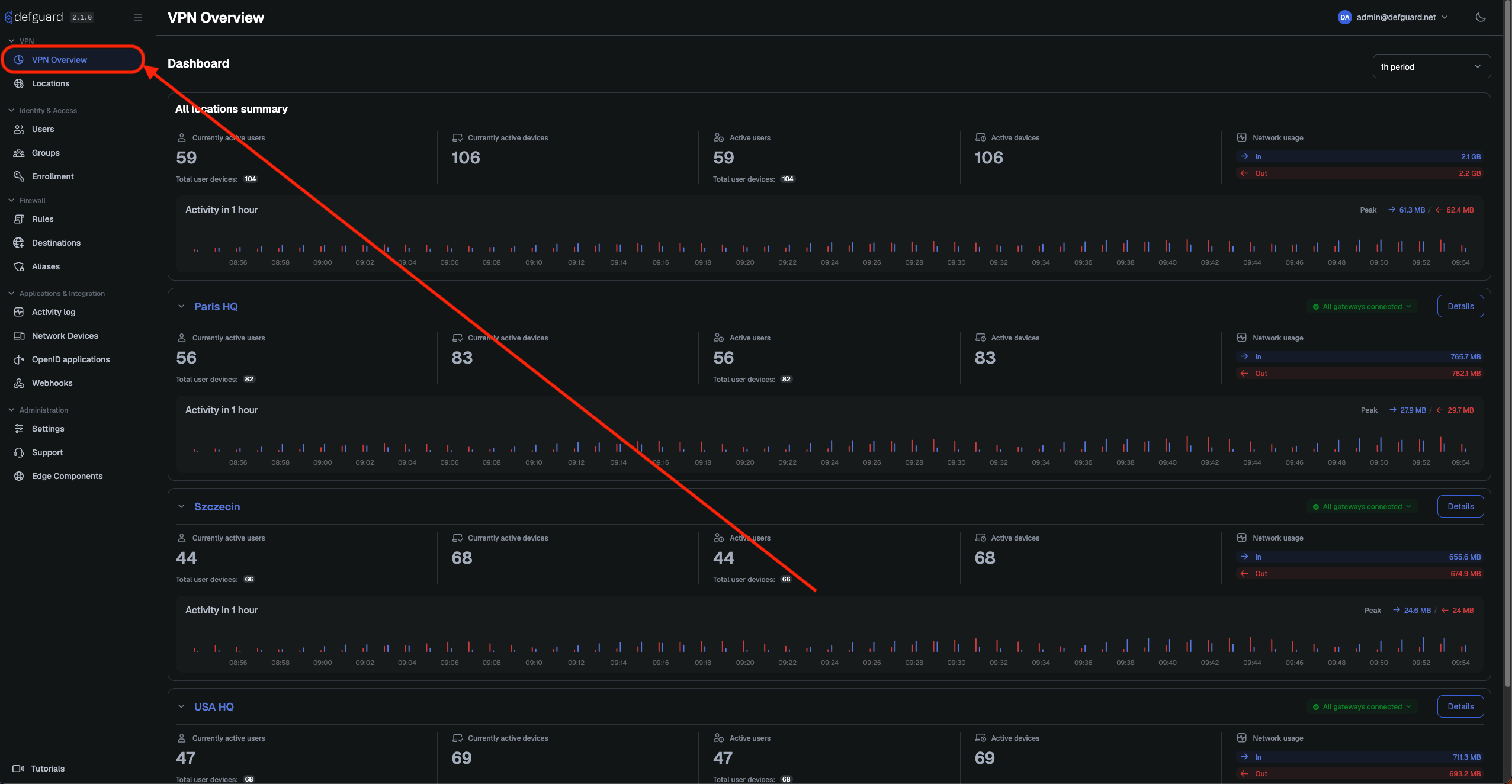
To access this dashboard, go to **VPN Overview** tab.

<figure><img src="https://2426002228-files.gitbook.io/~/files/v0/b/gitbook-x-prod.appspot.com/o/spaces%2FqPYuWxfmxFk6sz1LLLwd%2Fuploads%2Fgit-blob-c7c3a286b68720a1f27fea00e4a3ff270c8ba470%2Fvpn-overview-tab-marked-2.0.png?alt=media" alt=""><figcaption></figcaption></figure>

Dashboard looks like this, if you want to see more details about location, proceed to [this section.](#detailed-location-overview)

<figure><img src="https://2426002228-files.gitbook.io/~/files/v0/b/gitbook-x-prod.appspot.com/o/spaces%2FqPYuWxfmxFk6sz1LLLwd%2Fuploads%2Fgit-blob-c2345876085d359cf5cedb4c19c1678553dfa09c%2Fvpn-overview-2.0.png?alt=media" alt=""><figcaption></figcaption></figure>

### Detailed location overview

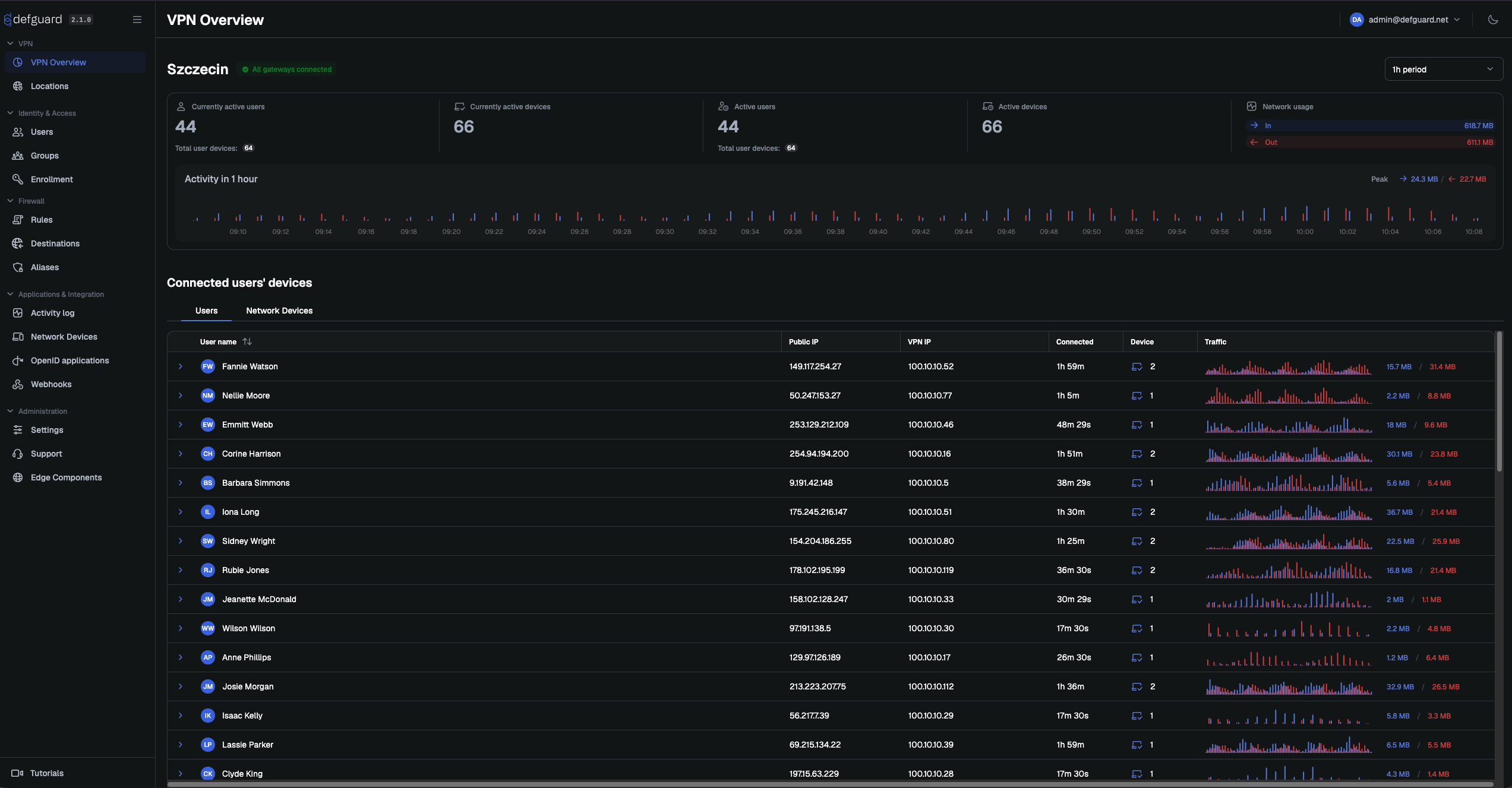
To access a dashboard with detailed information click **Details** on location.

<figure><img src="https://2426002228-files.gitbook.io/~/files/v0/b/gitbook-x-prod.appspot.com/o/spaces%2FqPYuWxfmxFk6sz1LLLwd%2Fuploads%2Fgit-blob-3a6b9dd6160113e30b0d8b80ed2d89b732b3af61%2Fdetails-button-marked-vpn-overview.png?alt=media" alt=""><figcaption></figcaption></figure>

In this view, you can see individual users and network devices using this specific location.

<figure><img src="https://2426002228-files.gitbook.io/~/files/v0/b/gitbook-x-prod.appspot.com/o/spaces%2FqPYuWxfmxFk6sz1LLLwd%2Fuploads%2Fgit-blob-e20ea5fc2daf910a337b859b16161409a7538648%2Fdetailed-vpn-overview-2.0.png?alt=media" alt=""><figcaption></figcaption></figure>

To access detailed information about a specific user, click the blue icon located next to the username.

<figure><img src="https://2426002228-files.gitbook.io/~/files/v0/b/gitbook-x-prod.appspot.com/o/spaces%2FqPYuWxfmxFk6sz1LLLwd%2Fuploads%2Fgit-blob-d8636bcb2d451118757b1a1c039cb69bceb8218a%2Fuser-details-vpn-overview-button-marked.png?alt=media" alt=""><figcaption></figcaption></figure>

After expanding, you will see devices which are currently being used by the user.
<figure><img src="https://2426002228-files.gitbook.io/~/files/v0/b/gitbook-x-prod.appspot.com/o/spaces%2FqPYuWxfmxFk6sz1LLLwd%2Fuploads%2Fgit-blob-b3ffbf925779fefdb564b4dd6ca40ef7ff9ffbe0%2Fuser-details-vpn-overview-devices-marked.png?alt=media" alt=""><figcaption></figcaption></figure>