> For the complete documentation index, see [llms.txt](https://docs.defguard.net/llms.txt). Markdown versions of documentation pages are available by appending `.md` to page URLs; this page is available as [Markdown](https://docs.defguard.net/2.0/features/wireguard/create-your-vpn-network.md).
# Create/Manage VPN Location
A VPN location is a VPN network to which users can connect to. Every location has a [dedicated gateway](/2.0/deployment-strategies/standalone-package-based-installation/gateway.md) (or [multiple gateways if you deploy a high-availability solution](/2.0/deployment-strategies/high-availability-and-failover.md#gateway-high-availability)).
{% hint style="success" %}
Defguard supports **multiple locations**, for each location to work you need to configure it and deploy a dedicated gateway.
{% endhint %}
{% hint style="info" %}
If you are looking for MFA settings, go [here](#multi-factor-authentication-for-a-location).
{% endhint %}
### Location type choice
#### Regular location
This is the default option that creates an typical VPN network.
#### Service location
{% hint style="info" %}
This feature is only for Windows platform.
{% endhint %}
Service Location is a Windows-specific configuration that automates secure network connectivity for managed devices. It ensures that authorized clients establish a persistent VPN tunnel immediately upon system startup, rather than waiting for a user to log in. The tunnel is handled by a background service, so the location is not shown in the Defguard Client and requires no action from the user. See [Service locations](/2.0/features/service-locations.md) for details.
## VPN Location configuration
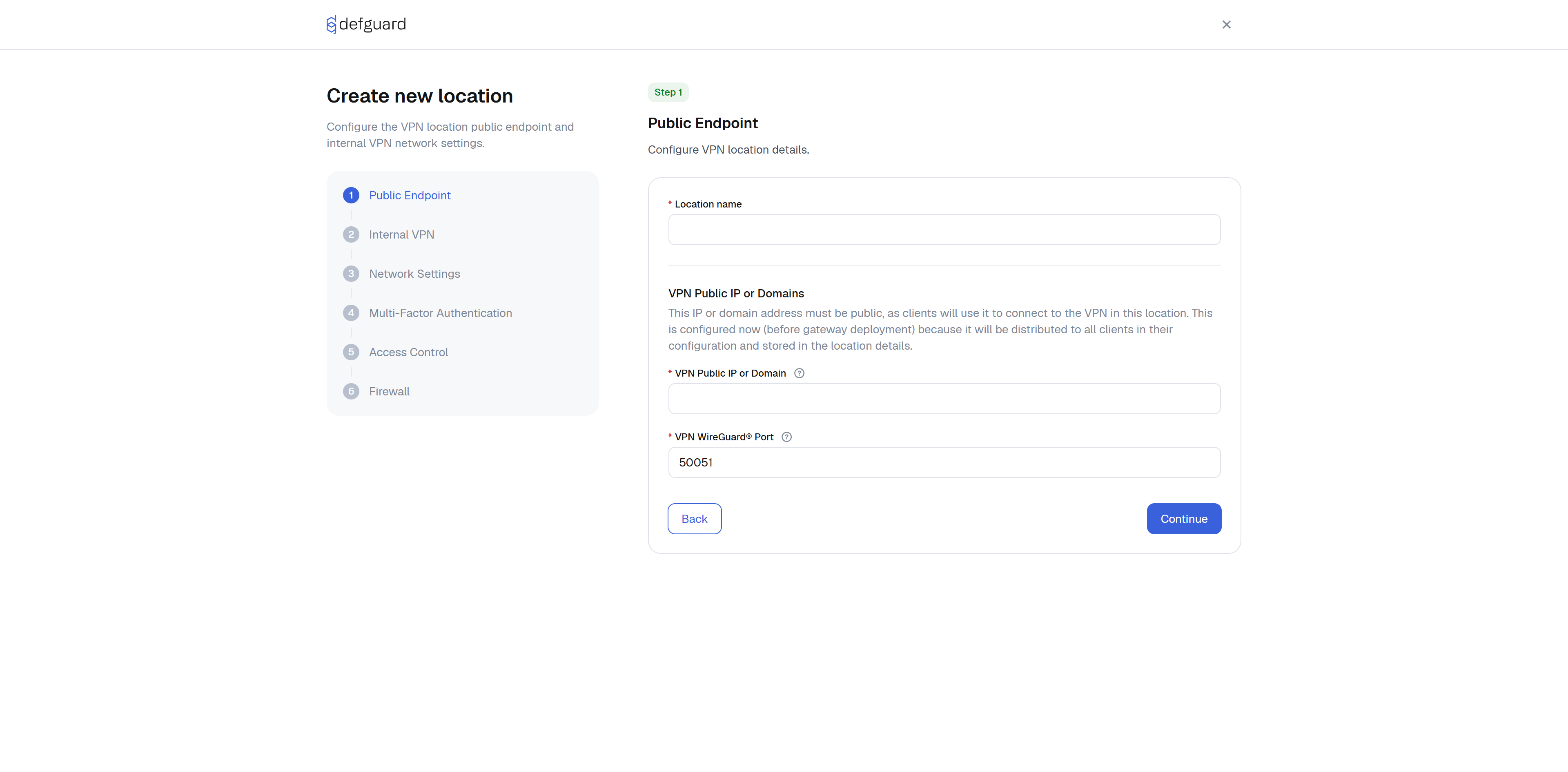
The Location Configuration is a guided, step-by-step wizard.
#### Gateway VPN IP addresses and masks
By providing the VPN IPs/masks, you are configuring both: **the VPN internal networks and VPN server IPs**. Every gateway will bind to these addresses, and Defguard will also generate and assign IP addresses for devices in this location from these networks.
This field can contain multiple IP addresses (both IPv4 and IPv6), separated by a comma (e.g. `10.10.20.1/24,fc00::abcd:0:1/96`).
{% hint style="info" %}
**Dual-stack VPN networks**
Defguard supports dual-stack VPN networks, allowing simultaneous assignment of both IPv4 and IPv6 addresses to clients. Each VPN network can include multiple IPv4 and IPv6 subnets, and connected clients will automatically receive one address from each defined subnet. This enables seamless communication over both IP versions within a single VPN session.
{% endhint %}
{% hint style="warning" %}
Defguard assigns IP addresses to clients by sequentially scanning each defined subnet and selecting the first available address. If no free address is found in any of the configured networks, the client will not receive an IP assignment. In such cases, you’ll need to adjust the network configuration - such as expanding the address pool by decreasing the netmask - to accommodate additional clients.
{% endhint %}
#### Examples
1. 10.11.0.1/8
1. internal VPN network will be: 10.11.0.0 with netmask 255.0.0.0
2. VPN gateway internal IP address will be: 10.11.0.1
2. 192.168.8.1/24,fc00::1/112
1. internal VPN networks will be: `192.168.8.0` with netmask `255.255.255.0` and `fc00::0` with netmask FFFF:FFFF:FFFF:FFFF:FFFF:FFFF:FFFF:0000
2. VPN gateway internal IP addresses will be: 192.168.8.1 and fc00::1
#### Gateway address
It's the **public IP address** or **DNS domain** to which the remote peer's/users will connect to. This address is **will be shared in the configuration** for the clients, but Defguard gateways do **not bind to this address**.
{% hint style="info" %}
**Defguard gateways bind to all IP addresses and the port defined below.**
This is very handy if you are setting up a **high availability active-active** solution with multiple gateways - then this public IP needs to be exposed and controled by load-balancers or any other solution that will forward this to gateways.
{% endhint %}
{% hint style="success" %}
DNS domain is **very useful** for example is a setup uses Dynamic DNS (DDNS).
{% endhint %}
#### Gateway port
Defguard **gateways bind to this port**, and this port is shared in configuration to any client.
#### Allowed IPs
Defines the IP ranges a device is allowed to route or communicate with.
It supports multiple networks separated with comma, e.g. 10.11.1.0/0, 192.168.1.0/24
{% hint style="danger" %}
Right now Defguard only manages routing of Allowed IPs (adding to routing table the networks defined in Allowed IPs).
If you want the *All Traffic* to work in the desktop client you need to also configure MASQUARED/NAT for the VPN interface.
{% endhint %}
{% hint style="info" %}
**Allowed IPs with exceptions**
If you use broad *Allowed IPs* (for example `0.0.0.0/0`) and want to exclude specific networks, note that WireGuard does not support explicit exclusions. Instead, the allowed range must be split into multiple CIDR blocks that cover everything except the excluded subnets.
To simplify this, you can use an **Allowed IPs calculator** to generate the correct set of CIDR blocks for your intended traffic routing.
{% endhint %}
#### DNS
This specifies DNS resolvers and search domains. Supported format is by comma separation, e.g.:
`IP, IP, search.domain.net, second.search.domain.com`
#### Allowed groups
Here, you can specify **what groups (users assigned to those groups) have access to this VPN Location.**
{% hint style="warning" %}
By default (if no group is chosen) **all users will have access to this location.**
By defining a group, assigning users to that group and then choosing this group(s) you can restrict access to VPN Locations.
Users in groups marked as **admin group** always have their devices assigned to every VPN location.
{% endhint %}
### Multi-Factor Authentication for a Location
#### Require MFA for this location
By enabling this setting, this location **will require Multi-Factor Authentication** on each connection to this location.
{% hint style="danger" %}
This feature is only supported in [**Defguard Desktop Client**](/2.0/using-defguard-for-end-users/desktop-client.md)**.**
{% endhint %}
Each connection in the client:
1. Will require the user to provide either TOTP token or Email code.
2. After authorizing, Defguard will do a key exchange and set up a pre-shared session key unique for this connection.
{% hint style="warning" %}
For this feature to work, the user must:
1. configure their [TOTP settings in the profile](/2.0/using-defguard-for-end-users/setting-up-2fa-mfa.md#one-time-password)
2. [SMTP settings needs to be set up](/2.0/features/notifications/setting-up-smtp-for-email-notifications.md) and the user must enable Email tokens in their profile.
{% endhint %}
#### Keep alive interval
Configurable time interval (in seconds) used to send periodic packets to ensure that the connection remains active. This is particularly useful in environments like NAT (Network Address Translation) or firewalls that may close idle connections.
#### Maximum Transmission Unit (MTU)
It is the largest size of a data packet, measured in bytes, that a network device can transmit over a connection in a single transaction.
#### Firewall Mark (FwMark)
Firewall Mark is a numerical label attached to network packets by the kernel to help the system make specialized routing or filtering decisions. If unused leave 0.
#### **Client disconnect threshold**
Since Multi-Factor Authentication (MFA) is used to enforce zero-trust security, a peer (user) that remains inactive for a specified time interval (defined in seconds within the settings) will be disconnected. Additionally, the session configuration will be removed from the gateway. This ensures that when the peer reconnects, they must complete the MFA process again.
{% hint style="warning" %}
Minimal value for this setting is 120 (2 minutes).
Recommended is more then 300.
{% endhint %}
#### Multi-Factor Authentication with external OIDC/SSO (Google/Microsoft/Okta/...)
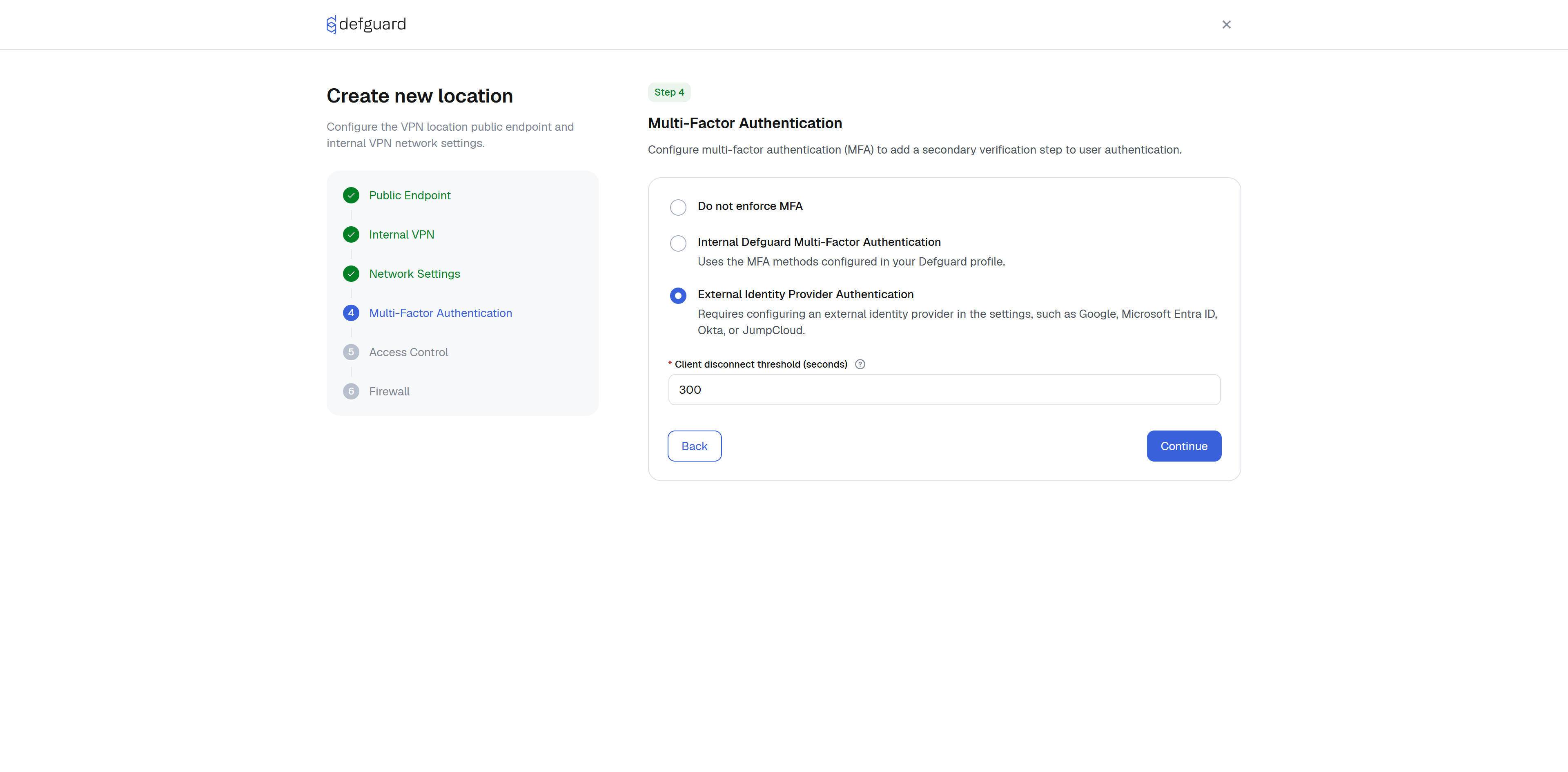
On each location, you can choose if the Location should support our Internal MFA (configured by each user in their own profile) or (if you have [external OIDC/SSO configured](/2.0/features/external-openid-providers.md)) external MFA:
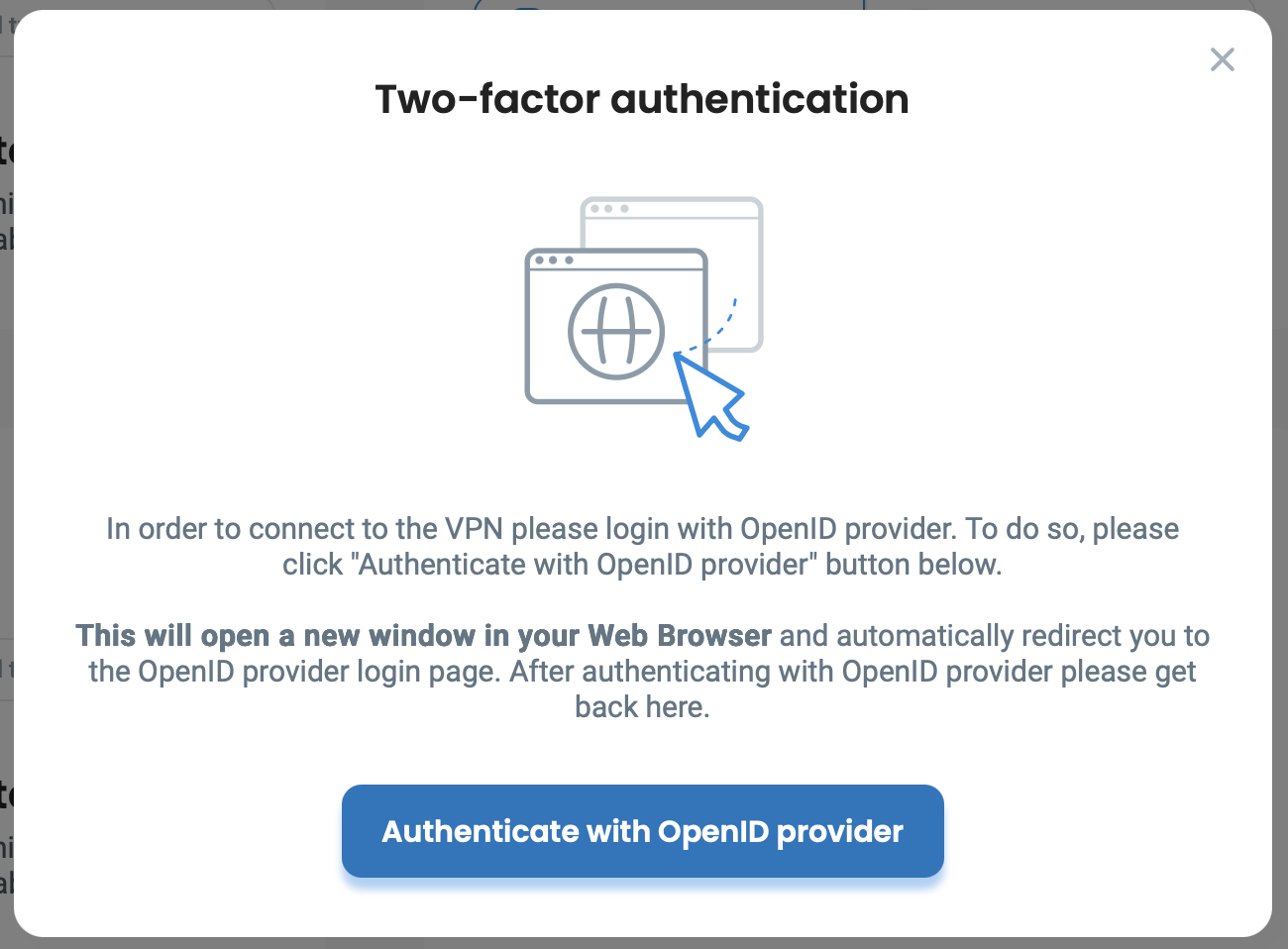
When enabled, on the desktop client when authenticating the user will be required on **each connection** to authenticate with the configured External OIDC/SSO: