# Access Control List
{% hint style="warning" %}
#### Availability
This feature is available in all plans, with usage limits. See the [pricing page](https://defguard.net/pricing/) for details.
{% endhint %}
{% hint style="warning" %}
Access Control List feature is available in Defguard Core v1.3.0 and Defguard Gateway v1.3.0.
Defguard Gateway v1.3.0 supports Linux machines with [NFTables](https://nftables.org/).\
Defguard Gateway v1.4.0 supports FreeBSD, NetBSD, and macOS machines with Packet Filter (PF).
{% endhint %}
The ACL (Access Control List) functionality in Defguard allows administrators to define and manage who can access specific network resources. It provides a clear and centralized way to control access based on users, groups, or devices, ensuring that only authorized entities can reach sensitive systems or services.
### How to enable Access Control List functionality
Access Control can be enabled for each location individually. To enable it:
1. Navigate to **VPN Overview** > **Edit Location settings**
2. In **Location configuration** section, select **Enable ACL for this location**.
3. Click on **Save changes**.
**You should also set the default ACL policy for the location** (see below).
## Default Access Control List Policy
Default policy defines how to treat network traffic (with regard to resources) that was not explicitly specified in ACL rules:
* **Allow** - users and devices connected to a location will be able to access all resources within the network, if the resource access is not modified by one of ACL rules.
* **Deny** - all traffic to network resources that is not regulated by one of the ACL rules will be blocked.
### How to define Default ACL Policy
Make sure ACL has been enabled (see above), otherwise the policy setting will not be inactive.
1. Navigate to **VPN Overview** > **Edit Location settings**
2. In **Location configuration,** choose the desired option under **Default ACL Policy**.
3. Click on **Save changes**.
## List of ACL rules
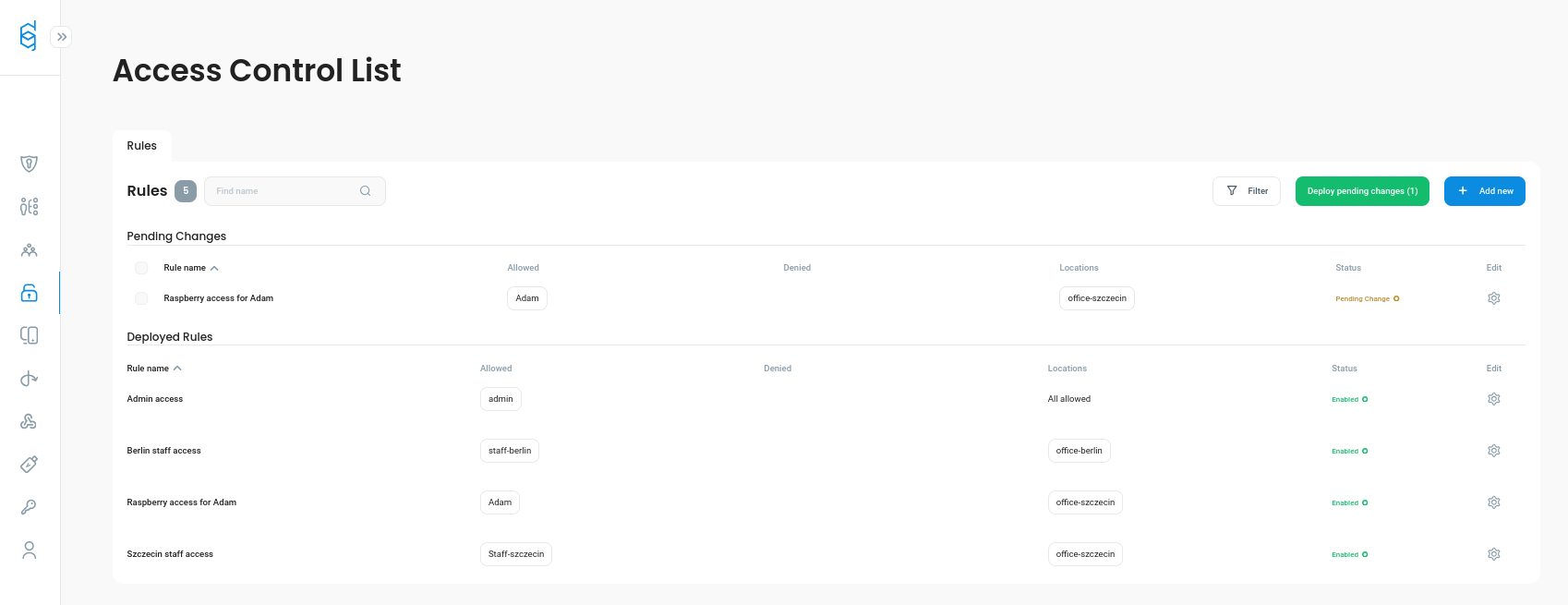
**Access Control List** view displays all the rules defined in your system. The list is split into two sections.
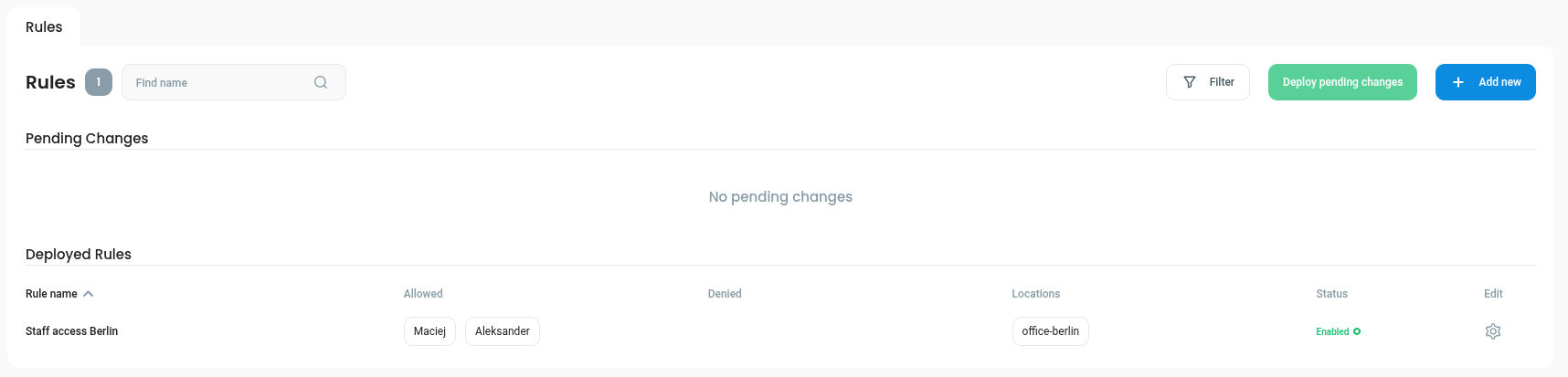
**Deployed Rules** section displays the rules that have already been applied. Those rules should be in effect on relevant locations if the Gateway–Core connection is intact.
{% hint style="warning" %}
Defguard does not track rule application status per location. In the event of network connectivity issues between Gateway and Core components, rule propagation is not immediate. The system guarantees **eventual consistency**, meaning rules will be applied once the connection is restored.
{% endhint %}
**Pending Changes** section displays all the rules that have not yet been applied to locations. This includes:
* new rules
* modified rules
* deleted rules
Use the **Deploy pending changes** button to apply all the rules from **Pending Changes** section.
{% hint style="info" %}
**Batch rule application**
Defguard’s ACL functionality is designed to allow users to apply access control rules in batches. This approach minimizes the risk of transient network issues that could occur when deploying rules individually. By grouping changes and deploying them together, the system reduces the likelihood of connectivity hiccups or firewall disruptions.
{% endhint %}
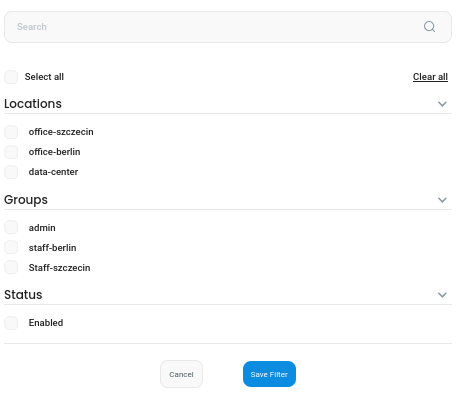
The ACL list view also allows rule filtering by name, locations, and other attributes
## How to add and modify ACL rules
To create a new rule, use the  button in the [ACL List View](#list-of-acl-rules).
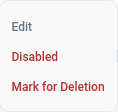
You can edit an existing rule by using the  context menu and selecting **"Edit"** in the [ACL List View](#list-of-acl-rules)**.**
Rule context menu
### Anatomy of an ACL rule
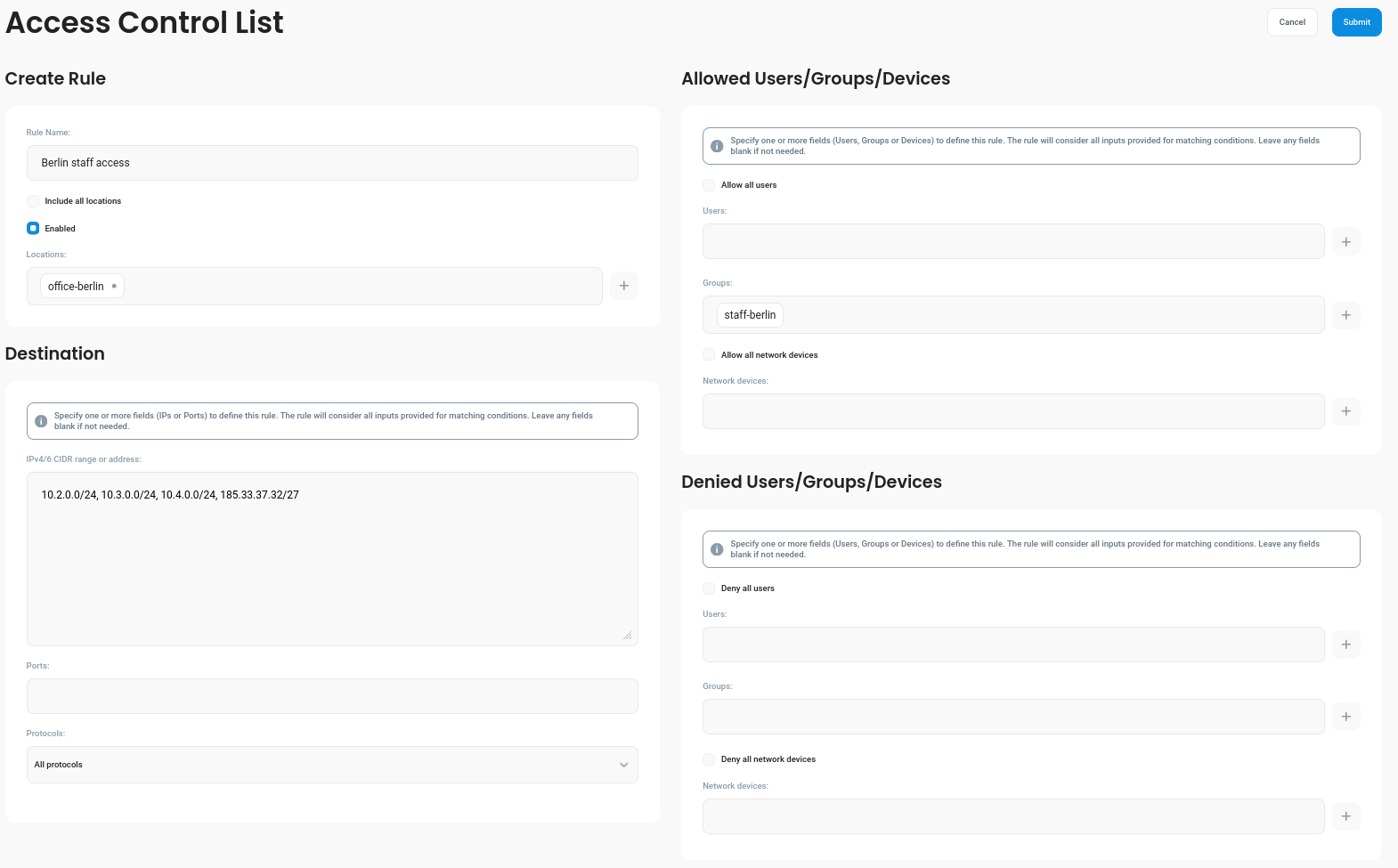
The ACL form consists of three main sections:
#### Basic rule configuration
* rule name
* locations where the rule should be applied
* enabling / disabling of the rule
{% hint style="info" %}
Each rule in Defguard can be **enabled** or **disabled** individually. When a rule is disabled, it remains stored in the system but is not applied to any locations, meaning it has no effect on access control until re-enabled. This allows administrators to temporarily deactivate rules without deleting them, making it easy to toggle access policies as needed.
{% endhint %}
#### Destination
This section is meant to define the resource to which access should be granted or restricted. Think of this section as the **destination** part of a firewall rule.
* IP addresses (IPv4 or IPv6) of the resources for which access will be granted or restricted. The addresses can be specified individually, by CIDR addresses (with a mask) or as a range. You can specify multiple comma-separated addresses. Examples of valid values for this field include:
* `10.1.1.10, 10.1.2.0/24`
* `10.2.1.10-10.2.2.100, fd00:1000::/64, fd00:1000::f0`
* etc.
* Ports - TCP/UDP ports and port ranges
* Protocols that will be affected by the rule. All by default. Defguard ACL currently supports TCP, UDP and ICMP protocols.
#### Allowed and Denied sources
This section lets you define which traffic sources should be granted or denied access - essentially the **"source"** side of a firewall rule.
In Defguard, sources can be defined as one of three object types:
* Users
* User Groups
* Network Devices
Each ACL rule in Defguard is intended to fully define access to a specific resource, you must therefore always include at least one allowed source.
{% hint style="warning" %}
This setting is independent of the default location-level [**Allowed groups**](https://docs.defguard.net/2.0/wireguard/create-your-vpn-network#allowed-groups) configuration.
If you give a user access to some resource through an ACL rule, but they do not have access to a given location, they still won't be able to access it, because they'll be unable to establish a VPN connection with the gateway.
{% endhint %}
### How to define your ACL ruleset
Access Control List (ACL) rules in Defguard are used to manage **who can access specific resources** across your network. Think of each rule as a clear instruction that says: *These users or devices are allowed to reach this resource – and, optionally, these others are not.*
#### Key Concepts:
* Each rule connects **who** (users, groups, or devices) to **what** (a resource address).
* At least one "allowed" source must always be specified - this defines who gets access.
* Optionally, you can **exclude** specific users, groups, or devices using the "denied" section.
* You can use this combination to create flexible rules, such as:\
\&#xNAN;*Allow everyone in the “Remote Workers” group except a few individuals to access a specific office network.*
This setup helps control access clearly and safely without worrying about lower-level network and firewall behaviour.
#### Details
* ACL rules are **self-contained** – they fully define access for their target resource, are interpreted identically across all Gateways and are unaffected by the **default policy** location setting.
* **Default policy setting** at location level does not affect traffic covered by ACL rules. It applies only to traffic targeting addresses not matched by any ACL rule.
* A **destination address** is required in each rule – specifying only ports and/or protocols that are not allowed.
* **Ports and protocols** are optional. If specified, traffic is allowed *only* on those ports/protocols; everything else is blocked.
* Each ACL results in two firewall rules:
* An **ALLOW** rule for the allowed sources.
* A **DENY** rule to block all other traffic to that destination.
### Examples
#### Allowing access for specific users
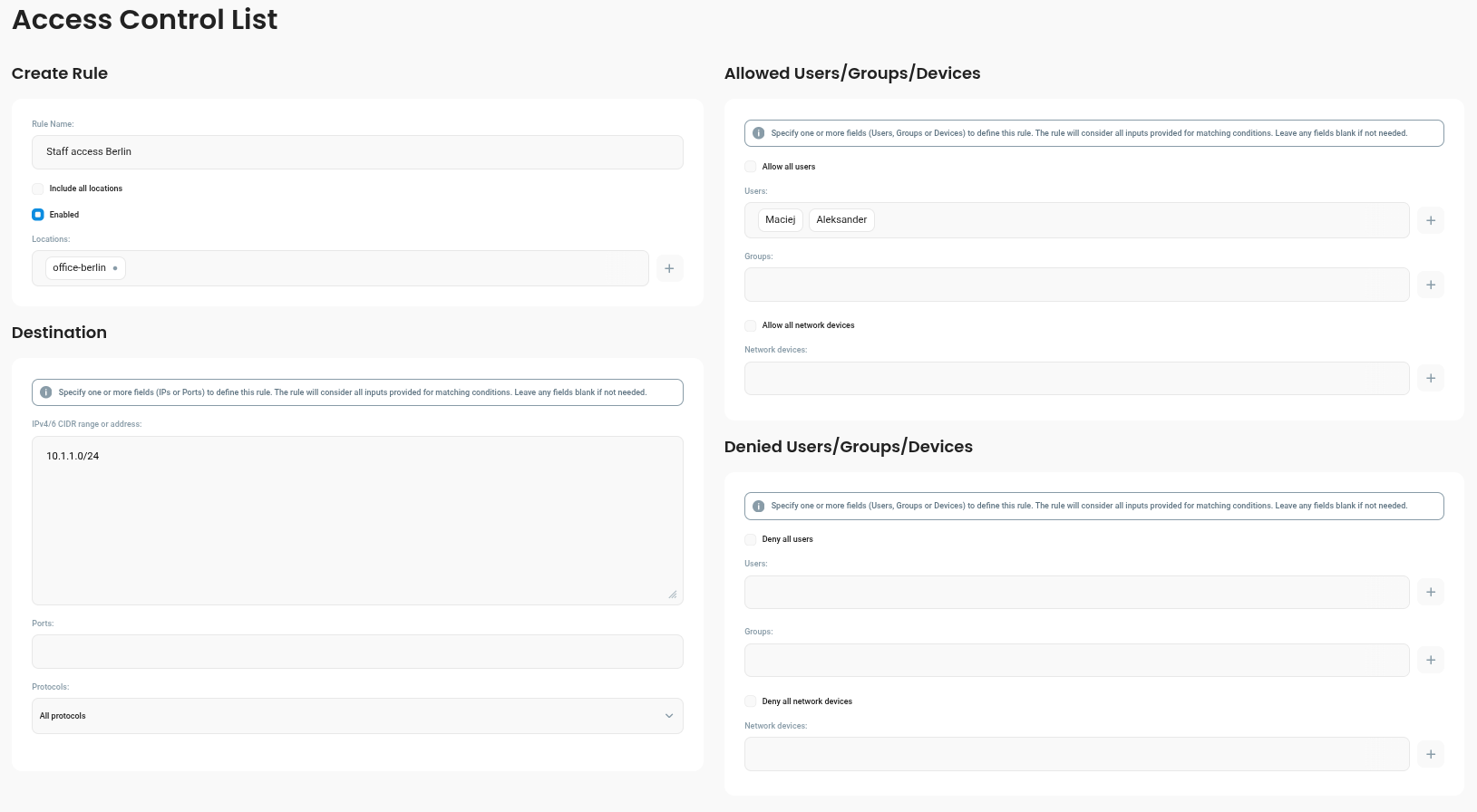
In this scenario, we will allow specific users to access the 10.1.1.0/24 network, assuming the users connect through *Office-Berlin* location.
To do this, the following new rules have to be added:
* Navigate to **Access Control**.
* Click on **Add new** button.
* Name the rule under **Rule Name**: *Staff access, Berlin*.
* Select *Office-Berlin* in the **Locations** input.
* Under **Manual Input** > **IPv4/v6 CIDR range or address**, enter: *10.1.1.0/24*.
* Add desired users in the **"Allowed Users/Groups/Devices** > **Users**.
* Click on the **Submit** button.
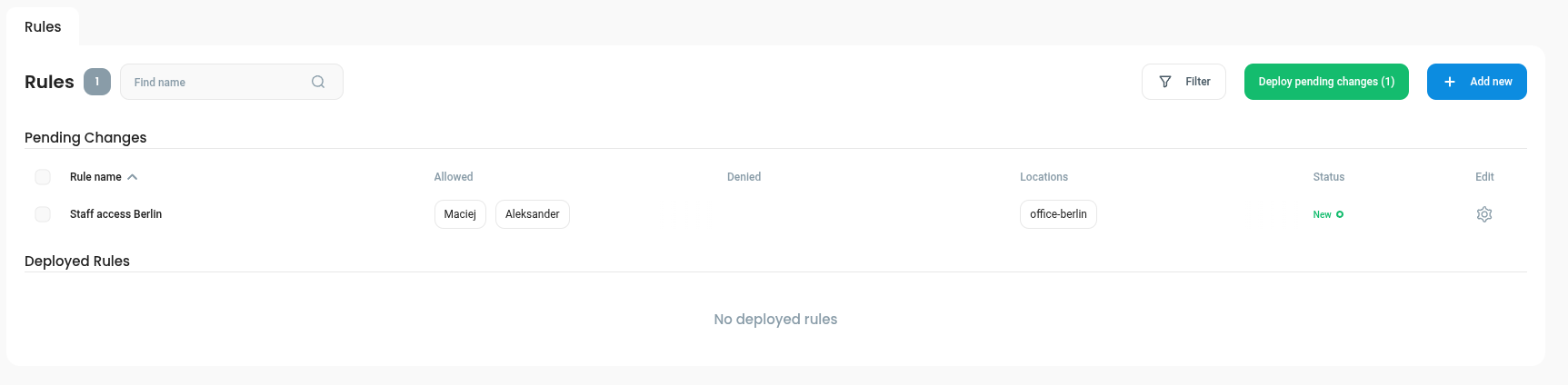
You will be redirected back to the [ACL List View,](#list-of-acl-rules) and the new rule should now be in the **Pending Changes** section.
Now, click on **Deploy pending changes (1)** button. After that, the rule should be applied on the *Office-Berlin* location.
(See [Implementation Details](https://github.com/DefGuard/docs/blob/docs/enterprise/all-enteprise-features/access-control-list/firewall-internals.md) documentation to understand integration with system packet filtering.)
#### Adding access exceptions for specific users
Let's build on the last example. The example defined a single rule that grants network access for two users. In this example, we will block access for one specific user. But first, let's rethink our approach.
It may be tempting to specify the access for each user individually, like we did while constructing the first rule. This may work at first, or if your users don't change too often. But what if you have a constant influx of new users? This might get tedious pretty fast.
So what we will do is:
* Define two groups:
* *Staff-Berlin*
* *Externals*
* Add all the users that work in our *Berlin* office to *Staff-Berlin* group
* Add all users we collaborate with in *Berlin*, but are not our direct employees, to the *Externals* group
* Allow all users in *Staff-Berlin* group access to the network
* Add an exception for the users in *Externals* group so that they are not allowed to access the network
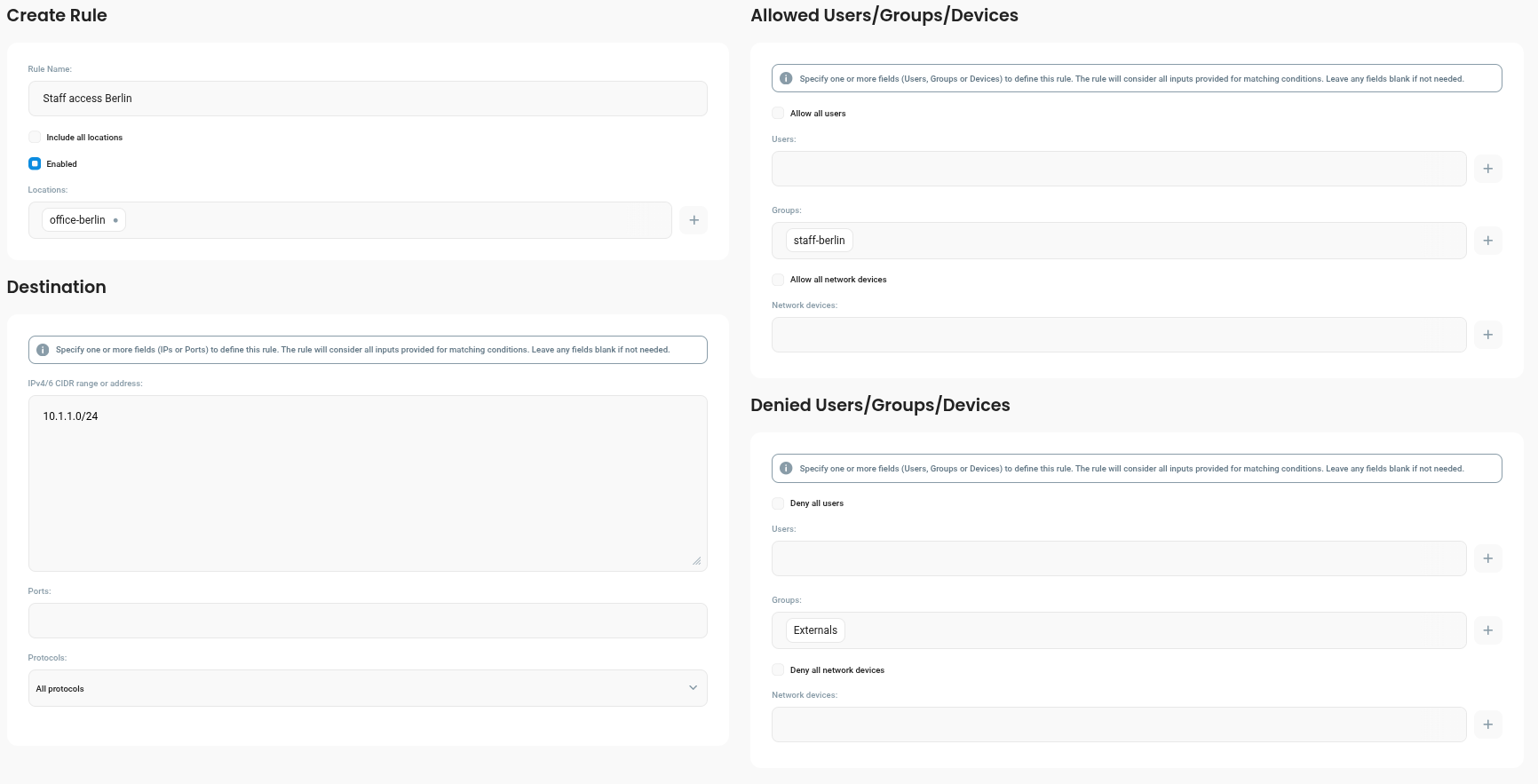
Once you have created appropriate groups and assigned the users, let's update the ACL rule. The rule should now:
* Still be assigned to the *Office-Berlin* location
* Still define the destination resource address as `10.1.1.0/24`
* Instead of specific users in the **Allowed Users** input, we now select the *Staff-Berlin* group in the **Allowed Groups** input
* In **Denied Groups** input we should now select the *Externals* group