# Adding a location and getting a Gateway token
## Adding a location in Defguard Core
{% hint style="warning" %}
Please remember that **one gateway corresponds to one VPN location.**
You can also deploy multiple gateways for one location for High Availability.
{% endhint %}
Go to the address you set on `DEFGUARD_URL` with your browser and sign in using the credentials you set up during Core deployment.
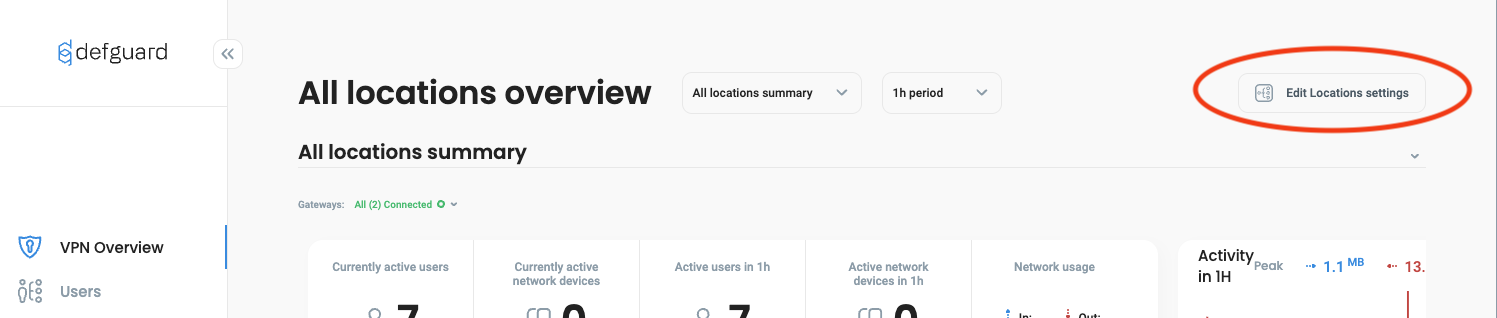
Go to the *VPN Overview* module from the main menu and click the *Edit Locations settings*.
Adding a new location
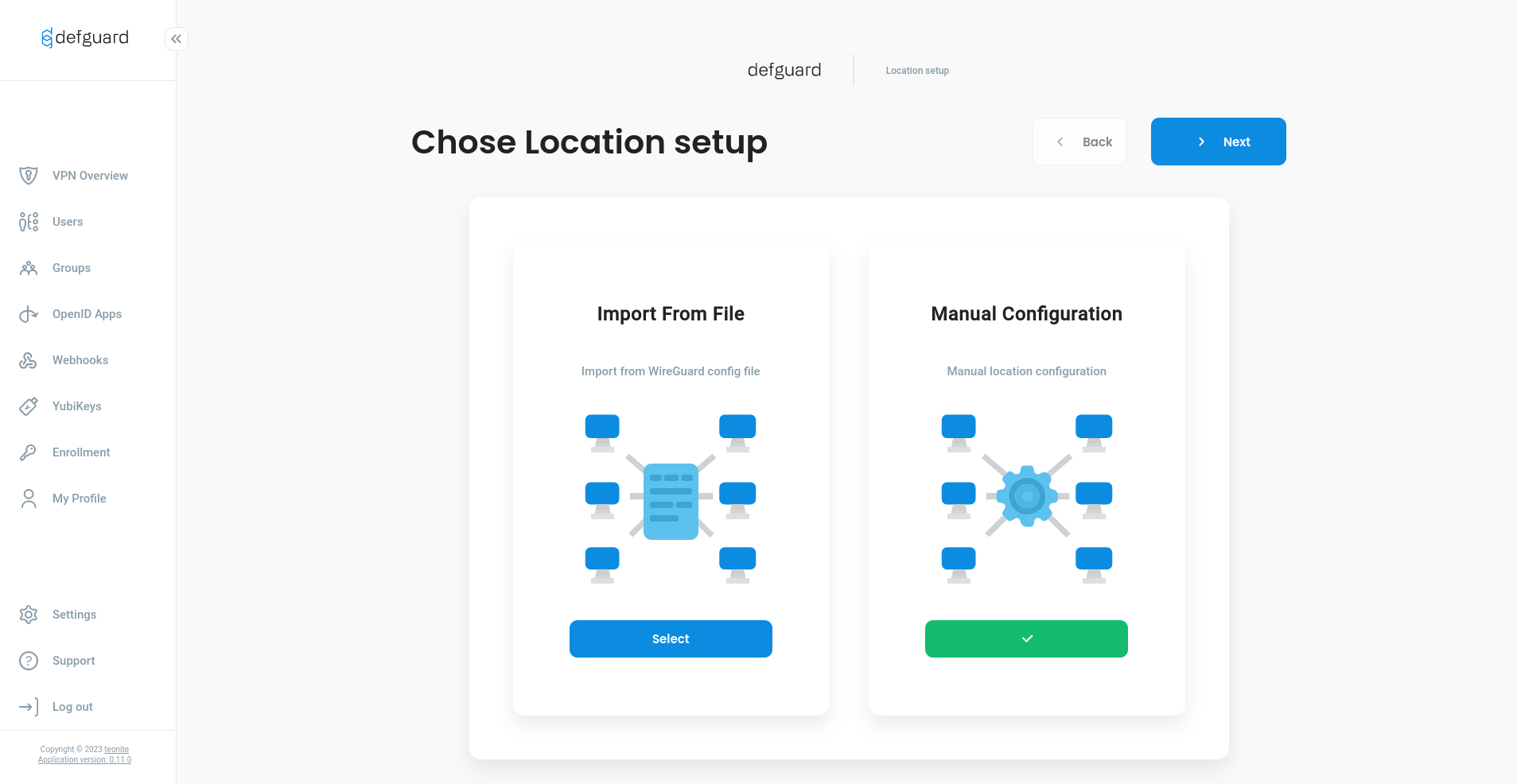
Then click the *Add new location tab*.
Adding a new location
Depending on what is more convenient for you, choose configuration from Wireguard file or do it manually.
Location wizard
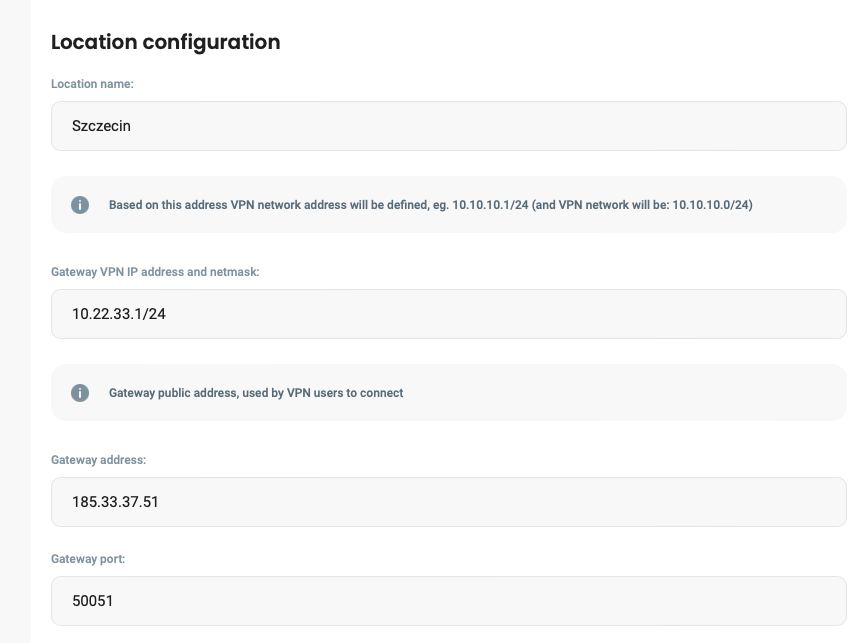
Location configuration
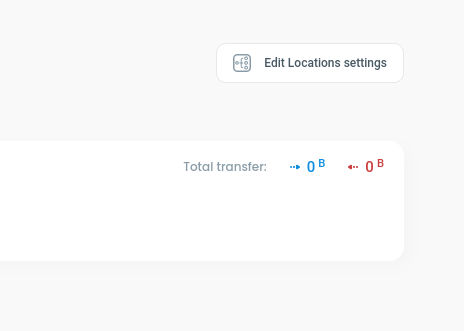
After saving configuration for location you should be redirect to Location overview page, where at the top right corner is `Edit Locations Settings` button, click on it.
Manual configuration
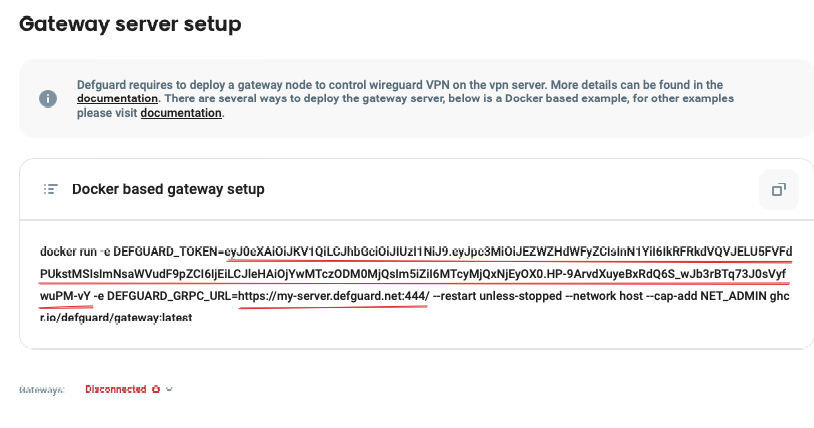
In `Gateway server setup` copy two variables: `DEFGUARD_TOKEN` and `DEFGUARD_GRPC_URL`
Gateway server setup
Also, if core has a custom SSL CA to secure gRPC communication, [you need the CA certificate (more here).](https://docs.defguard.net/2.0/grpc-ssl-communication#custom-ssl-ca-and-certificates)
## Deploy the Gateway service
Proceed with deploying your Gateway service using the selected [deployment strategy](https://docs.defguard.net/2.0/setting-up-your-instance#choose-your-deployment-strategy):
* [package based](https://docs.defguard.net/2.0/standalone-package-based-installation#gateway-1)
* [Docker Compose](https://docs.defguard.net/2.0/docker-compose#deploying-gateway-service)
* [Kubernetes](https://docs.defguard.net/2.0/kubernetes#vpn-gateway-service)
* [Terraform](https://docs.defguard.net/2.0/terraform#gateway-module)
* [AMIs and AWS CloudFormation](https://docs.defguard.net/2.0/amis-and-aws-cloudformation#gateway-instance)
You can also check our guides on running Gateway on [OPNsense firewall](https://docs.defguard.net/2.0/deployment-strategies/running-gateway-on-opnsense-firewall) or [MikroTik router](https://docs.defguard.net/2.0/deployment-strategies/running-gateway-on-mikrotik-routers).
If everything went well, Defguard Gateway should be connected to Defguard Core and you can start [adding new devices to your network](https://docs.defguard.net/2.0/features/network-devices#adding-a-new-network-device).