> For the complete documentation index, see [llms.txt](https://docs.defguard.net/llms.txt). Markdown versions of documentation pages are available by appending `.md` to page URLs; this page is available as [Markdown](https://docs.defguard.net/1.5/features/wireguard/multi-factor-authentication-mfa-2fa/internal-sso-based-mfa.md).
# Internal SSO based MFA
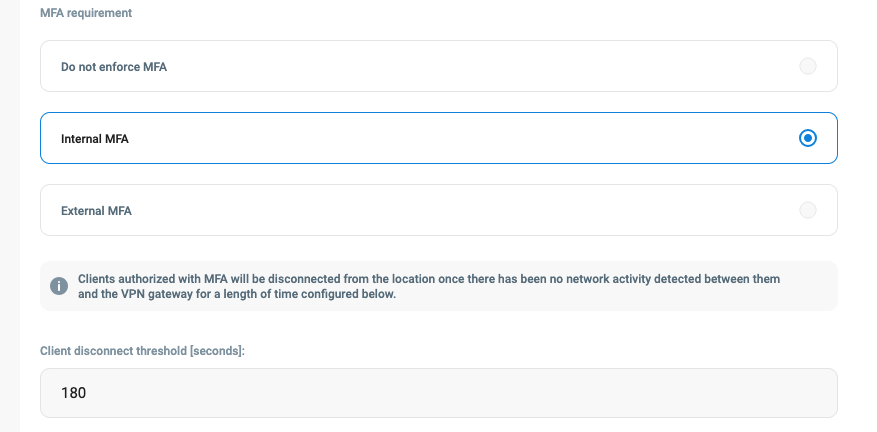
Enabling Internal MFA for a desired VPN Location is done by:
1. Going into Defguard to **VPN Overview**
2. Selecting the VPN Location from the dropdown list, and pressing the **Edit Location** button in the top right corner of the page
3. Check the "**Internal MFA**" checkbox under the **MFA requirement** section
4. Set **peer disconnect threshold**, we recommend it to be min. 300 (5 min) - see chapter [below](#peer-disconnect-threshold).
5. And **save changes**.
### Peer disconnect **threshold**
When MFA is enabled on a location, Defguard periodically (currently every **1 minute**) checks statistics if a client is connected and if the period of inactivity (defined in Peer disconnect threshold option) is met, a client is disconnected.
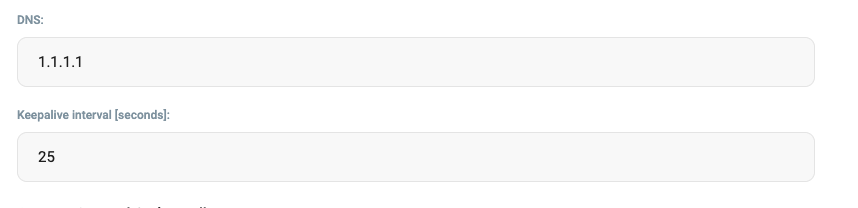
Thus, the gateway needs to be configured to send statistics in that period.
We recommend to set:
* gateway to send statistics every 30sec
* Peer disconnect threshold we recommend it to be min. 300 (5 min)
### Client update after enabling MFA
{% hint style="warning" %}
When MFA configuration is changed, all clients must do an [Instance Update](/1.5/using-defguard-for-end-users/desktop-client/instance-configuration.md#updating-instance).
{% endhint %}
### Testing MFA on Defguard client
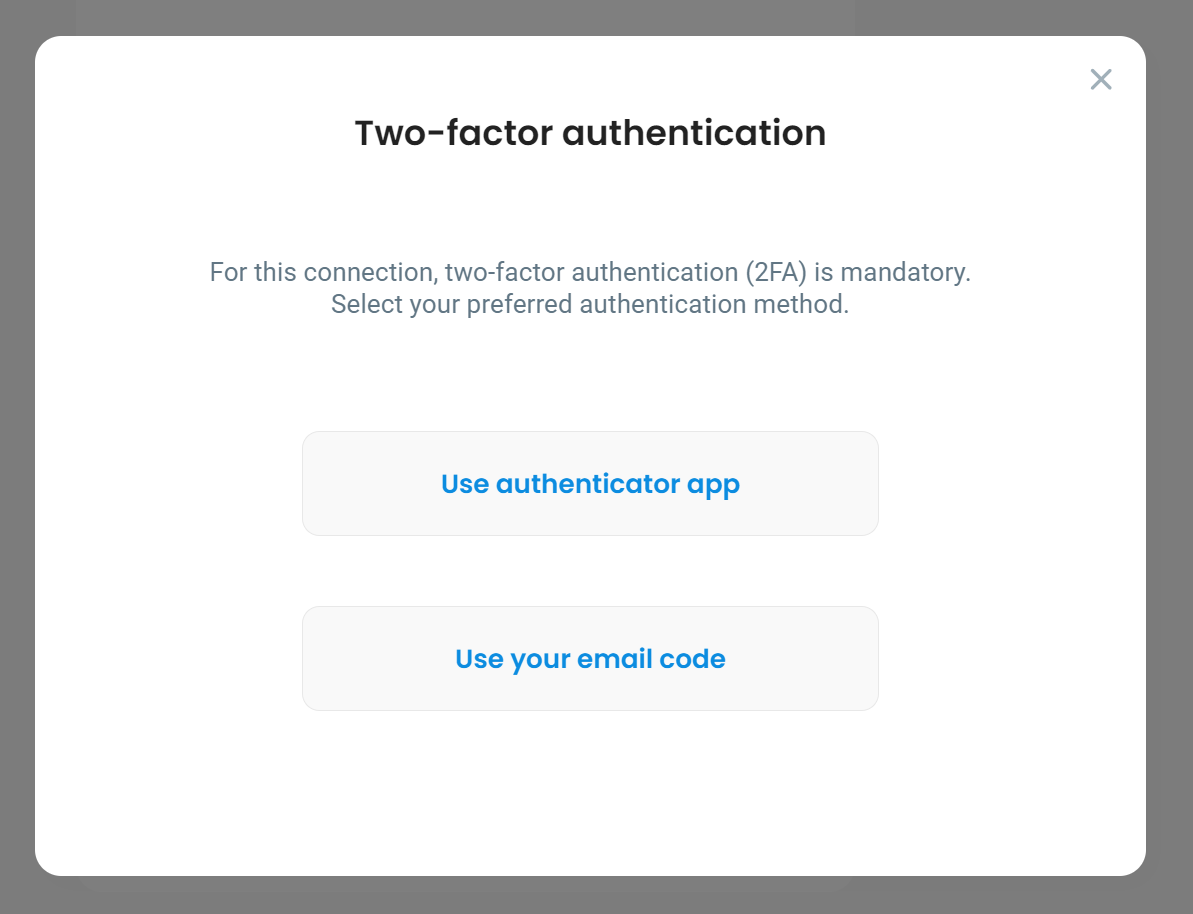
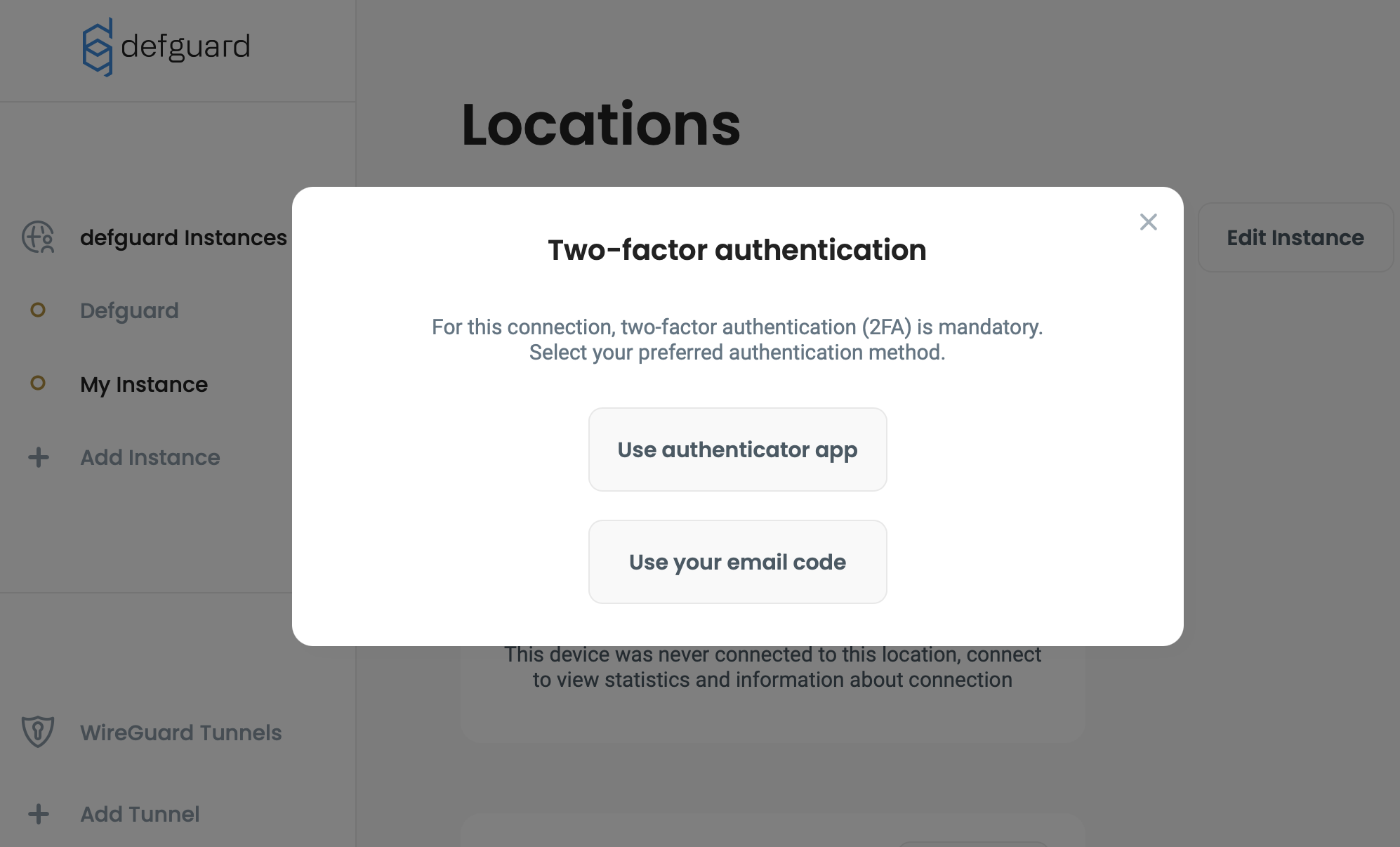
If a VPN has MFA enabled, before connecting you will be asked to complete the authentication step first:
MFA in Defguard desktop client
### Supported MFA methods
For now, MFA is only available with the following methods:
* [TOTP - Time-based one-time password](/1.5/using-defguard-for-end-users/setting-up-2fa-mfa.md#one-time-password)
* Email - requires [SMTP to be configured](/1.5/features/notifications/setting-up-smtp-for-email-notifications.md)
{% hint style="warning" %}
Please remember to configure TOTP on you user account and/or SMTP settings for MFA on the desktop client to work..
{% endhint %}
### User MFA setup
After enabling MFA for a given VPN, users will need to enable MFA for their accounts to be able to connect. This process is described in [Setting up 2FA/MFA](/1.5/using-defguard-for-end-users/setting-up-2fa-mfa.md). For simplicity & security, the desktop client uses the same MFA methods as the Defguard server.
An error message will be shown if users attempt to select an MFA method that has not been enabled for their accounts:
### Successful authentication
If authentication succeeds, the VPN two-factor authentication modal will be closed and connection to the selected VPN will be attempted. Users will be asked to authenticate on every connection to a VPN with MFA enabled.