# Vector integration guide

[Vector ](https://vector.dev/)serves as a flexible log pipeline, allowing activity events to be collected, processed, and forwarded to a wide range of SIEM systems. By using Vector, you can transform and route logs as needed, making it easier to integrate with your existing observability tools and adapt to future changes in your logging infrastructure.

\
The goal is to connect Defguard as [HTTP Source](https://vector.dev/docs/reference/configuration/sinks/http/) in Vector service. This guide uses an example Vector service running in Docker, configured via Docker Compose.

### Setup Vector

For the sake of this example we will follow simple Docker deployment of Vector via Docker Compose, but you most likely want to follow Vector's guide to [deploy ](https://vector.dev/docs/setup/deployment/)it in your infrastructure.

### Vector configuration

Save the following configuration to **vector.yaml**

```yaml
sources:
  defguard:
    type: http_server
    address: 0.0.0.0:8001
    encoding: ndjson

sinks:
  console:
    type: console
    inputs:
    - defguard
    target: stdout
    encoding:
      codec: json

```

This basic configuration adds an HTTP source named `defguard` and a console sink, which forwards all logs received from `defguard` to standard output.

Next, add vector service to your **docker-compose.yaml** file.

```yaml
  vector:
    image: timberio/vector:latest-alpine
    container_name: vector
    volumes:
      - ./vector.yaml:/etc/vector/vector.yaml:ro
    command: ["--config", "/etc/vector/vector.yaml"]
    ports:
      - "8001:8001"
```

Make sure that new `vector` service is up, and it loaded the configuration, it should print it in stdout:

```
INFO vector::app: Loading configs. paths=["/etc/vector/vector.toml"]
```

### Add Vector destination

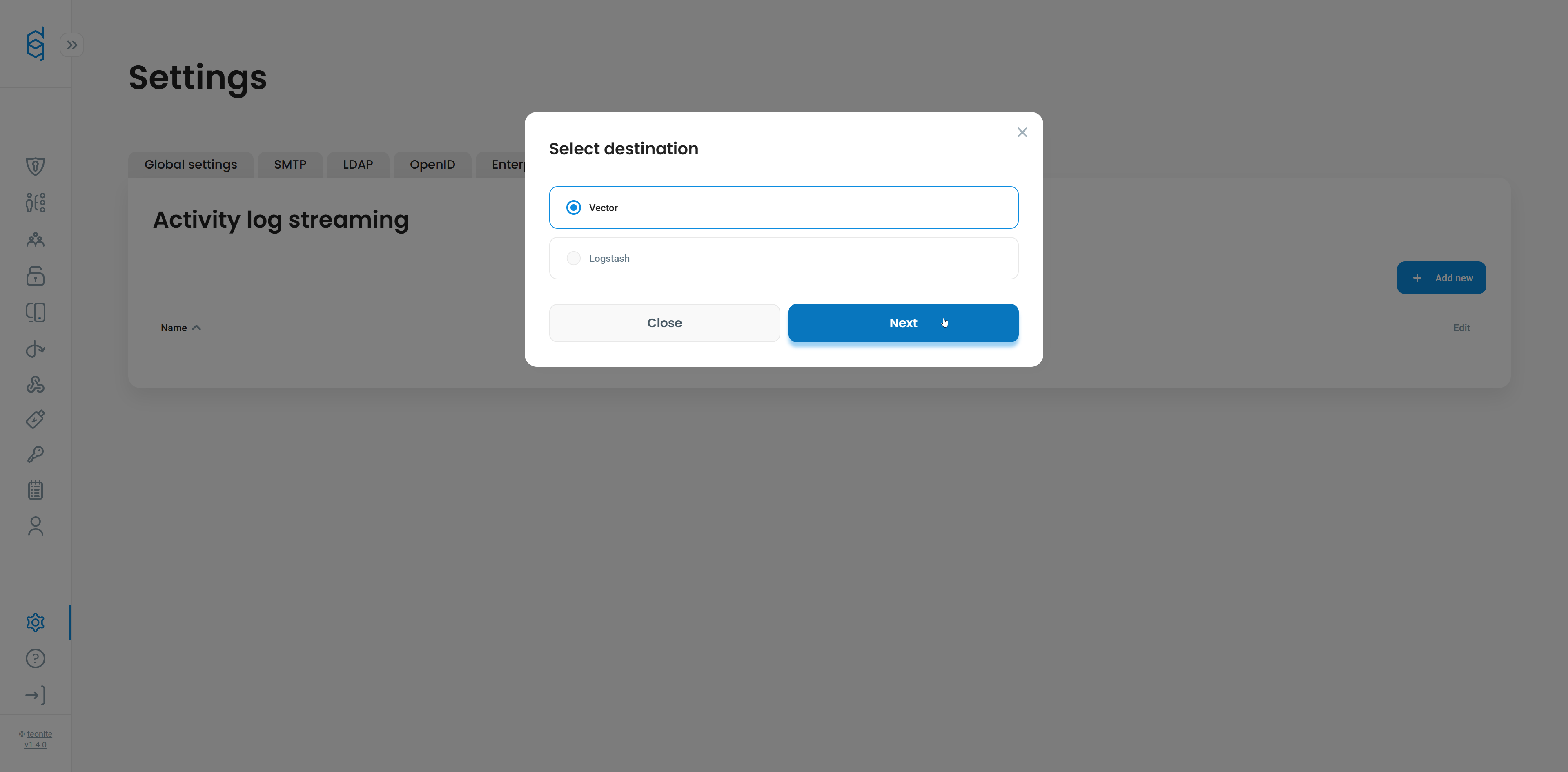
In Defguard UI with an administrator account, go into settings page and choose `Activity log streaming`.

Click `Add new` and choose `Vector` destination.

<figure><img src="https://content.gitbook.com/content/kHPDOBrb5X1TB8O3GsjW/blobs/LIQEavpQYhl8b5Lw9awE/image.png" alt=""><figcaption></figcaption></figure>

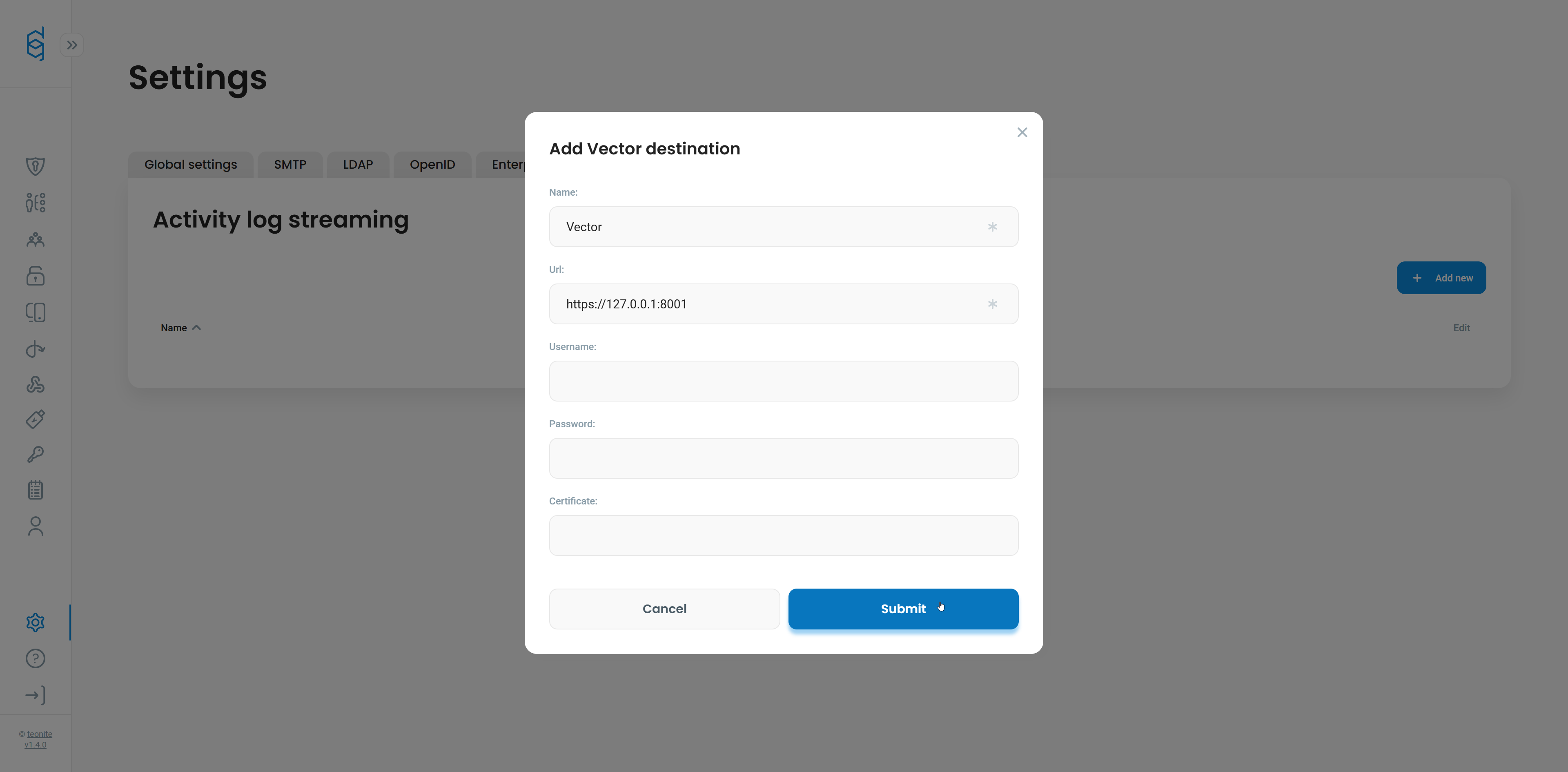
Fill out `Name` and `Url` of the form and click `Submit`.

If your `defguard` instance is running in the same Docker Compose network as Vector, use `http://vector:8001` as the URL instead of `http://127.0.0.1`, since services in the same Compose network communicate by container name.

<figure><img src="https://content.gitbook.com/content/kHPDOBrb5X1TB8O3GsjW/blobs/83za6YBbLGbajrn5YuUs/image.png" alt=""><figcaption></figcaption></figure>

That's it! Defguard should now be sending activity events to Vector, and you should see them printed to `stdout` in the running Vector container.

To verify that everything is working, try logging in or out of `defguard` and check if the events appear in the Vector stdout.

### Basic Authentication

Basic Authentication is a simple HTTP authentication method that includes a username and password in the `Authorization` header of each request.\
To enable Basic Authentication for incoming log data, update your Vector configuration as follows:

```yaml
sources:
  defguard:
    type: http_server
    address: 0.0.0.0:8001
    encoding: ndjson
    auth:
      strategy: basic
      password: strongPassword
      username: vector
```

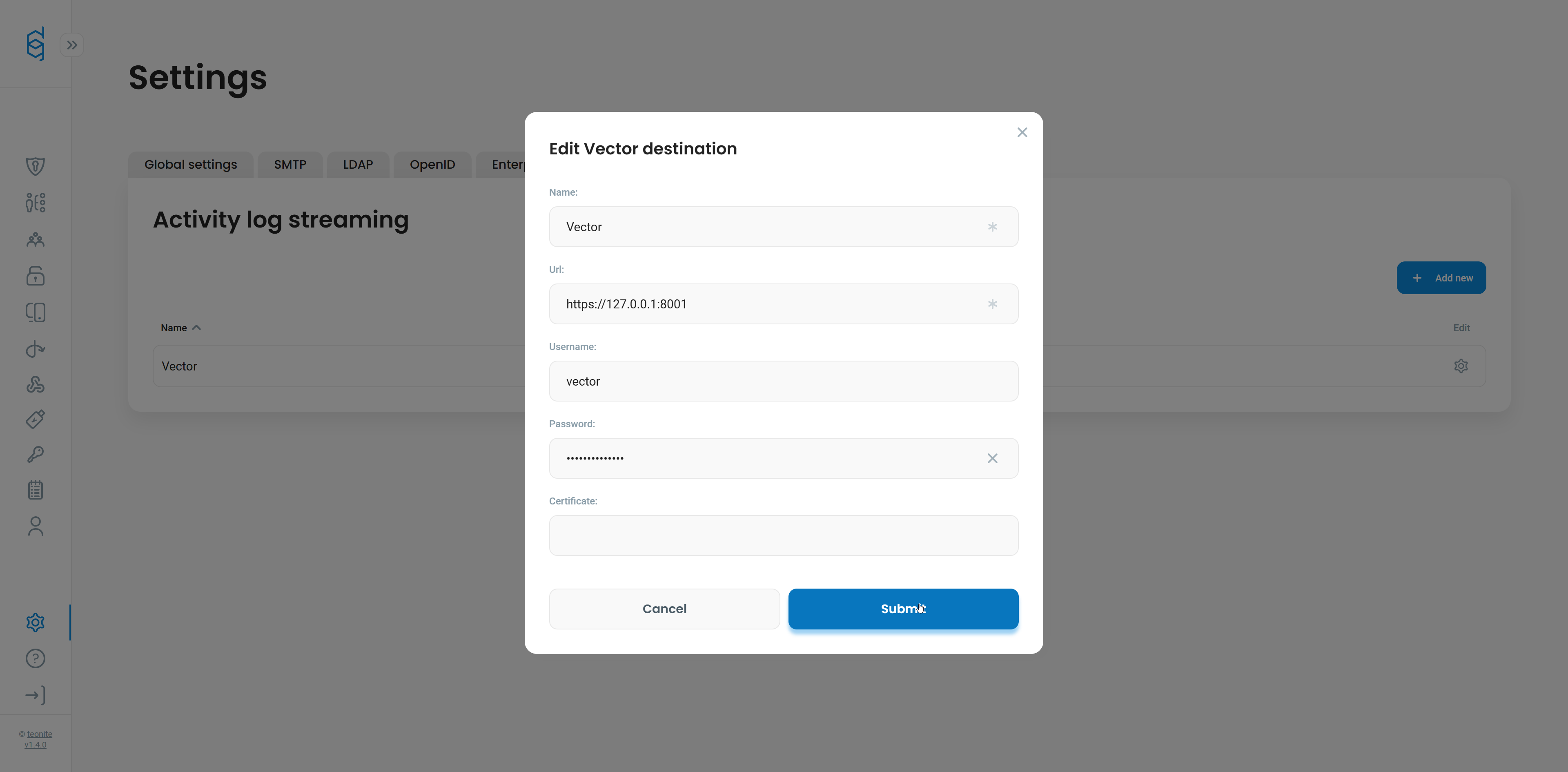
Next, add the configured `username` and `password` in Defguard settings to the Vector destination.

<figure><img src="https://content.gitbook.com/content/kHPDOBrb5X1TB8O3GsjW/blobs/EBjocn3kxBP7UHuMkOsz/image.png" alt=""><figcaption></figcaption></figure>

### TLS

To send logs to a Vector destination over HTTPS, you first need to generate a TLS certificate. The following command uses OpenSSL to create a self-signed certificate for testing purposes:

```
openssl req -x509 -newkey rsa:2048 -nodes -keyout key.pem -out cert.pem -days 365 -subj "/CN=localhost"
```

The command above generates two files: `key.pem` (private key) and `cert.pem` (certificate).\
To use them with Vector, mount both files into the container by updating your Docker Compose configuration:

```yaml
  vector:
    image: timberio/vector:latest-alpine
    container_name: vector
    volumes:
      - ./vector.yaml:/etc/vector/vector.yaml:ro
      - ./key.pem:/etc/vector/key.pem:ro
      - ./cert.pem:/etc/vector/cert.pem:ro
    command: ["--config", "/etc/vector/vector.yaml"]
    ports:
      - "8001:8001"
```

Next, update Vector config:

```yaml
sources:
  defguard:
    type: http_server
    address: 0.0.0.0:8001
    encoding: ndjson
    auth:
      strategy: basic
      password: strongPassword
      username: vector
    tls:
      enabled: true
      ca_file: /etc/vector/cert.pem
      key_file: /etc/vector/key.pem
```

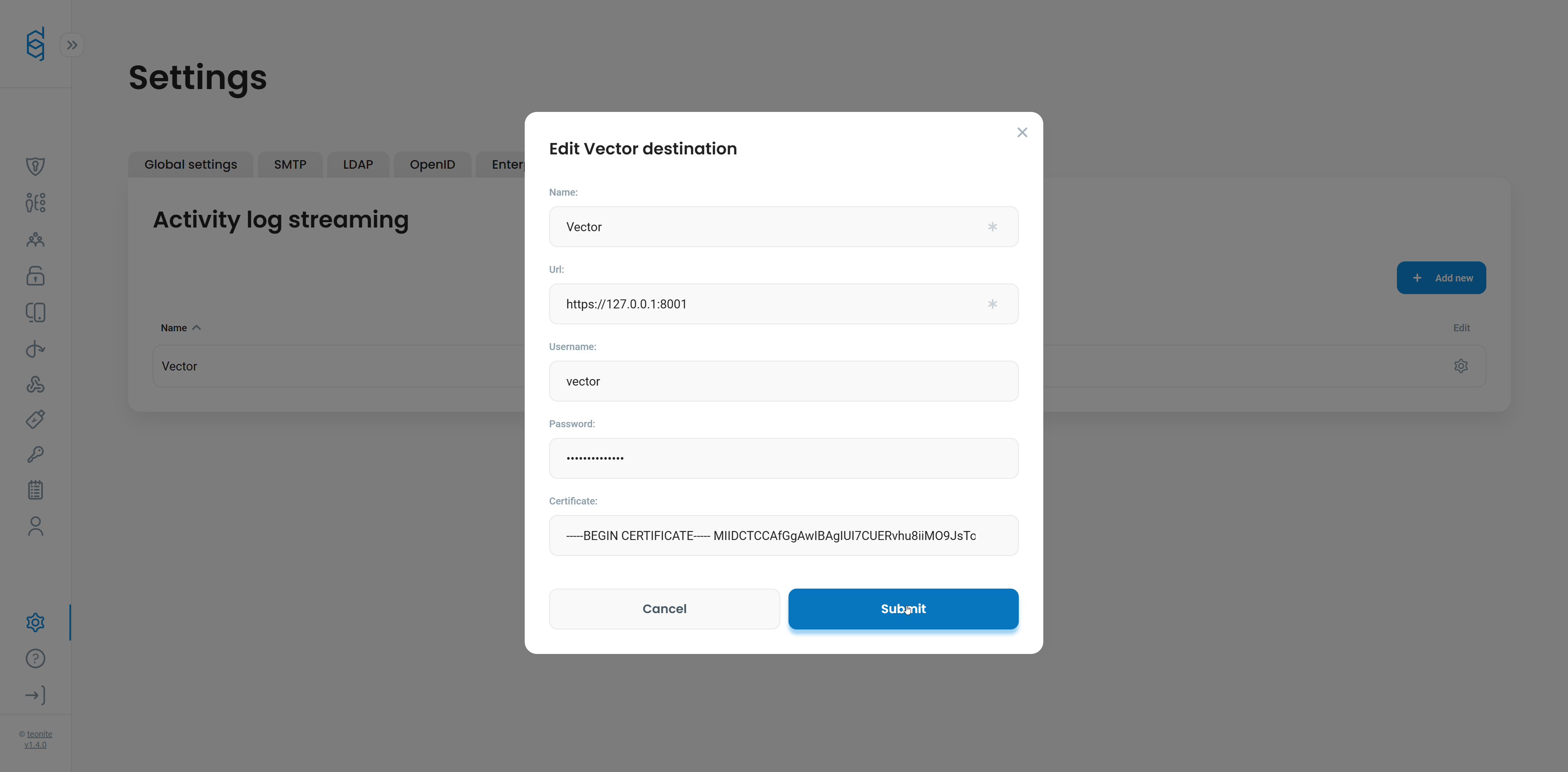
Next, copy the contents of `cert.pem` into the **Certificate** field in the Vector destination settings. Then, update the **URL** field to use the `https` scheme instead of `http`.

<figure><img src="https://content.gitbook.com/content/kHPDOBrb5X1TB8O3GsjW/blobs/n6DU6YDKxC0891NAMNVZ/image.png" alt=""><figcaption></figcaption></figure>

### Vector integration configuration

<table data-full-width="true"><thead><tr><th>Name</th><th width="203.7999267578125">Example value</th><th width="111.199951171875" data-type="checkbox">Required</th><th width="179">Vector related configuration</th><th>Description</th></tr></thead><tbody><tr><td>Name</td><td>Vector</td><td>true</td><td></td><td>Assigned name for the destination.</td></tr><tr><td>Url</td><td>http(s)://127.0.0.1:8001</td><td>true</td><td><a href="https://vector.dev/docs/reference/configuration/sources/http_server/#address">address</a></td><td>Address of running vector HTTP source.</td></tr><tr><td>Username</td><td>vector</td><td>false</td><td><a href="https://vector.dev/docs/reference/configuration/sources/http_server/#auth.username">auth.username</a></td><td>username for Basic Authentication</td></tr><tr><td>Password</td><td>strongPassword</td><td>false</td><td><a href="https://vector.dev/docs/reference/configuration/sources/http_server/#auth.password">auth.password</a></td><td>password for Basic Authentication</td></tr><tr><td>Cert</td><td>contents of cert.pem</td><td>false</td><td><a href="https://vector.dev/docs/reference/configuration/sources/http_server/#tls">tls</a></td><td>Used for TLS connection</td></tr></tbody></table>
