> For the complete documentation index, see [llms.txt](https://docs.defguard.net/llms.txt). Markdown versions of documentation pages are available by appending `.md` to page URLs; this page is available as [Markdown](https://docs.defguard.net/1.4/using-defguard-for-end-users/adding-wireguard-devices/configuring-a-device-for-a-new-vpn-location.md).
# Configuring a device for new VPN Location manually
If you (or your Defguard administrator) have added a new VPN Location and you would like to connect to that location from your **existing device** (for which you have downloaded configuration for any previous locations), you need to:
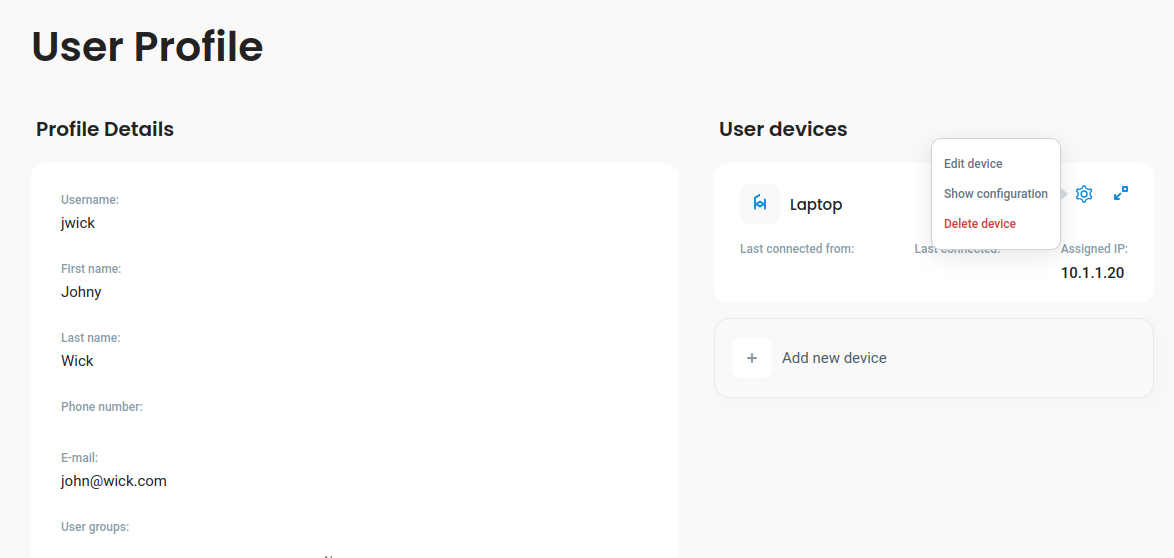
1. Go to **your profile** (*My Profile -* which you'll find on the navigation on the left side of the screen)
2. Click on the **gear icon on the device you want to download Location configuration** - a menu for that device will apear:
3. Choose **Show configuration**
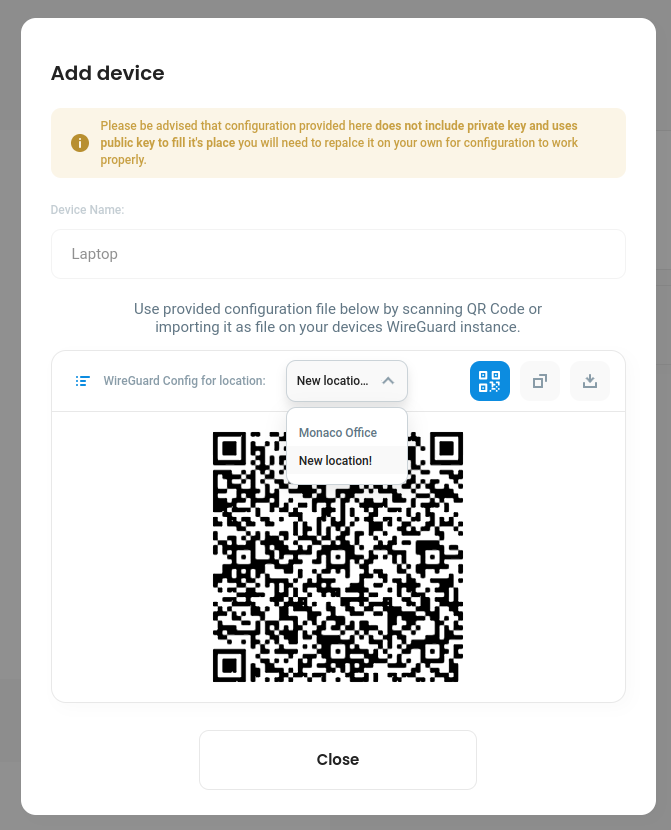
The same configuration screen will popup as you were adding this device, but now you can choose a new location:
4. **Download and configure your Wireguard VPN** exactly the same way you did it during the [adding device process](/1.4/using-defguard-for-end-users/adding-wireguard-devices.md).
The configuration will be named **LocationName-device.conf** - just add a new configuration to Wireguard client.
5. **Replacing the PrivateKey**
{% hint style="danger" %}
**Defguard doesn't store any user devices' private keys - you need to provide them**
{% endhint %}
Since Defguard doesn't have access to your private keys - **but has your public key stored for that device** - you need to replace the **PrivateKey value** in the new configuration location.
{% hint style="warning" %}
**Where to find the private key for that device?**
Yon can just **copy the whole line** from any other configurations from any other working locations for that device.
{% endhint %}