> For the complete documentation index, see [llms.txt](https://docs.defguard.net/llms.txt). Markdown versions of documentation pages are available by appending `.md` to page URLs; this page is available as [Markdown](https://docs.defguard.net/1.4/features/gateway.md).
# OPSense Configuartion
[OPNsense®](https://opnsense.org/) is an open source, feature rich firewall and routing platform, offering cutting-edge network protection.
## Defguard Gateway Configuration
This instruction helps configure Defguard Gateway in OPNsense. This is based on [WireGuard Road Warrior Setup](https://docs.opnsense.org/manual/how-tos/wireguard-client.html) from OPNsense documentation.
### Configure Defguard Gateway plugin
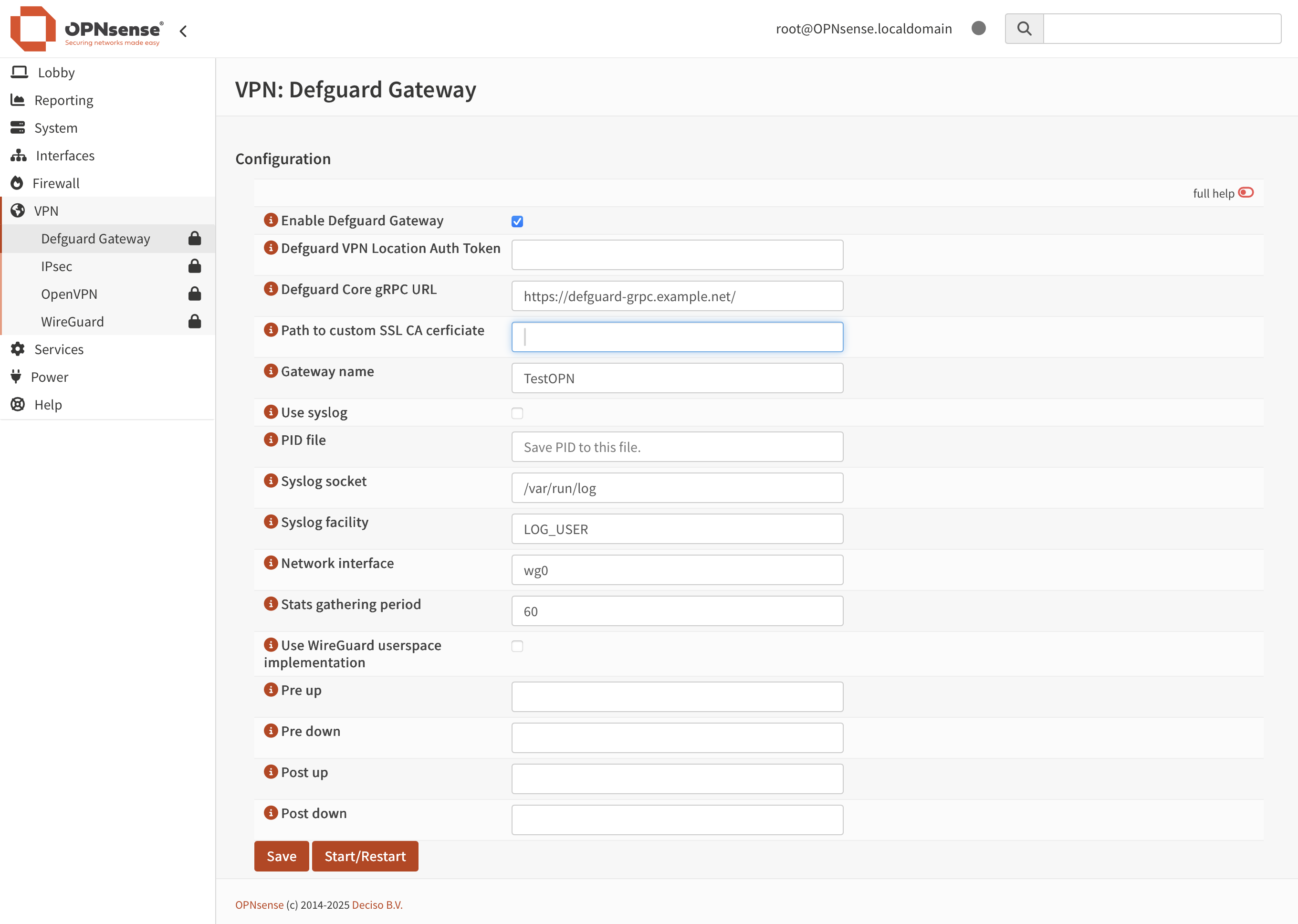
1. Go to **VPN → Defguard Gateway**
2. Fill out the appropriate values in the form. You can read more about the available configuration options here: [Configuration](/1.4/deployment-strategies/configuration.md#gateway-configuration)
3. Eventually, **Start/Restart** the service.
### Assign a network interface to Defguard
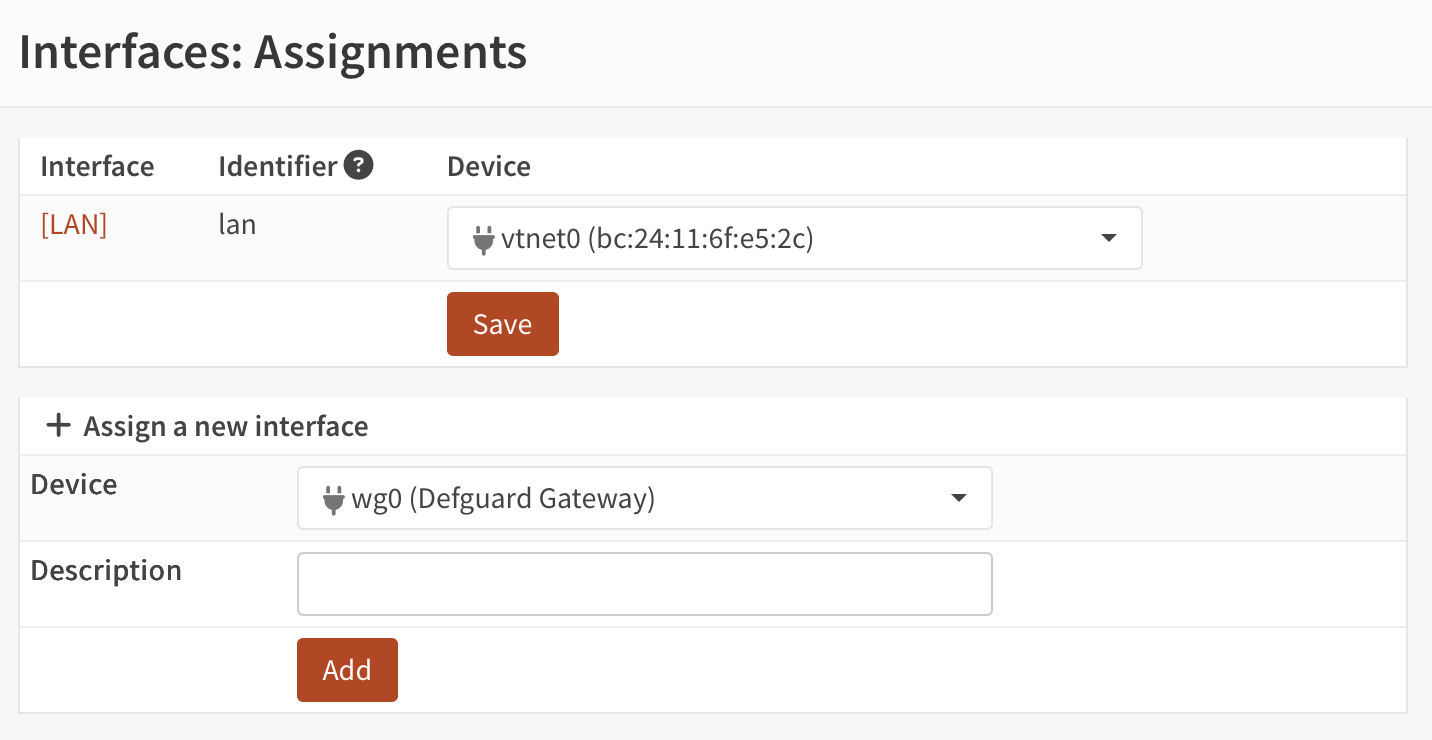
1. Go to **Interfaces → Assignments**
2. Under **Assign a new interface**, select the Defguard Gateway network interface (e.g. *wg0*)
3. Add a description, for example *ParisOfficeVPN*
4. Click **Add**
5. Select the newly create interface by clicking on its name (in this example *\[ParisOfficeVPN]*).
6. Select **Enable Interface**
7. Select **Prevent interface removal**
8. Click **Save**, and then **Apply changes**
### Create an outbound NAT rule
1. Go to **Firewall → NAT → Outbound**
2. Make sure the selected **Mode** is **Hybrid outbound NAT rule generation**; if it wasn't selected, click **Save** and then **Apply changes**
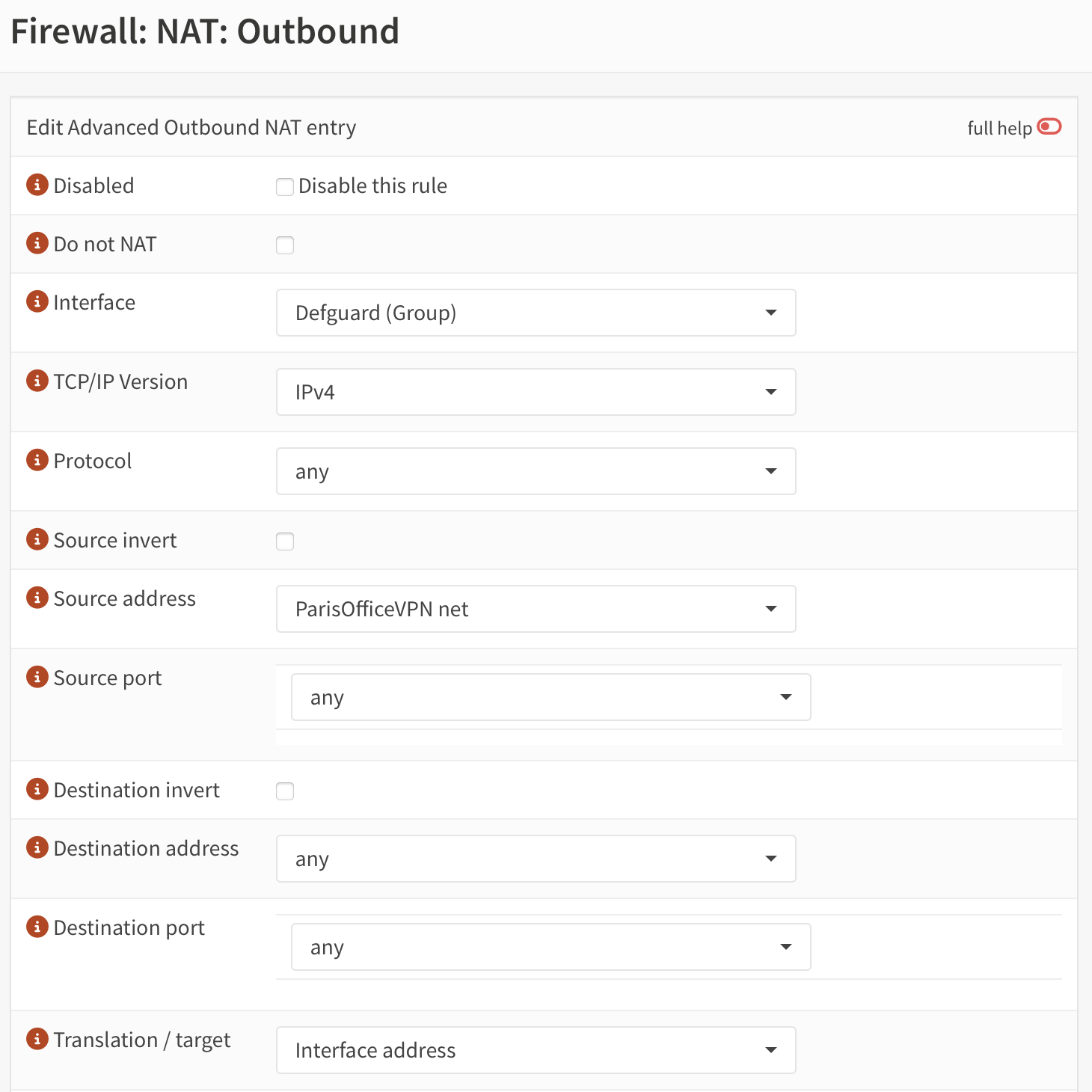
3. Under **Manual rules**, add a new rule by clicking **+**.
4. Select **Interface** – this should be either WAN or LAN, depending on the needs.
5. Select **TCP/IP version** – either IPv4 or IPv6.
6. Select **Source address** – this should be interface name assigned above plus *net*, e.g. *ParisOfficeVPN net*.
7. Click **Save**, and then **Apply changes**
### Add firewall rules to allow WireGuard traffic in
1. Go to **Firewall → Rules → WAN**
2. Click **+** (plus) to add a new rule
3. The rule should *Pass* the traffic *in* with *quick* option enabled
4. Select **WAN** interface
5. Choose **TCP/IP version** of your desire
6. Select **UDP** protocol.
7. Set **Destination** to **WAN address** and port to the port number provided in Defguard Core: *Location configuration → Gateway port*
8. Click **Save**, and then **Apply changes**