> For the complete documentation index, see [llms.txt](https://docs.defguard.net/llms.txt). Markdown versions of documentation pages are available by appending `.md` to page URLs; this page is available as [Markdown](https://docs.defguard.net/1.4/features/external-openid-providers/microsoft.md).
# Microsoft
1. Go to [https://portal.azure.com/](https://portal.azure.com)
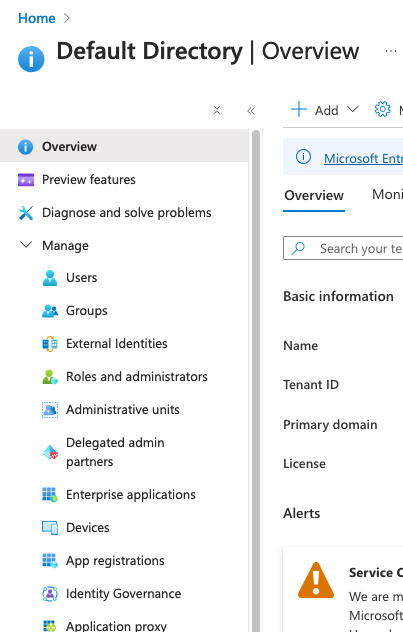
2. Navigate to Microsoft Entra ID
3. In the Microsoft Entra ID, click Manage and select App registrations from the menu on the left.
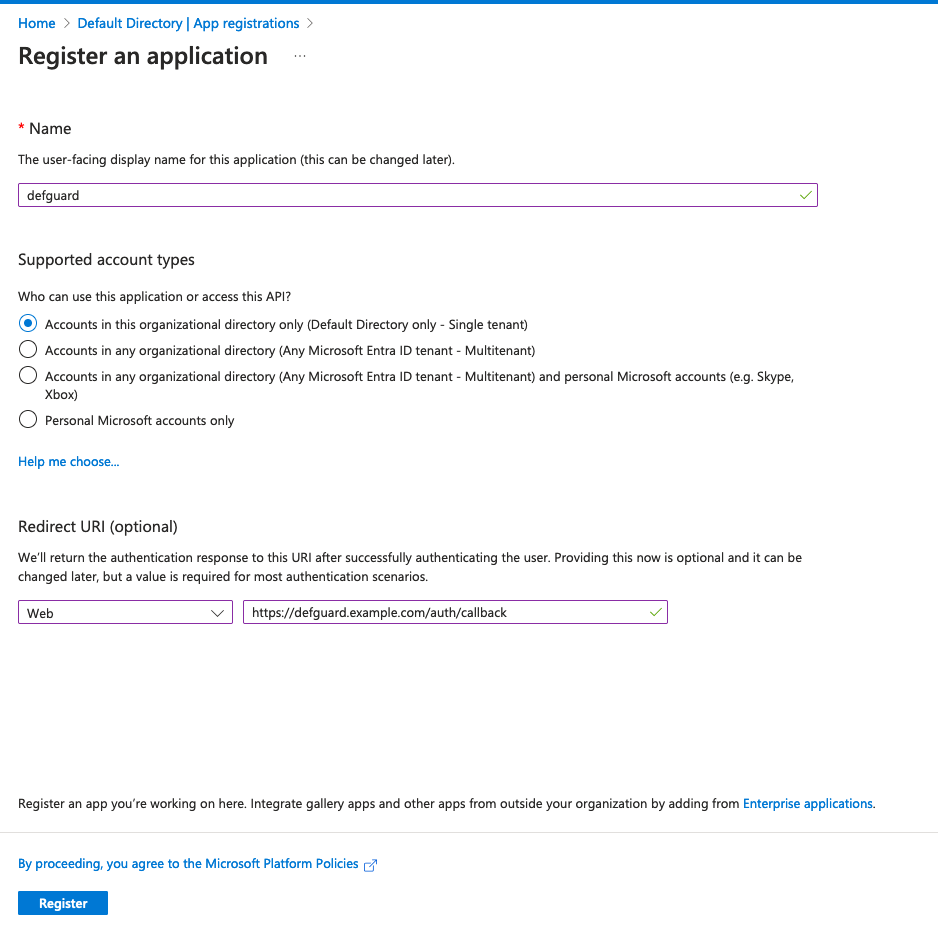
4. Click "Make new registration"
5. Fill out the form, like in the example:
Make sure the Redirect URL you insert here is correct. Replace `defguard.example.com` with the domain you use for your Defguard dashboard. If you'd like to use OpenID enrollment through proxy, make sure to enter an additional URI here in the form of `/openid/callback`.
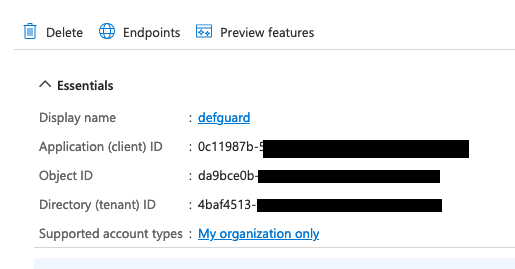
6. You should be now on the registered application's management screen. You can copy the client's ID and the tenant ID from here, as you need to provide them on the Defguard settings' page.
7. Go to Defguard settings, click the OpenID tab and paste the copied client ID. The tenant ID should be inserted instead of the `` placeholder in the base URL field.
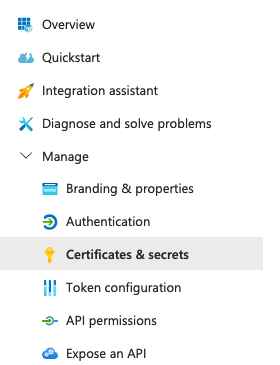
8. Now back in Microsoft Entra ID, still in your newly created application, go to **Certificates & Secrets**
9. Click Client secrets and create a new client secret. Copy its **value** and paste it in your Defguard OpenID settings.
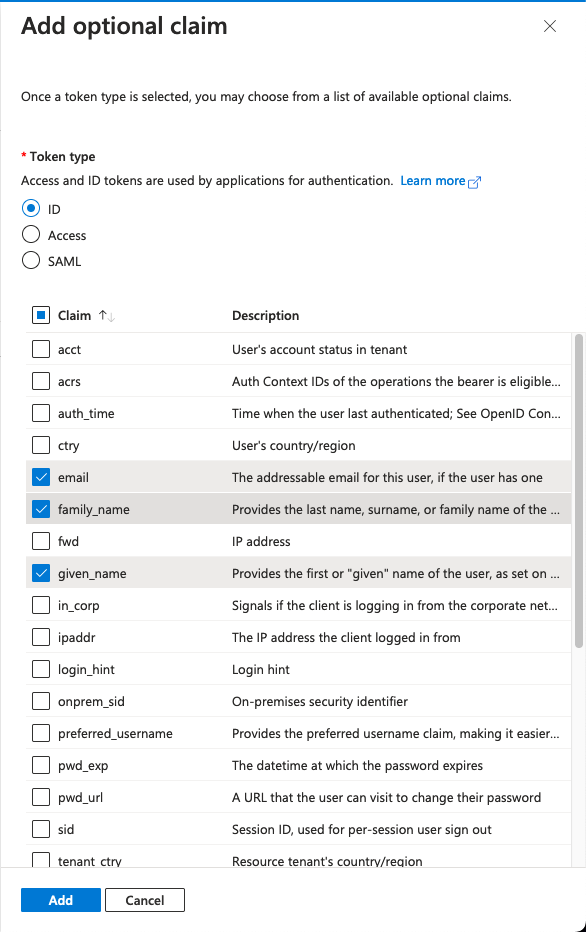
10. Go to Token configuration (in the menu on the left) and add a new optional token claim.
11. Make sure to select the ID token type and the following claims:
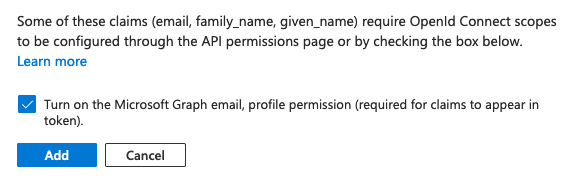
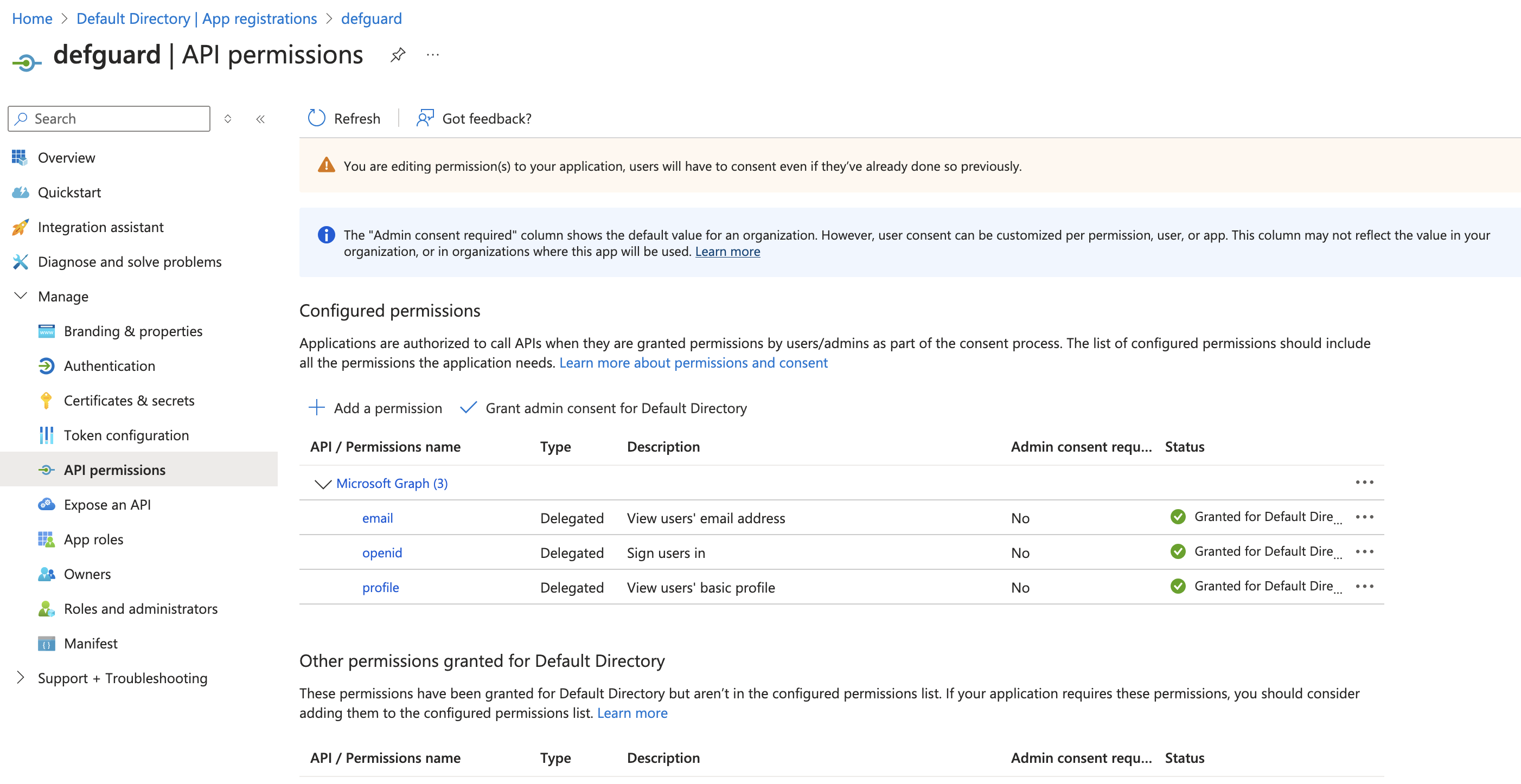
12. Accept the popup or configure the API permissions manually.
13. Now you should be good to go. A new login button should appear on the login screen.
### Directory synchronization
{% hint style="info" %}
This feature is available only in Defguard 1.2.1 and above
{% endhint %}
{% hint style="warning" %}
This feature is currently technically limited to 10000 members or groups. High user or group counts may still trigger your provider API limits even below this threshold. If you have many users (200+), we recommend you test this feature first before you decide to turn on automatic user deletion.
{% endhint %}
Defguard supports synchronizing groups' and users' states based on your Microsoft directory.
Make sure to check the [general guide to directory synchronization](/1.4/features/external-openid-providers.md#directory-synchronization) to learn more about the available configuration options.
#### Setup
1. Go back to your app registrations in Microsoft Entra ID and select the app you registered during the provider setup.
2. Navigate to API permissions
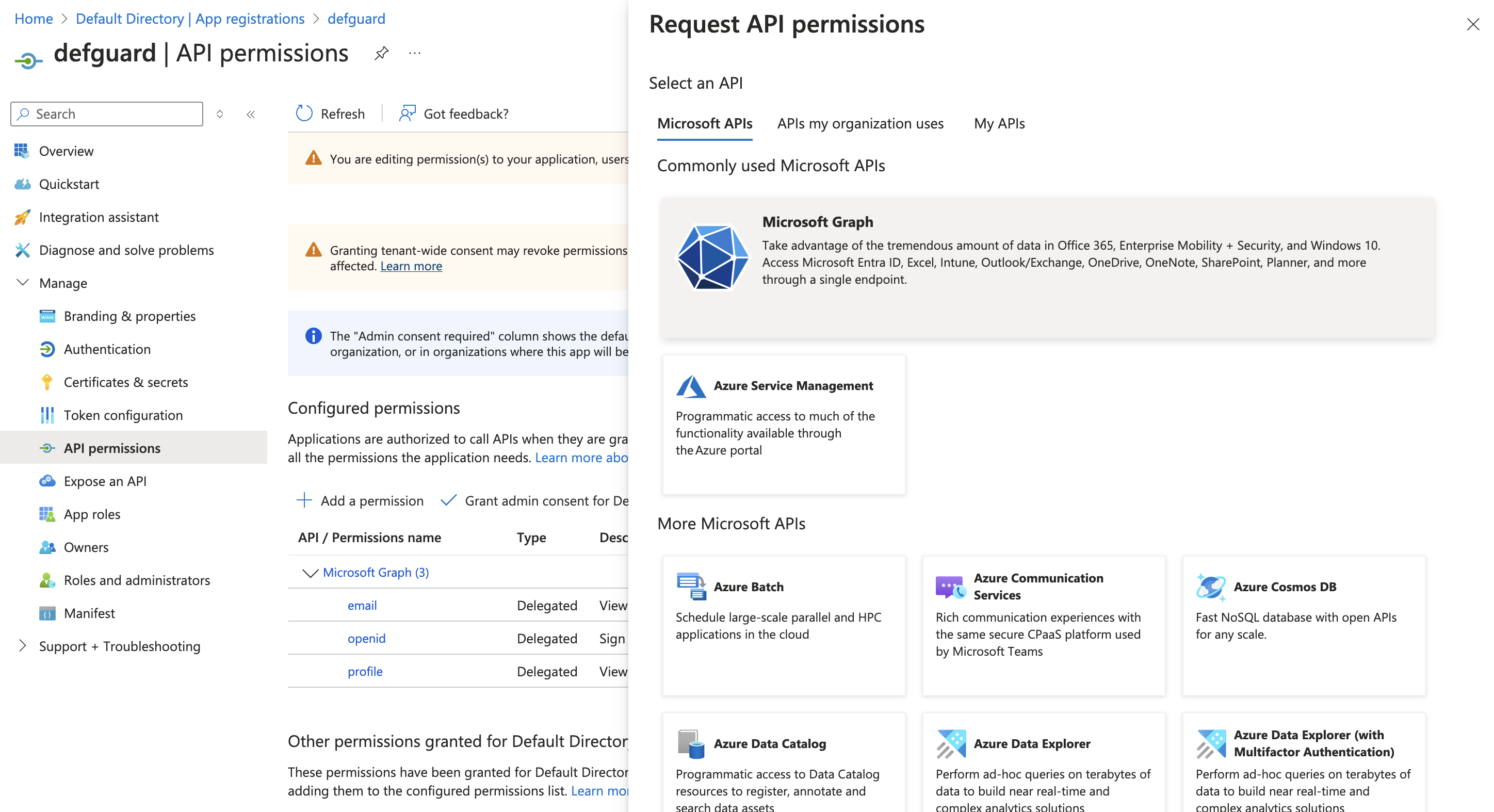
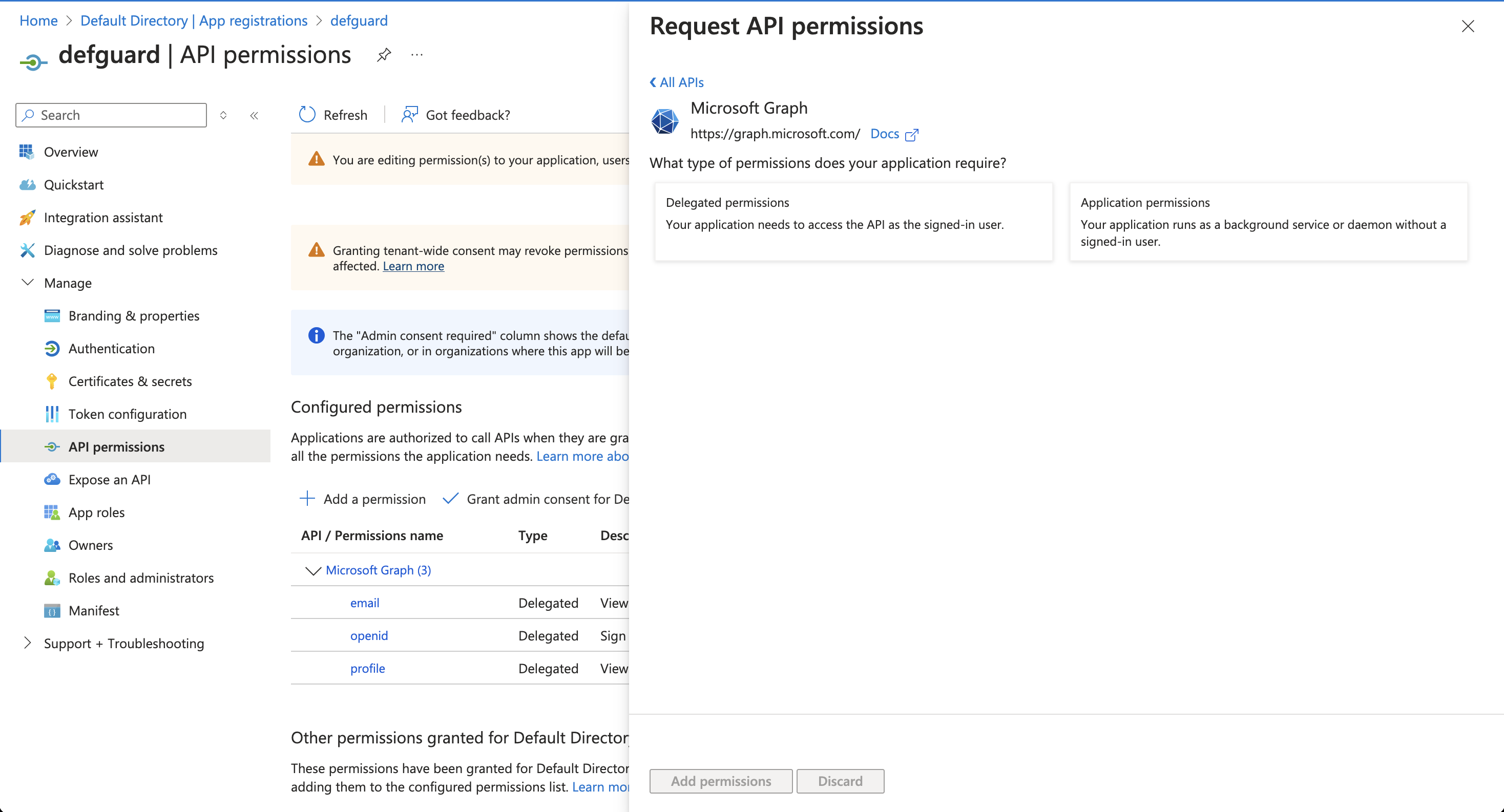
3. Click "Add a permission", then select "Microsoft Graph"
4. Select "Application permissions", as Defguard will perform the synchronization in the background.
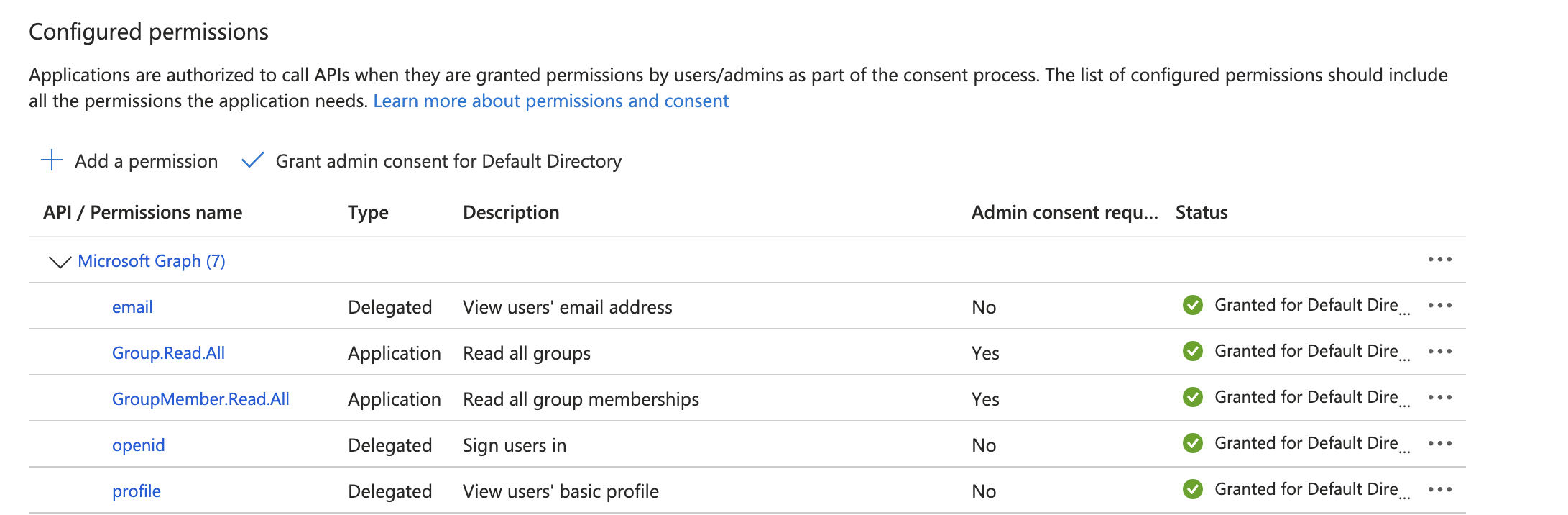
5. Assign the following permissions:
* `GroupMember.Read.All`
* `Group.Read.All`
* `User.Read.All`
6. Now grant admin consent for the permissions using the "Grant admin consent for" button
7. You should be good to go now. Navigate to the directory sync settings in Defguard and try to test your setup using the test connection button.