> For the complete documentation index, see [llms.txt](https://docs.defguard.net/llms.txt). Markdown versions of documentation pages are available by appending `.md` to page URLs; this page is available as [Markdown](https://docs.defguard.net/1.4/deployment-strategies/gateway.md).
# Gateway
{% hint style="info" %}
If you are looking for [gateway High Availability, go to this document.](/1.4/deployment-strategies/high-availability-and-failover.md#gateway-high-availability)
{% endhint %}
## Pre-requirements
{% hint style="warning" %}
Please remember that **one gateway corresponds to one VPN location.**
You can also deploy multiple gateways for one location for High Availability.
{% endhint %}
To deploy the gateway you need to have Defguard core running and know it's [gRPC url](/1.4/deployment-strategies/configuration.md#core-configuration) (meaning what is the **host/ip** where the core is running and the **gRPC port** defined in core by DEFGUARD\_GRPC\_PORT configuration variable**)** and a **token.**
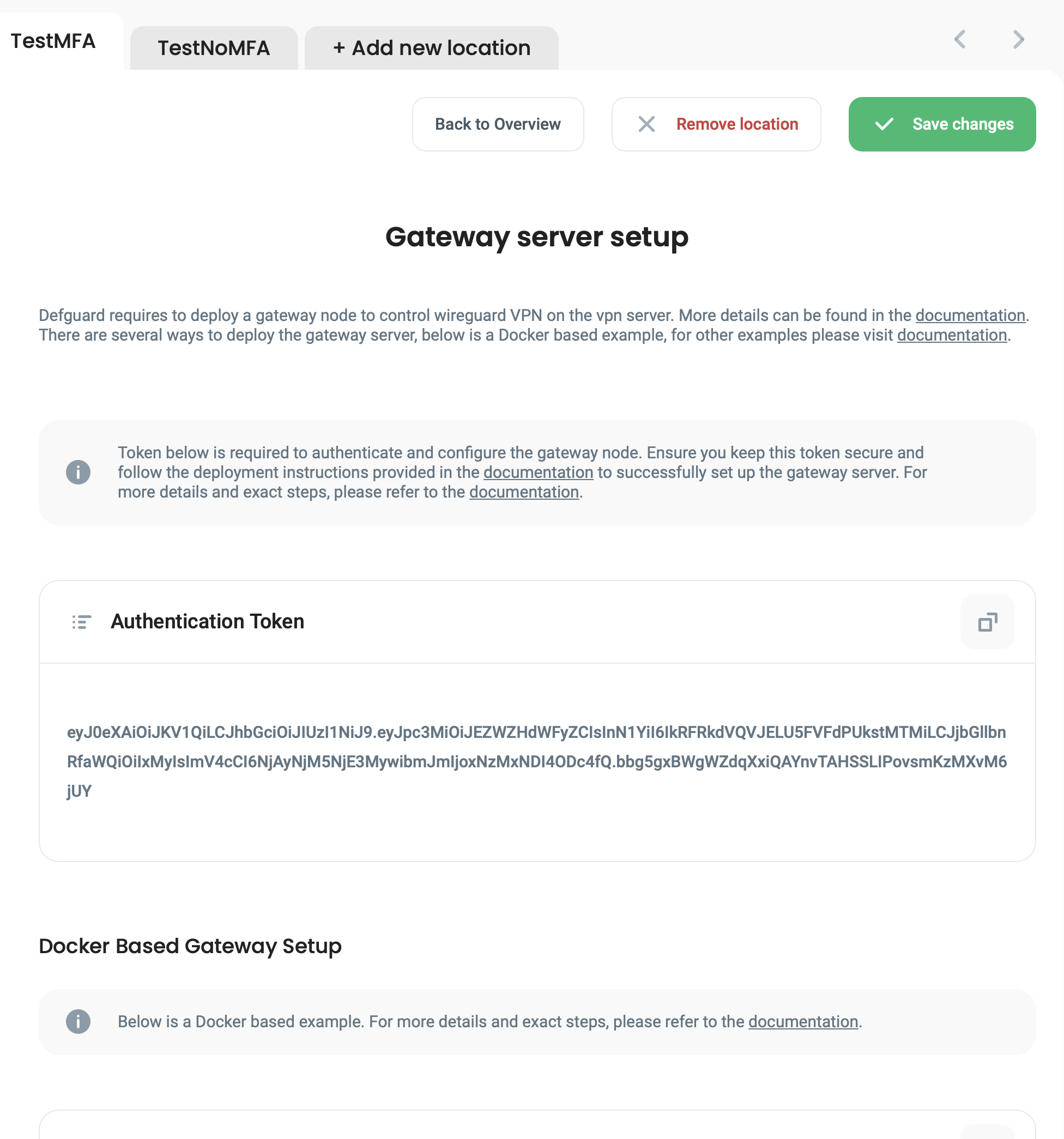
**Token** can be obtained when you go to *VPN Locations -> Edit location settings (in top right corner) -> Select the desired location* -> the right panel describes how to deploy the gateway for the location as well as lists the gateway authentication token:
Also, if core has a custom SSL CA to secure gRPC communication, [you need the CA certificate (more here).](/1.4/deployment-strategies/grpc-ssl-communication.md#custom-ssl-ca-and-certificates)
## Package Install
1. On the [release page](https://github.com/DefGuard/gateway/releases) find and download a correct software package for your system (currently DEB, RPM and TXZ are available).
2. Install the package using relevant system tools:
**Ubuntu/Debian:**
```bash
sudo dpkg -i
```
**Fedora/Red Hat Linux/SUSE:**
```bash
sudo rpm -i
```
**FreeBSD:**
```bash
pkg add
```
3. Fill in the default configuration file (`/etc/defguard/gateway.toml`) with values corresponding to your Defguard installation (token and gRPC endpoint URL).
4. On systems with [systemd](https://systemd.io/), enable and start the **systemd** service:
```bash
sudo systemctl enable defguard-gateway.service
sudo systemctl start defguard-gateway.service
```
On systems with rc.d (like FreeBSD, NetBSD), start the service. For example, on OPNsense:
```bash
sudo /usr/local/etc/rc.d/defguard_gateway start
```
## Package Upgrade
### FreeBSD/OPNsense
1. Uninstall the current version.
```bash
pkg delete defguard-gateway
```
2. Install a newer version (as described above in [Package Install](#package-install)).
```bash
pkg add
```
3. Restart Defguard Gateway service.
```bash
sudo /usr/local/etc/rc.d/defguard_gateway restart
```
## Docker Compose
To start Defguard Gateway using [Docker Compose](https://docs.docker.com/compose/):
1. We prepared a [git repository](https://github.com/DefGuard/deployment) with Docker Compose configuration, clone it:
```
git clone --recursive https://github.com/DefGuard/deployment.git && cd deployment/gateway
```
2. Copy and fill in the .env file:
```bash
cp .env.template .env
```
3. Finally, run the service with Docker Compose:
```bash
docker compose up
```
If everything went well, Defguard Gateway should be connected to Defguard Core and you can start [adding new devices to your network](/1.4/features/network-devices.md#adding-a-new-network-device).
## OPNsense plugin
[OPNsense®](https://opnsense.org/) is an open source, feature rich firewall and routing platform, offering cutting-edge network protection.
To start Defguard Gateway as OPNsense plugin:
1. On the [release page](https://github.com/DefGuard/gateway/releases) find and download OPNsense package which will be named:\
`defguard-gateway_VERSION_x86_64-unknown-opnsense.pkg` – this package **includes both Defguard Gateway and OPNsense plugin.**
2. Install the package:
```bash
pkg add defguard-gateway_VERSION_x86_64-unknown-opnsense.pkg
```
3. Refresh your OPNsense UI by running command below:
```bash
opnsense-patch
```
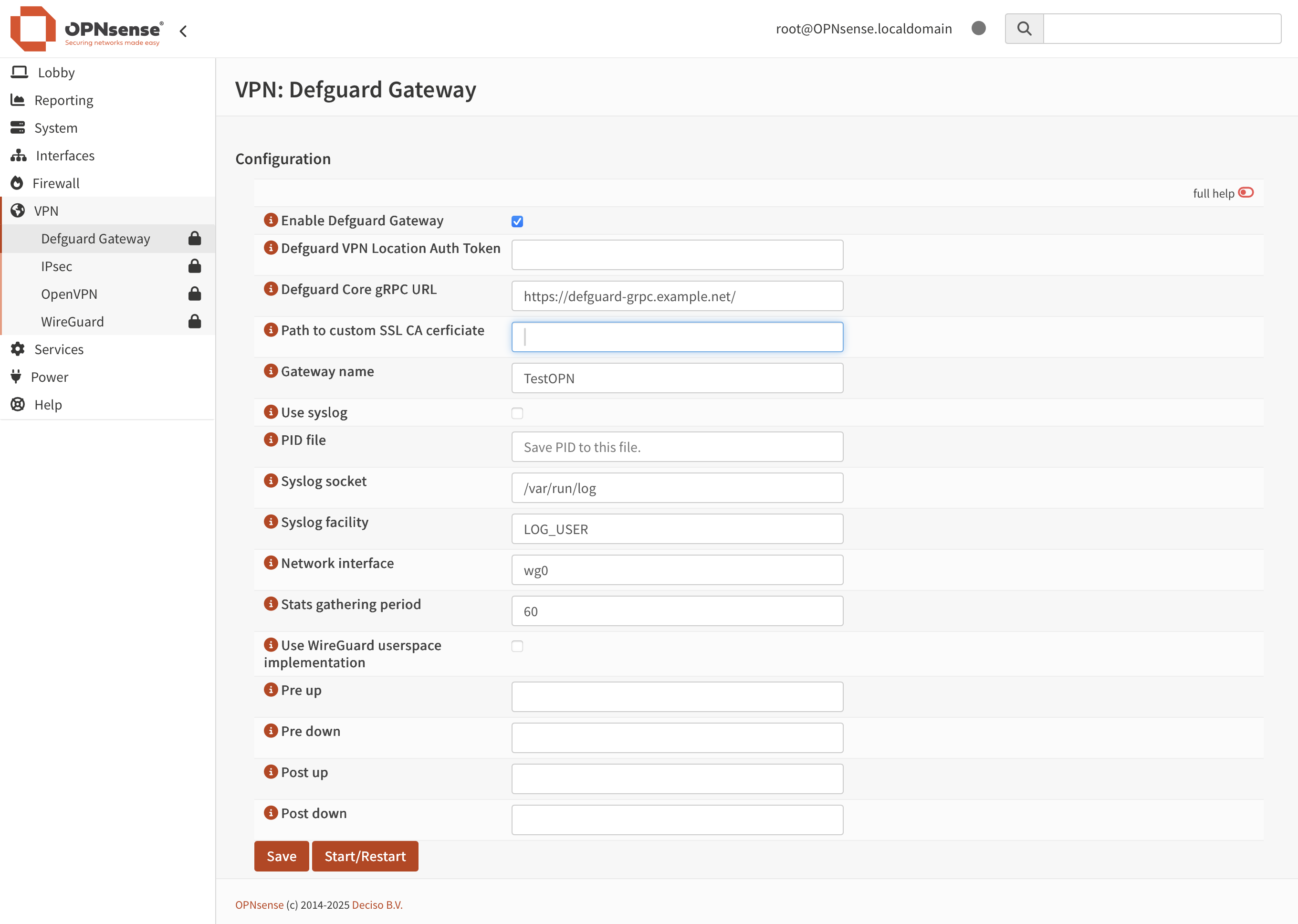
4. Go to your OPNsense UI and navigate to **VPN** > **Defguard Gateway**.
5. Fill out the form with appropriate values, click **Save**, and then click **Start/Restart.**
{% hint style="info" %}
You can find detailed description of all fields [here](/1.4/deployment-strategies/configuration.md#gateway-configuration).
{% endhint %}
If everything went well, Defguard Gateway should be connected to Defguard Core and you can start [adding new devices to your network](/1.4/features/wireguard/remote-desktop-activation.md).
See also: [how to configure Defguard in OPNsense](/1.4/features/gateway.md)
## Binary Install
1. Checkout Gateway releases [here](https://github.com/DefGuard/gateway/releases) and download compatible binary from GitHub page.
2. Decompress and move to bin directory
```sh
tar xcf ./gateway.tar.gz
sudo chmod +x gateway
sudo mv gateway /usr/bin/
```
3. Start gateway `gateway -g -t `
## Using a userspace implementation
Gateway currently supports using `wireguard-go`, a userspace WireGuard implementation. This approach is not recommended on platforms where a native support exists (e.g. Linux).
You can enable the userspace implementation by setting the `userspace` config option or a corresponding `DEFGUARD_USERSPACE` environment variable to `true`.
Because `wireguard-go` is not bundled by default with Defguard, it must be installed separately. The `wireguard-go` binary/command must be available on the host machine for it to function properly. On Docker, this currently requires building a custom image, as the base gateway images also don't come with `wireguard-go` pre-installed. This can be achieved as follows:
```docker
FROM golang:1.24.6-alpine AS builder
RUN apk add --no-cache git make
RUN git clone https://git.zx2c4.com/wireguard-go /src/wireguard-go \
&& cd /src/wireguard-go \
&& make
# Specify the desired Gateway's version here
FROM ghcr.io/defguard/gateway:latest
COPY --from=builder /src/wireguard-go/wireguard-go /usr/local/bin/wireguard-go
RUN chmod +x /usr/local/bin/wireguard-go
```
Note that when running the Docker container with a userspace implementation on a Linux host, the container requires a `NET_ADMIN` capability and access to `/dev/net/tun`, this can be set in a Docker compose:
```yaml
# Docker compose
cap_add:
- NET_ADMIN
devices:
- /dev/net/tun
```
Or via the command line:
```bash
docker run --cap-add=NET_ADMIN --device=/dev/net/tun [...]
```